Connect the hosted MCP server in Codex, or install the portable Agent Plugin when you want named product-context workflows in Codex CLI.
Use https://zentrik.ai/mcp, choose Streamable HTTP, and authenticate in the browser.
Steps
1. Open MCP Servers
Open Settings → MCP Servers.
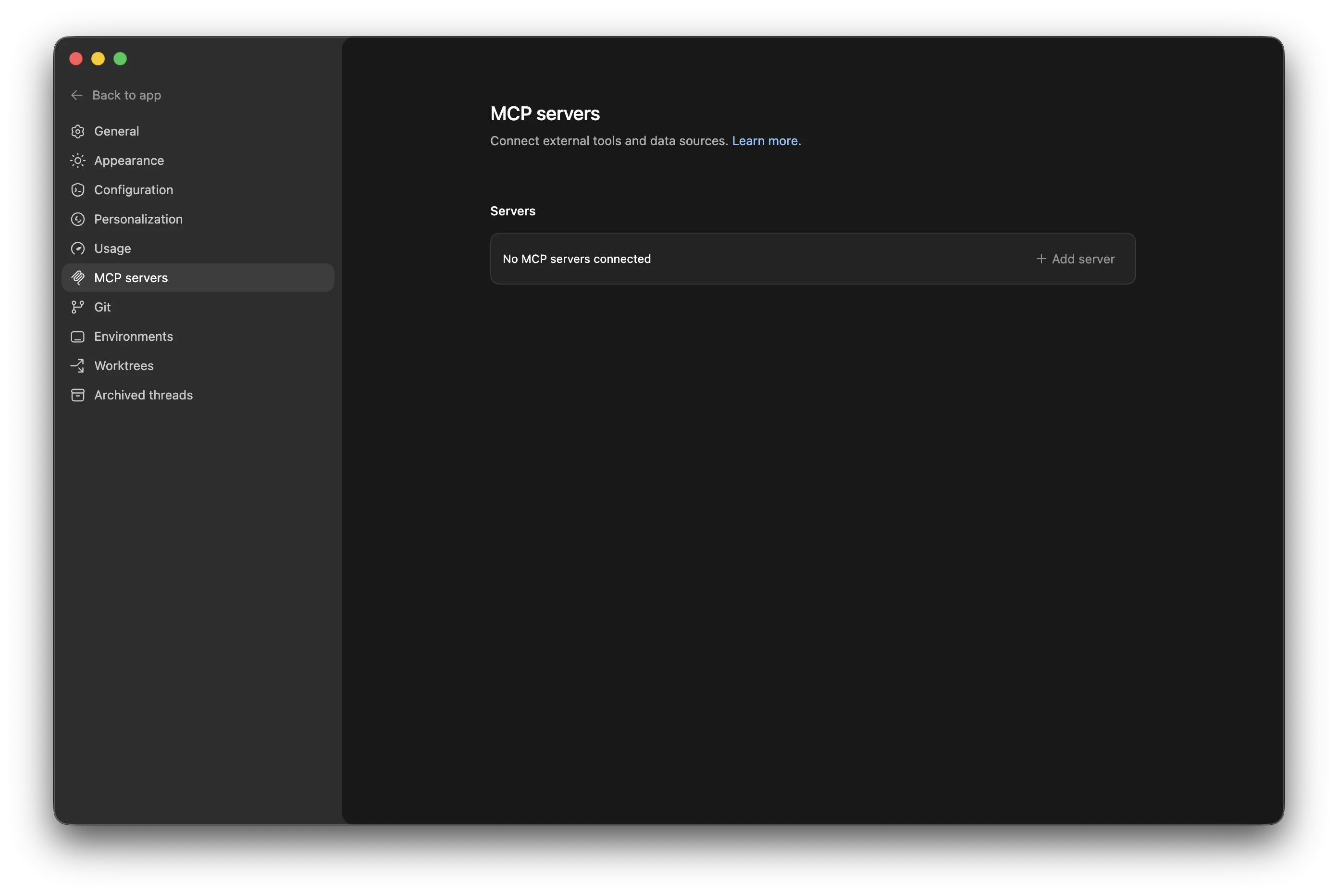
Codex MCP Servers before setup.
2. Add the server
Choose Add server, enter https://zentrik.ai/mcp, choose Streamable HTTP, leave token and header fields empty, then save.
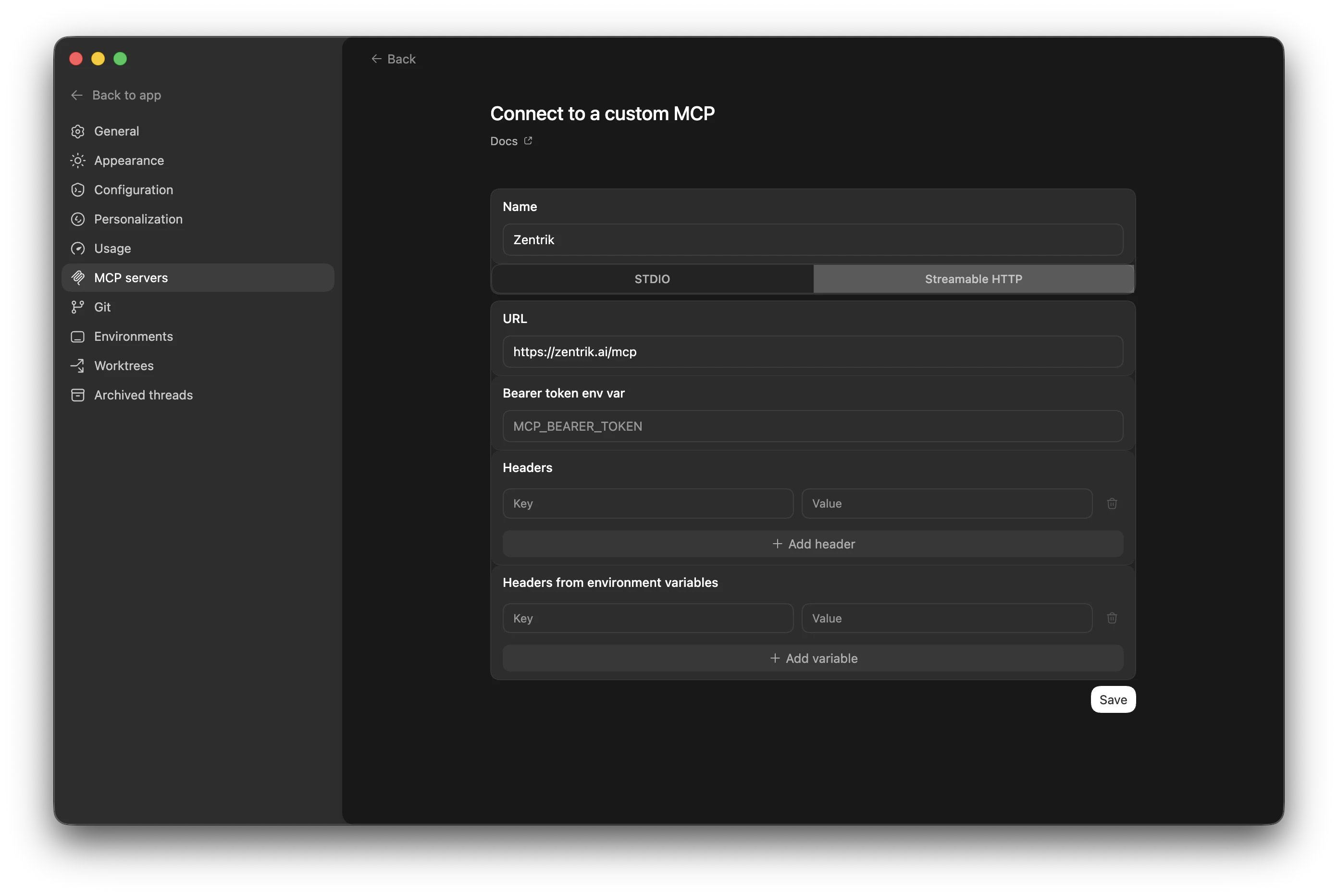
Codex custom MCP form with the Zentrik server values.
3. Authenticate
Wait for Codex to finish discovery, then use Authenticate.
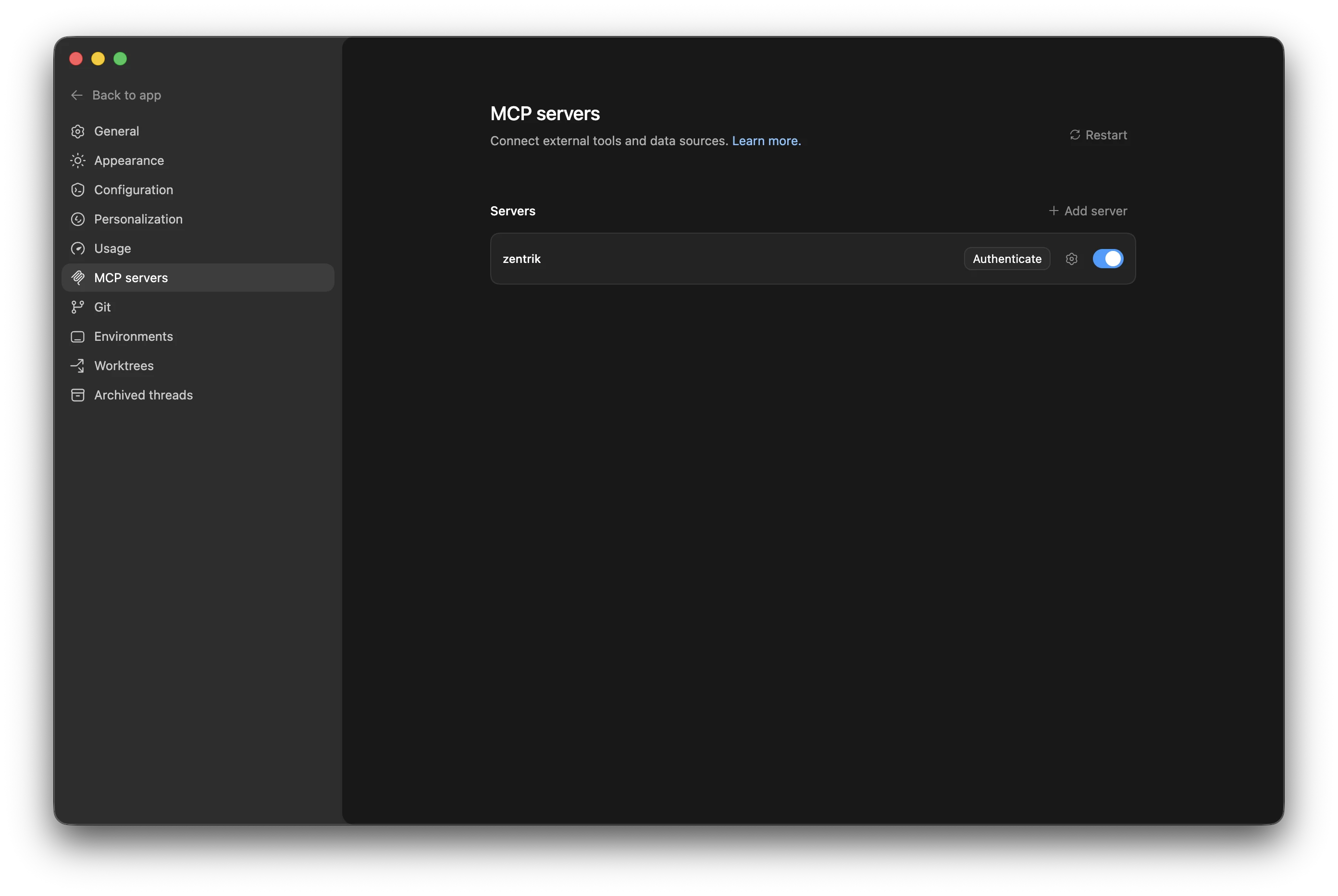
Codex server list with Zentrik ready to authenticate.
4. Approve in Zentrik
Choose the workspace for this connection and approve access.
If Authenticate does not appear, reopen Codex and confirm the server URL is exactly https://zentrik.ai/mcp.
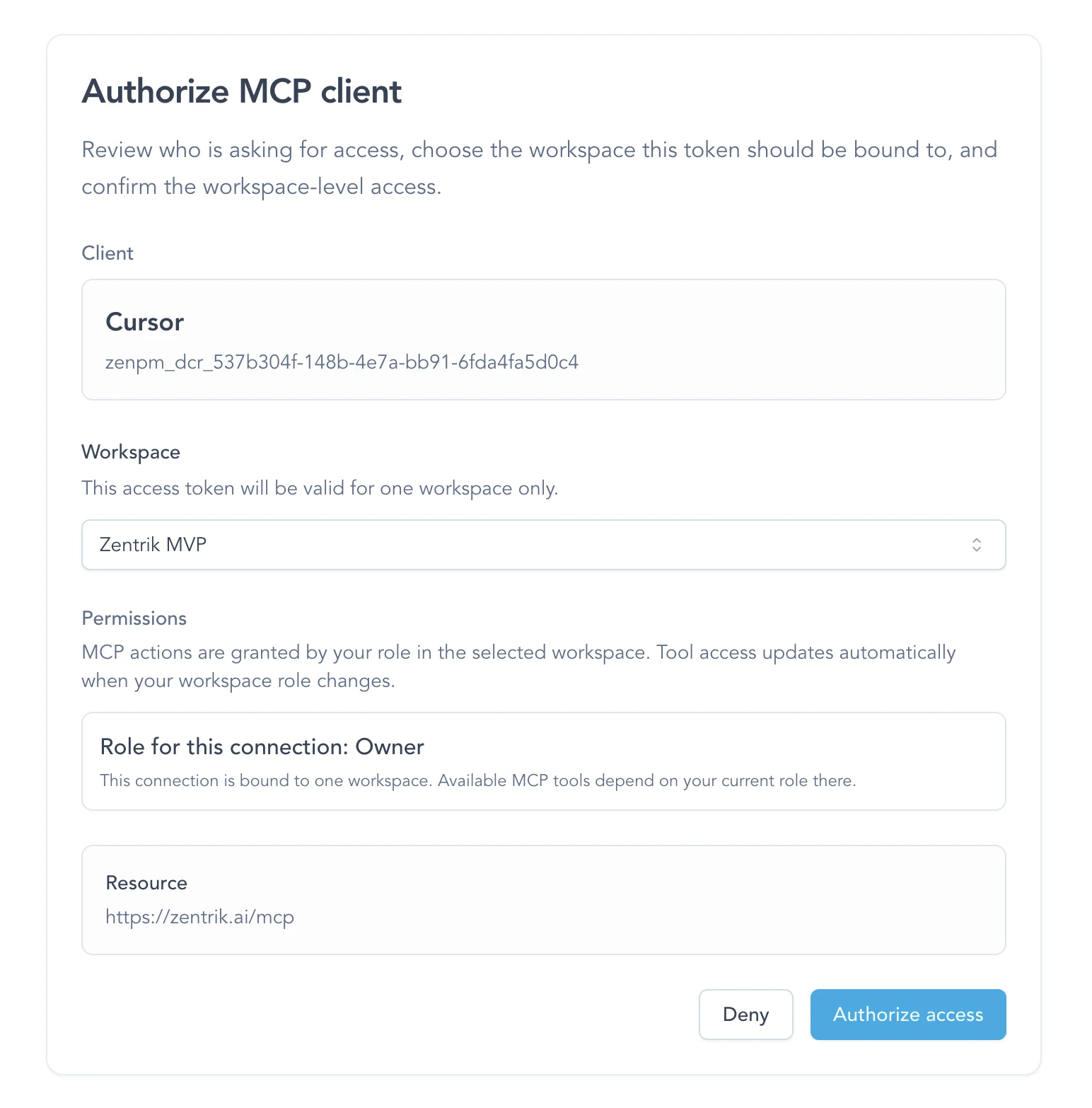
Zentrik approval screen during MCP authentication.
Optional plugin
Codex can also install Zentrik's public plugin package:
codex plugin marketplace add Zentrik-AI/agent-plugins
codex plugin add zentrik@zentrik-agent-plugins
The plugin adds named evidence, workspace-setup, and product-brief workflows over the reviewed Zentrik app. Direct MCP at https://zentrik.ai/mcp remains the broader surface and supports the complete private Study workflow. The Study shortcut will join the OpenAI plugin only after OpenAI approves the matching tools and skill together.
Source and license: Zentrik-AI/agent-plugins, Apache-2.0.
You are connected
Start with narrow requests:
- ask what Zentrik already knows about a problem or idea
- pull the relevant opportunity, evidence, or context record before you act
- create or refine a private Study, review aggregate evidence, and generate draft findings for human review
Next:
- Customer feedback to build-ready specs for implementation-ready context from evidence
- MCP use cases
- MCP best practices
Troubleshooting
Check these steps against what you see in your workspace. If something differs, note your workspace name and the screen, then contact us.
Authenticate does not appear
Wait for discovery to finish, then reopen Codex if needed. The most common cause is a URL mismatch; it must be exactly /mcp on https://zentrik.ai.
Codex asks for a token
Do not use a workspace API key for MCP. Leave token fields empty and use the browser OAuth flow instead.
I chose the wrong workspace
Run the auth flow again and choose the correct workspace. Each MCP connection is bound to one workspace at a time.
Continue from here
Related guides
Did this guide answer your question?
Your response helps us prioritize missing or unclear documentation.
Still stuck?
Send your question to Zentrik support. This guide will be included automatically.