Bring customer feedback into Discovery, check what arrived, and review the findings before using them in product work.
For customer calls, tickets, reviews, and research, choose a path below. For PRDs, decision logs, and other product knowledge, use Workspace context.
Choose a path
| Your source | Start here |
|---|---|
| A note, transcript, file, or spreadsheet | Paste or upload evidence |
| Records in a supported tool | Connect an evidence source |
| A source selection to run again | Create a saved import |
| A custom system or automated workflow | Signals API quickstart |
For a first test, open Discovery → New → Import data… → Paste text and use one call note or ticket.
Choose what to create
| Material | Record to create |
|---|---|
| Original transcript, ticket, review, or note | Signal |
| A finding your team has already written or approved | Insight |
| A request or possible product change | Idea |
A Signal preserves the source while Zentrik extracts evidence and connects related findings. Choose Signal when you want Zentrik to read the original material.
After import
Open the import result or background receipt. It shows what was created and what needs attention.
- Check the original Signal for complete source text and the correct product and account.
- Review the extracted Evidence and related Insights. A rich conversation may produce several findings; a short note may produce one or none.
- Check any People created or linked from supported conversation sources. Uncertain account matches can remain unassigned.
- Correct or link useful results before they inform a decision. Continue with Insights to opportunities.
For Pendo, NPS history remains account context; useful comments can become Signals. Longer runs continue in the background after you close the dialog.
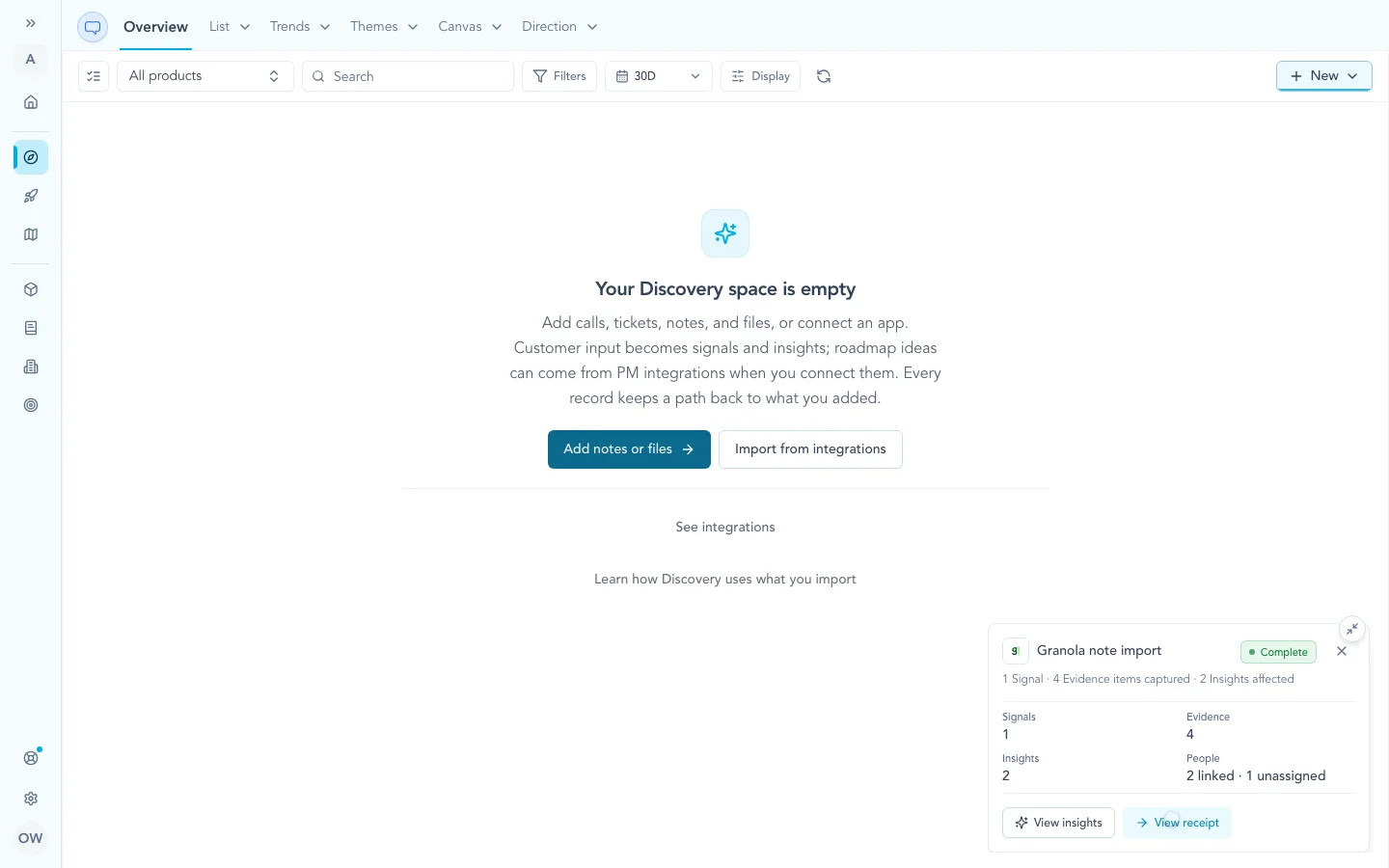
Check the created records and participant matches in the import receipt.
For workspace admins
Manage connector credentials under Settings → Integrations. Each provider guide explains its access, filters, and mapping rules. The selected provider records or files define what is imported.
Automate with the API
Use the API when Zentrik does not have a connector for your source or you control the import workflow yourself.
- Signals API quickstart: send one record and confirm the contract.
- Signals import template: batch records with retries, polling, dry runs, and source mapping.
- Signals API reference: inspect the request and response fields.
For API imports, keep a stable sourceKey + externalId, source date, product or Account identifiers, and a reviewer-facing sourceLinks URL when available. Send participants and an explicit participantPolicy when the caller should match or create People; missing Account creation is controlled separately.
If a source is not listed and you prefer a native connection, contact us. If you already control its API or export, the technical guides can get it into the same Discovery pipeline.
Troubleshooting
Processing seems stuck
Open the signal, source report, or background receipt and check its status and error. Large inputs can take longer. If the status never completes, contact us with the workspace and source.
A signal is missing context or insights
Confirm that the imported body contains the full transcript, ticket, or feedback text rather than metadata alone. Add product or account context and a source link when available. For very large files, split the input and retry.
Continue from here
Related guides
Did this guide answer your question?
Your response helps us prioritize missing or unclear documentation.
Still stuck?
Send your question to Zentrik support. This guide will be included automatically.