Use taxonomy for consistent labels and reports. Use themes to explore topics in customer feedback.
Import a few records first. Workspace Admins configure taxonomy dimensions; reviewers can check and adjust suggested labels.
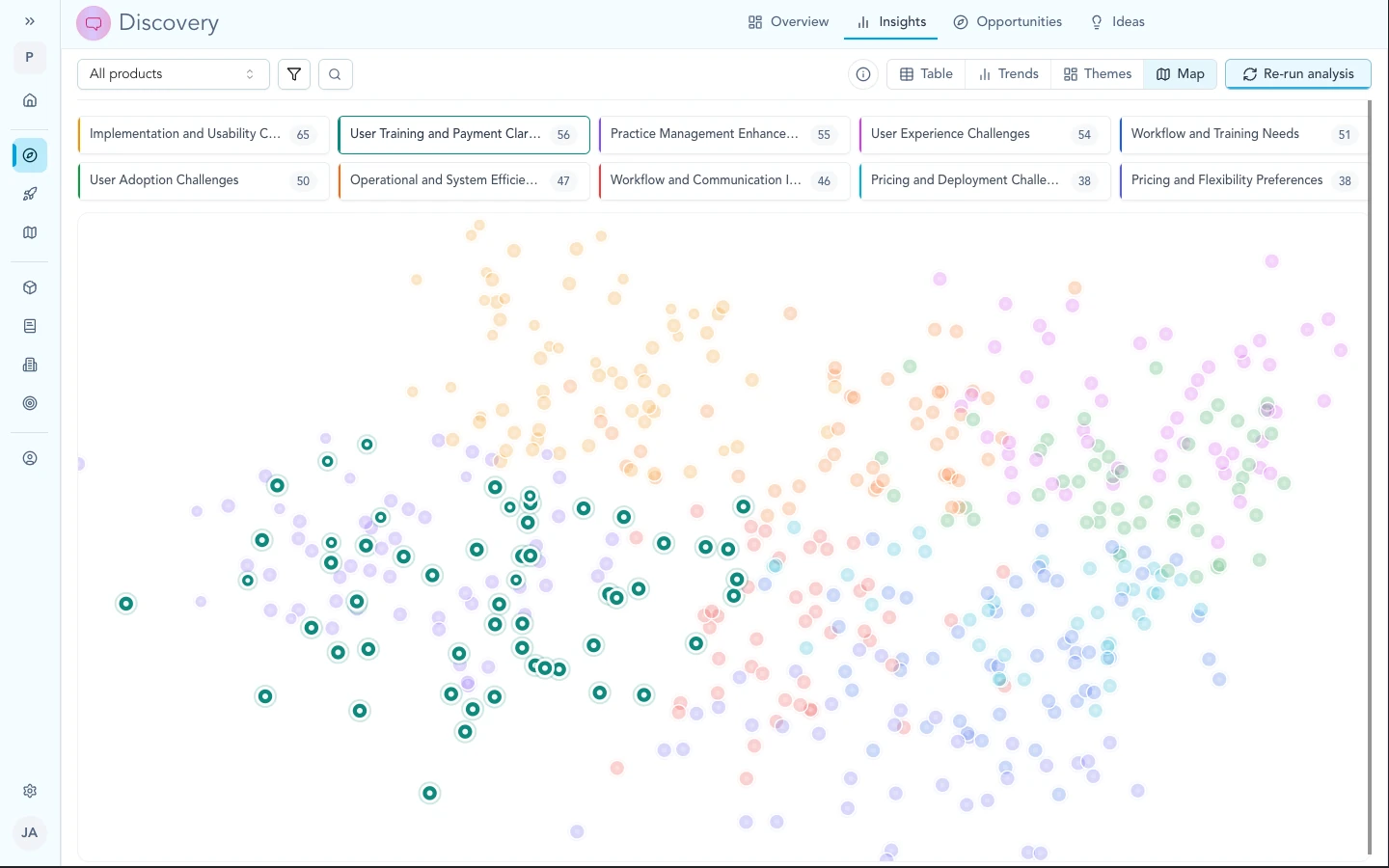
The map can show taxonomy (your dimensions) or themes (semantic clusters). Use whichever lens fits reporting or exploration.
Taxonomy and themes
| Term | Meaning | Use it for |
|---|---|---|
| Taxonomy | Labels your team defines, such as product area or severity | Consistent filters and reports |
| Dimension | One classification field, such as segment | A shared question each record can answer |
| Theme | A group of related topics found in the evidence | Exploring what customers discuss |
Themes can contain sub-themes and change as feedback arrives. A theme name is not a formal metric.
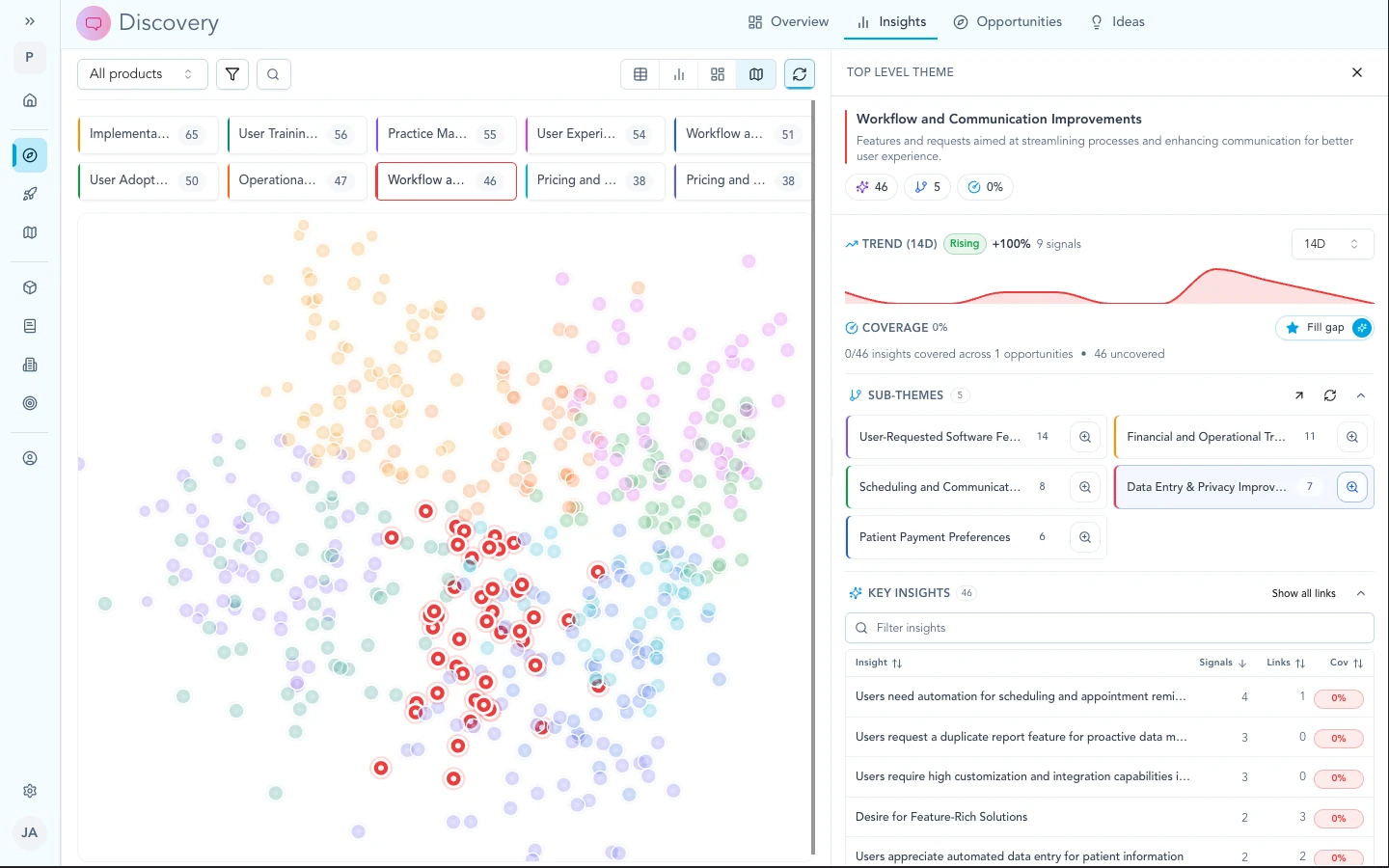
Themes nest into sub-themes so you can browse how language clusters, separate from your formal taxonomy dimensions.
Building your taxonomy
Dimensions apply to insights and ideas in your workspace. Opportunities remain relationship and decision records rather than taxonomy-classified records. Each dimension can be free text, single-select, or multi-select, depending on how tight you want the vocabulary.
Describe each dimension in plain language. That text is part of how Zentrik suggests values when you classify.
You can start small: a few fields that match questions leadership already asks, then add or refine dimensions as imports grow.
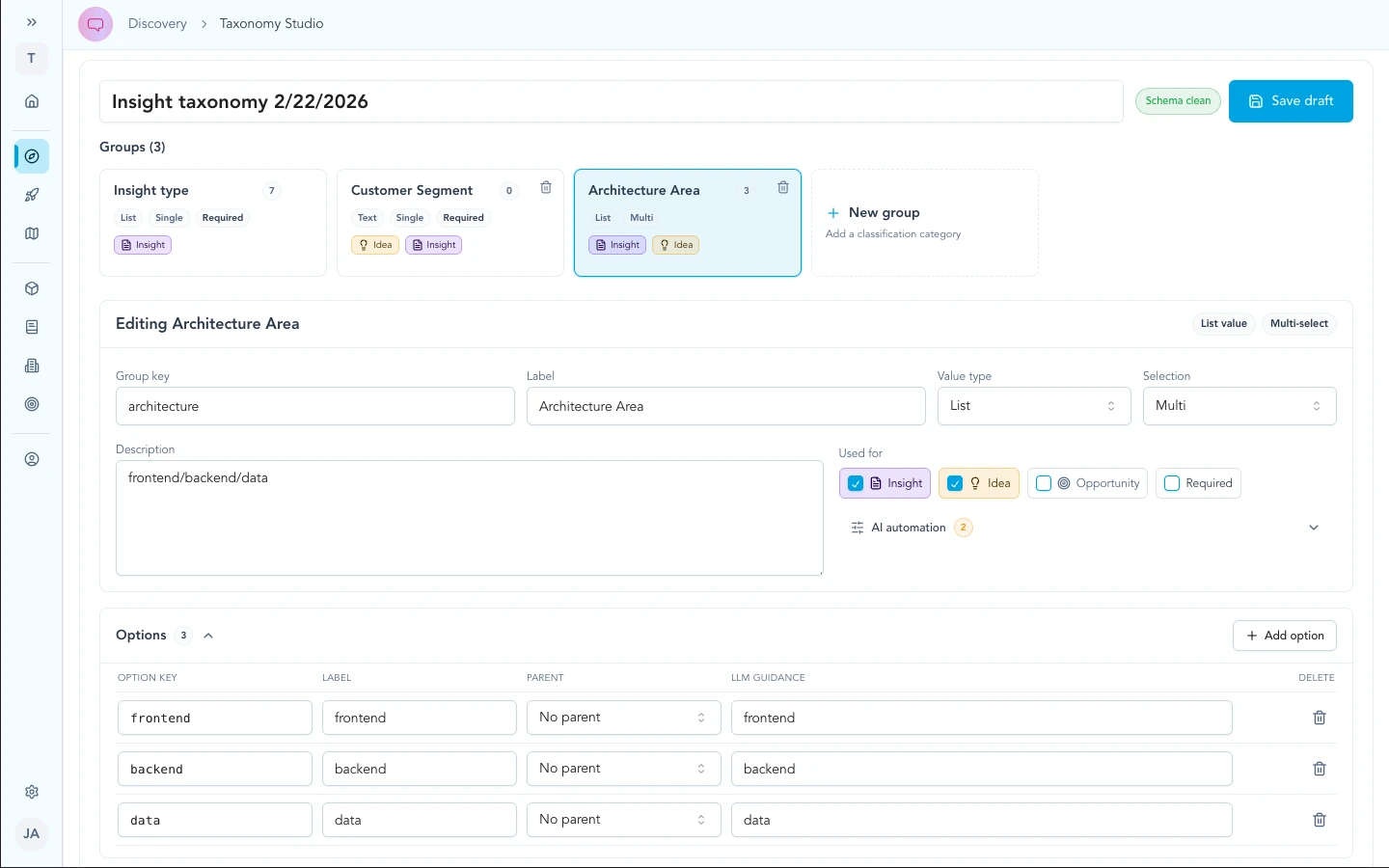
Define dimensions and value lists once; every insight, idea, and opportunity that uses them rolls up the same way in filters and leadership views.
AI classification
Zentrik suggests labels using your dimension definitions, allowed values, and workspace context. On the record, accept, edit, or clear them. Insight classification appears in its detail view.
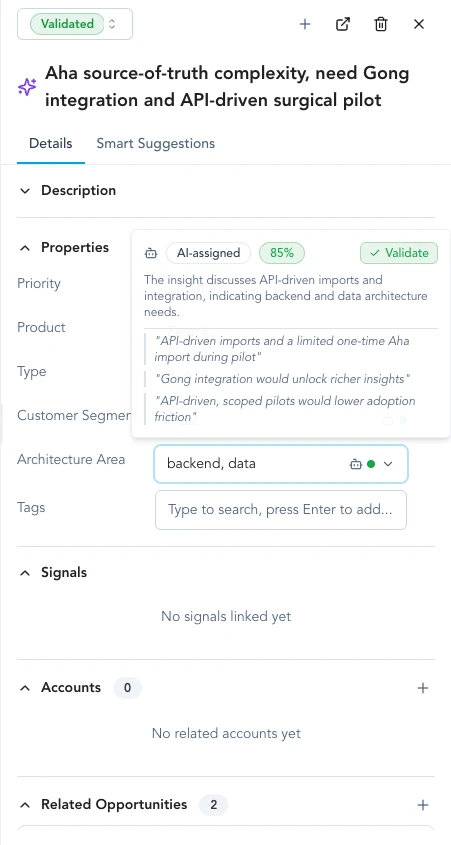
On an insight detail view, review proposed taxonomy values, edit them, and keep the card ready for maps and reports.
Preview and bulk refresh
- Update the dimension definitions or allowed values.
- Preview the suggestions on a small set of records.
- Correct unclear definitions and check the preview again.
- Run bulk refresh on insights or ideas when you are ready to apply the classification across those records.
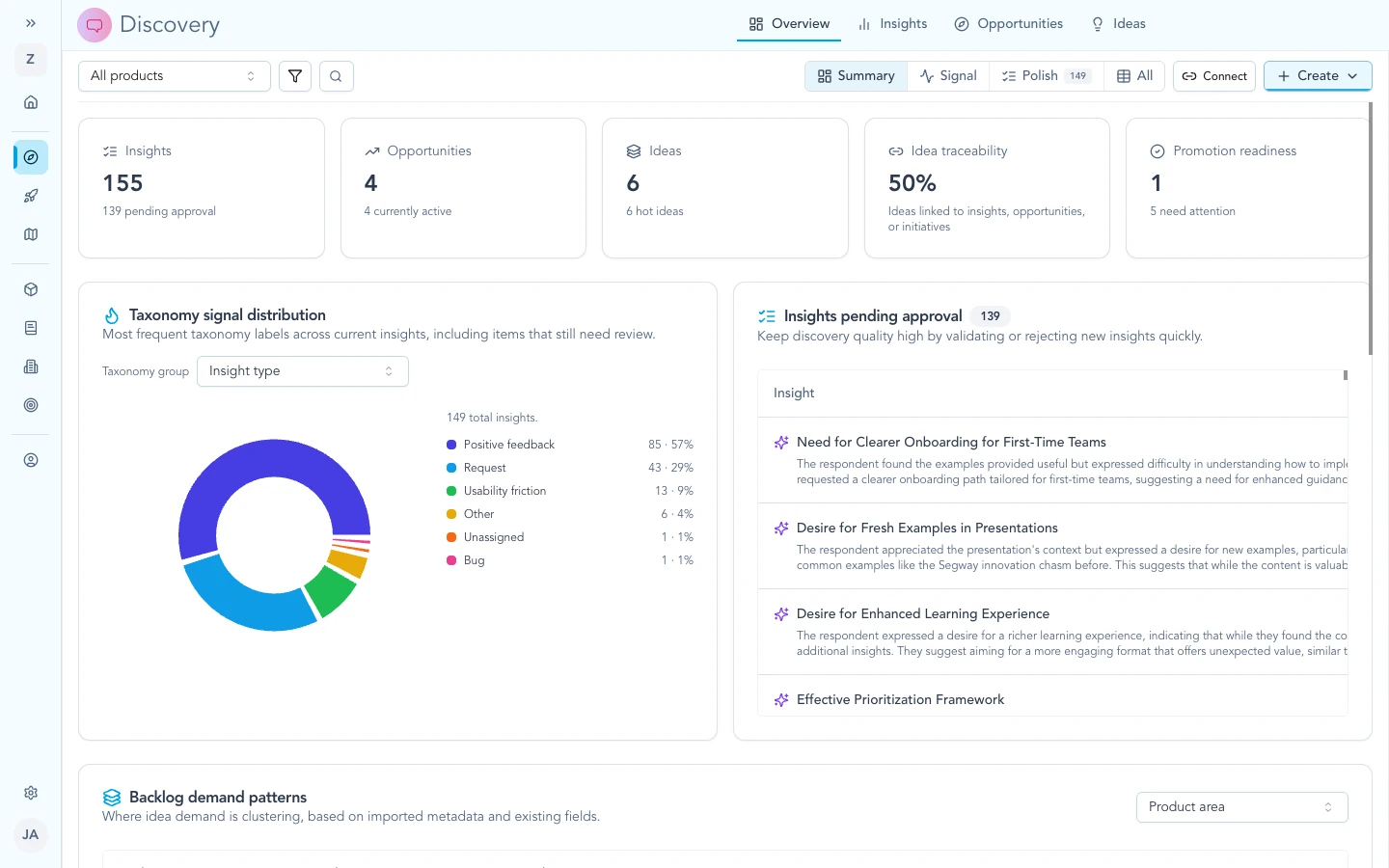
Use intake and overview flows to try settings, preview impact on real rows, then bulk-refresh the corpus when the team is aligned.
Maps and rollups
Filter by taxonomy to compare consistent groups. Open themes to explore related topics. Maps and counts reflect current records, labels, and review state, so they can change after imports, edits, or refreshes.
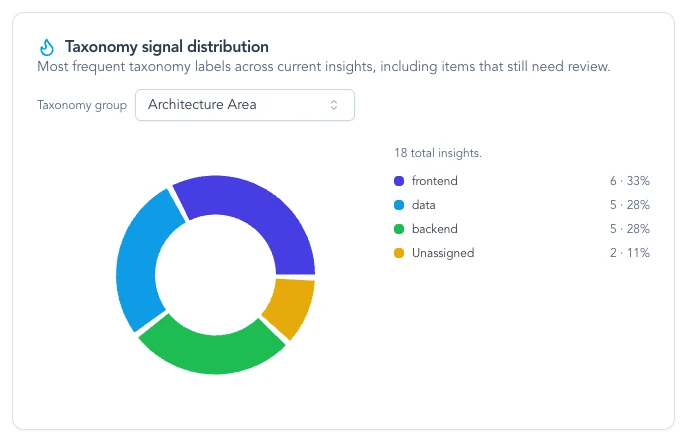
Distribution views summarize classified insights once dimensions are filled in, often after preview looks right.
Troubleshooting
Map looks empty after import
Wait for processing on the signal. Check review or intake queues if your workspace hides unapproved items from some views. Evidence → insights.
Teams disagree on labels
Write a one-line example per dimension (what “P1” means here). Align on opportunity framing before renaming many dimensions. Use preview before a large bulk run.
Leadership quoted a theme name like a formal metric
Taxonomy values are defined and owned by your workspace. Themes describe how language clusters. If a theme should become official, add it to taxonomy; if not, keep it as exploration-only language in decks.
Continue from here
Related guides
Did this guide answer your question?
Your response helps us prioritize missing or unclear documentation.
Still stuck?
Send your question to Zentrik support. This guide will be included automatically.