Import a transcript, note, document, or spreadsheet into Discovery and check the result.
Paste or upload
Use manual import when the evidence is already on your computer or you are testing a small batch.
Upload a file
In Discovery, select New → Import data… → Upload file. Choose Upload file for raw customer evidence. Choose Curated findings or Requests & bets only when the file already contains finished records of that type.
Choose the mode that matches your file:
| Mode | Use it when | Result |
|---|---|---|
| Rows | Each CSV/XLSX row is a separate piece of evidence. | One signal per row; you map columns such as title, date, product, account, and evidence text. |
| Whole file | The report, export, or document should stay together. | One signal for the file; no column mapping. This is usually the clearest choice for DOCX, PDF, TXT, Markdown, and HTML. |
If you are unsure, choose Rows only when each row can stand on its own. Otherwise, choose Whole file.
- Add your file. You can add multiple transcript files when each file represents one call or meeting.
- Choose a Signal type—usually Customer feedback for rows or Discovery report for a whole file. Add Product or a Global account when the same context applies to the entire upload.
- Select Preview. Nothing is created yet. For Rows, check the selected product, account, title, date, evidence, and source-link columns. The preview groups records as:
- Ready: will become a signal.
- Review: needs a decision, usually because an account value does not match an existing workspace account.
- Skipped: will not become a signal.
- Resolve every account review, then select Import signals. You can map an unmatched value to an existing account, import it without an account, apply the global account, or skip the row. Until the review is resolved, the import action remains blocked.
Zentrik links rows to existing workspace accounts; it does not create accounts during an import. Imported signals retain source details such as the filename, sheet or row, dates, and URLs.
Paste text
Use Paste text for notes, transcripts, tickets, reviews, survey responses, or reports.
Limits
Files can be up to 50 MB each. A batch can include up to 100 files, and a Rows import can create up to 500 signals.
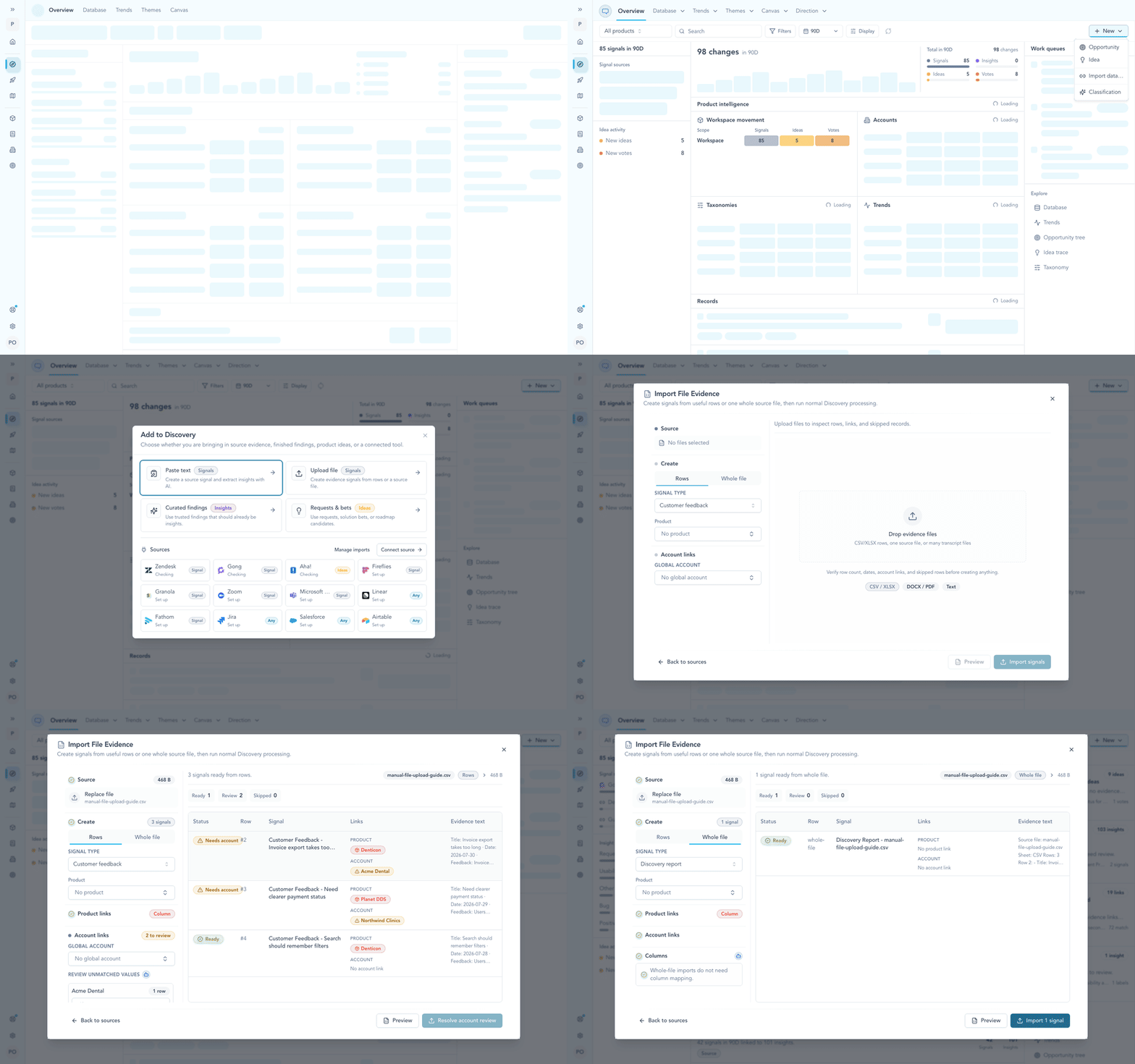
Watch the path from New to the preview: Rows creates one signal per row, while Whole file creates one signal without column mapping.
Check the result
After importing, open the source Signal and check the text, product, account, and processing status. Review the extracted evidence before using it to shape work. If processing fails, inspect the error before retrying.
Continue from here
Related guides
Did this guide answer your question?
Your response helps us prioritize missing or unclear documentation.
Still stuck?
Send your question to Zentrik support. This guide will be included automatically.