Generate a concept image from an idea and its customer evidence. Review the prompt and keep the result with the idea.
Imagine drafts an image prompt from the idea and its linked customer evidence. You review the prompt before generation. The result is a static concept image saved in the idea’s attachments. Imagine is in beta.
Example: clarify a support inbox
For example, an idea could add the next reply owner and deadline to a support inbox. A concept image lets the team check whether both are easy to find.
The demo uses fictional evidence and a prepared image. It shows the controls and saved result with a shortened generation wait.
Edit the constraint before generation. The prepared result shows the next reply owner and deadline; the image stays attached to the idea. Download the clip.
Generate an image from an idea
- Open an idea in Discovery and check its linked insights. These links give the prompt relevant customer evidence.
- Open the idea’s actions menu and choose Imagine.
- Review the summary and evidence used, then edit Generation prompt (editable). State what should change and what should remain.
- Choose Generate image. You can close the dialog while generation runs.
- Review the result in the dialog or the idea’s Attachments.
For the inbox example, add this constraint before generating:
Keep the existing inbox filters. Add the next reply owner and reply deadline to each ticket row.
Zentrik can also suggest a before-and-after visual, flow diagram, or schematic when a screen is not the clearest way to explain the idea.
Start from your current product
If a feature linked to the idea has a PNG, JPEG, or WebP screenshot, choose Use current … screenshot to use it as the starting image. You can also generate a concept without one.
The prompt asks the model to preserve the existing design outside your change. Check the result; exact preservation is not guaranteed.
Review the concept before building
Check that the image expresses the customer need and respects your constraints. For the inbox example, inspect the owner and deadline columns and confirm that the filters are still visible.
If the image exposes a misunderstanding, revise the idea or prompt. Use Generate another to return to the prompt, or Redraft from evidence to ask for a fresh draft. The image gives the team a shared reference; it does not decide which solution to build.
Open the illustrative inbox concept to inspect it at full size.
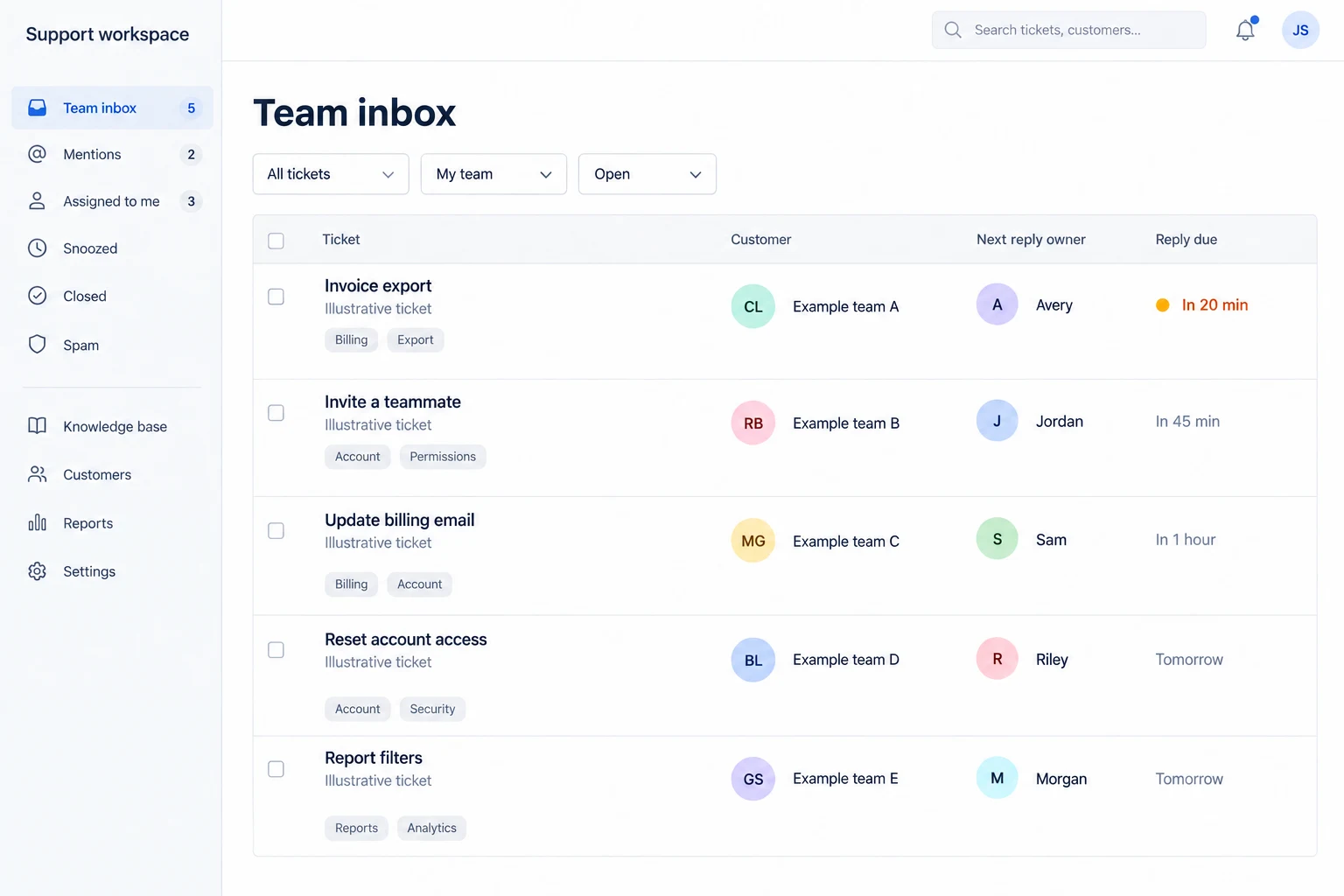
AI-generated illustration with fictional data. Use the image to discuss the proposed change before testing a working prototype.
Continue to a prototype or Study
A static image cannot demonstrate clicks, errors, or responsive behavior. Carry the reviewed image, written behavior, constraints, and open questions into a prototype. Transfer the image separately when needed; attachments are not automatically included in every handoff. Use a Study to test what customers understand.
Troubleshooting
No linked evidence appears
With no linked insights, Imagine drafts from the idea itself. Link the relevant insights and use Redraft from evidence. Check the evidence shown before treating a draft as grounded in customer research.
Generation takes longer than expected
Check the idea’s attachments before starting another request. The image can arrive after you close the dialog. If generation reports a failure, keep your prompt and retry when the service is available.
No current screenshot is offered
Check that the idea has a linked feature with a PNG, JPEG, or WebP screenshot. You can still generate a concept without a source screenshot.
Continue from here
Related guides
Did this guide answer your question?
Your response helps us prioritize missing or unclear documentation.
Still stuck?
Send your question to Zentrik support. This guide will be included automatically.