Let customers browse selected ideas, vote, and submit requests without joining your internal workspace.
The Ideas Portal collects requests and votes over time. Use it to understand customer demand. For a focused research question, use a Study.
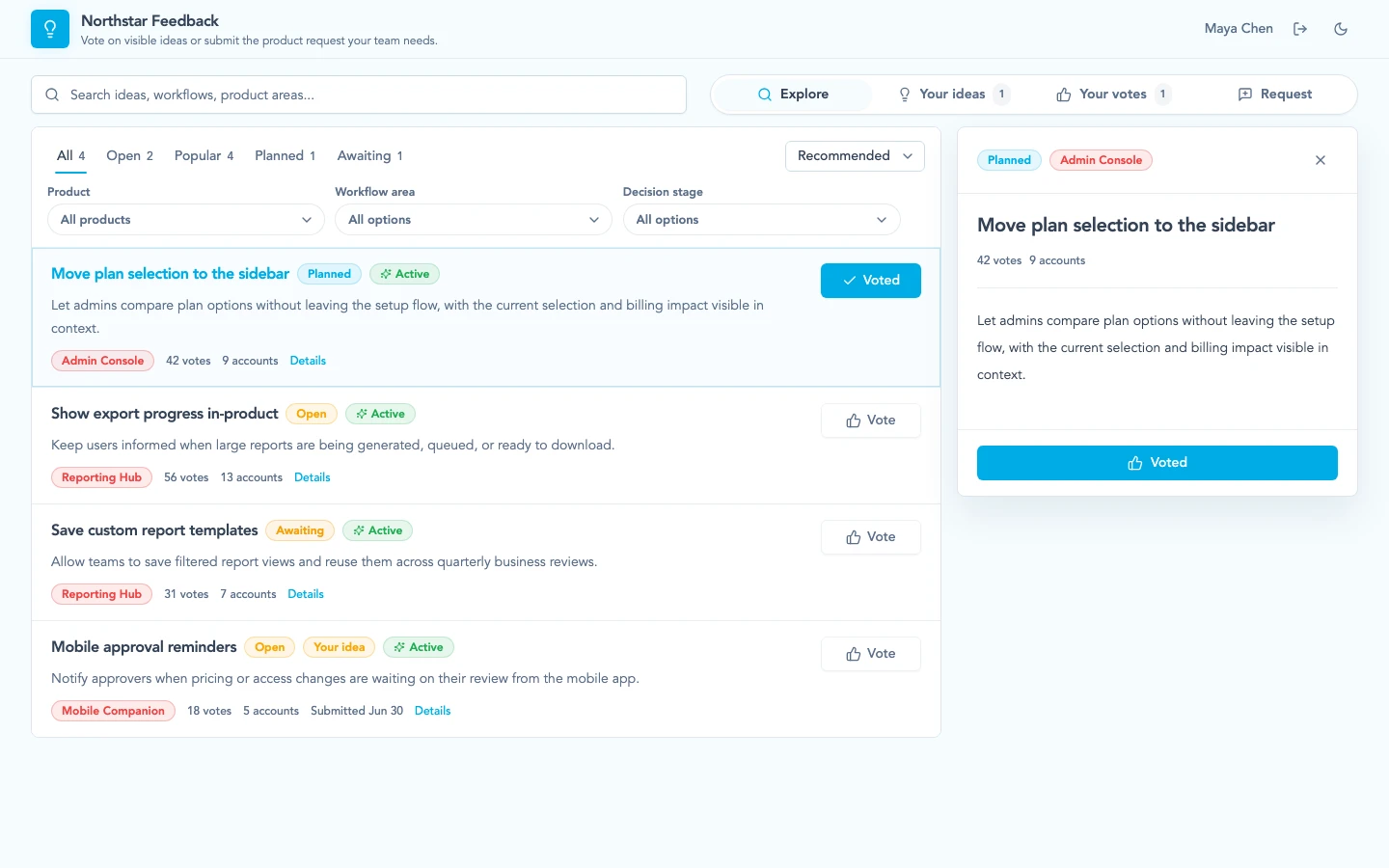
Customers see the visible ideas you expose, then search, filter, open details, and vote without entering the internal workspace.
What customers can do
What the portal does
Publish selected ideas, let signed-in customers vote, and collect requests linked to their accounts. Your team reviews that demand alongside other customer evidence before changing the roadmap.
What customers see
Customers can browse, search, filter, open idea details, vote, and review the ideas they have supported. Choose product and taxonomy filters they can understand without knowing your internal terminology.
Configure and check access
Set up the portal
In Settings → Portal, when enabled for your workspace:
- Enable the portal, set the customer prefix, and confirm the URL.
- Configure Product SSO for product-launched access: callback URL, remote login and logout URLs, and shared secret.
- Set Branding: name, logo, favicon, accent, and introduction.
- Choose the Products customers can browse.
- Choose Taxonomies for request categories and browse filters.
SSO means single sign-on: customers enter through your product’s login.
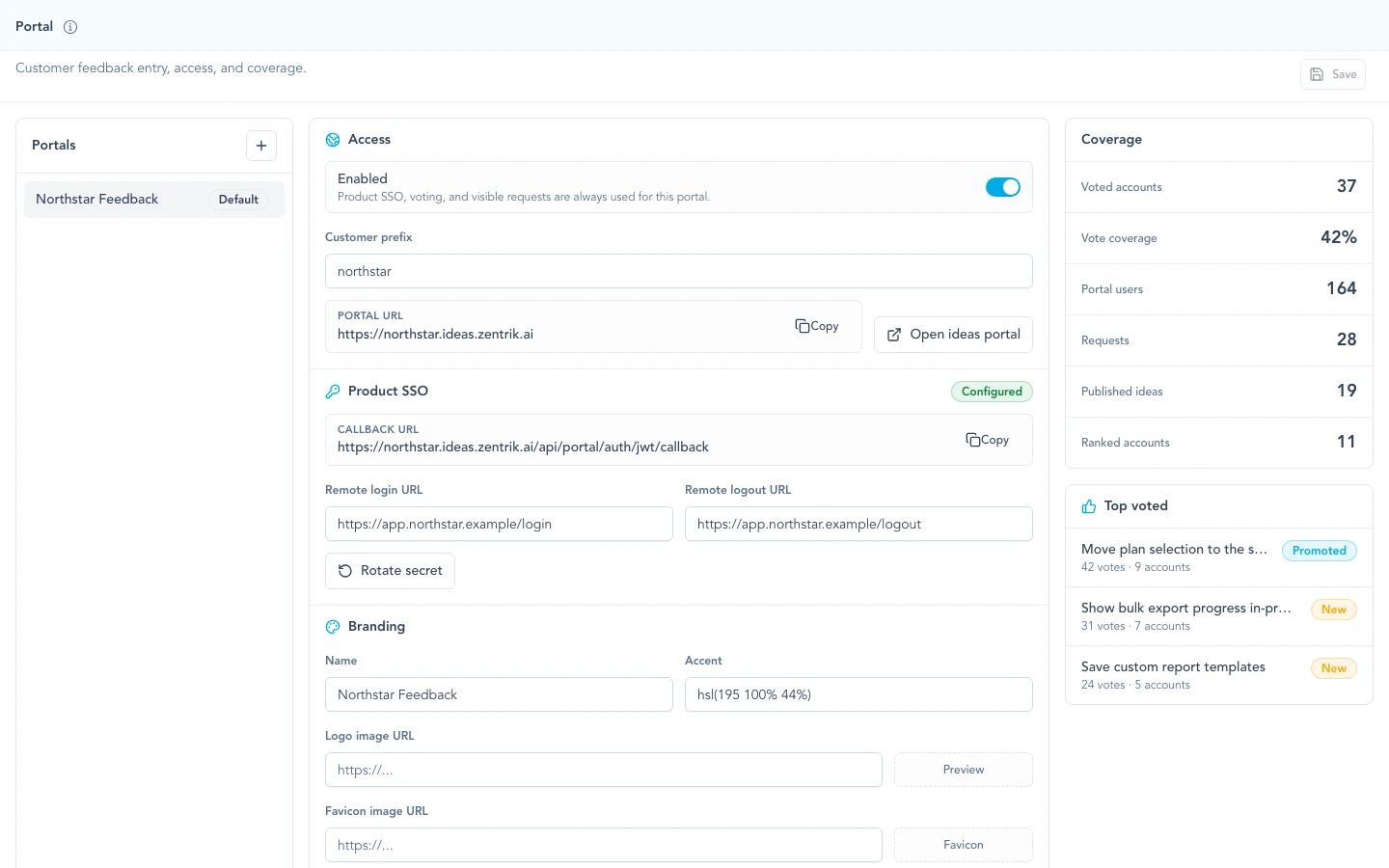
Portal setup keeps access, product SSO, branding, products, taxonomies, and demand coverage in one admin surface.
Authentication
For product-launched portals, use JWT SSO so customers enter from your product without receiving full Zentrik workspace access.
The portal user is separate from a Zentrik workspace user. The SSO payload should identify the customer user and Account so votes and submissions attach to the right records.
When that email exactly matches one existing Person in the workspace, Zentrik connects the portal identity to the same Person used by conversations and Studies. Portal activity does not create People by itself. Authentication and vote ownership remain on the portal identity, so correcting a Person does not rewrite historical votes. See People and Accounts for the shared model.
Use the Ideas Portal JWT SSO guide for the exact integration contract.
Choose what to share
Control what appears
Before sharing the URL, review the selected products, visible ideas, request visibility, and customer-facing labels. Explain how you review votes and requests. Internal scoring, evidence links, and delivery planning remain in Zentrik.
Capture new requests
The request flow asks for a title, the workflow context, the problem, and the better outcome. While the customer writes, the portal checks nearby ideas so they can vote instead of creating a duplicate.
When a request is submitted, it becomes a Discovery idea, links back to the customer account, and counts as the submitting user's vote. Taxonomy and product choices help the request land in the right review context.
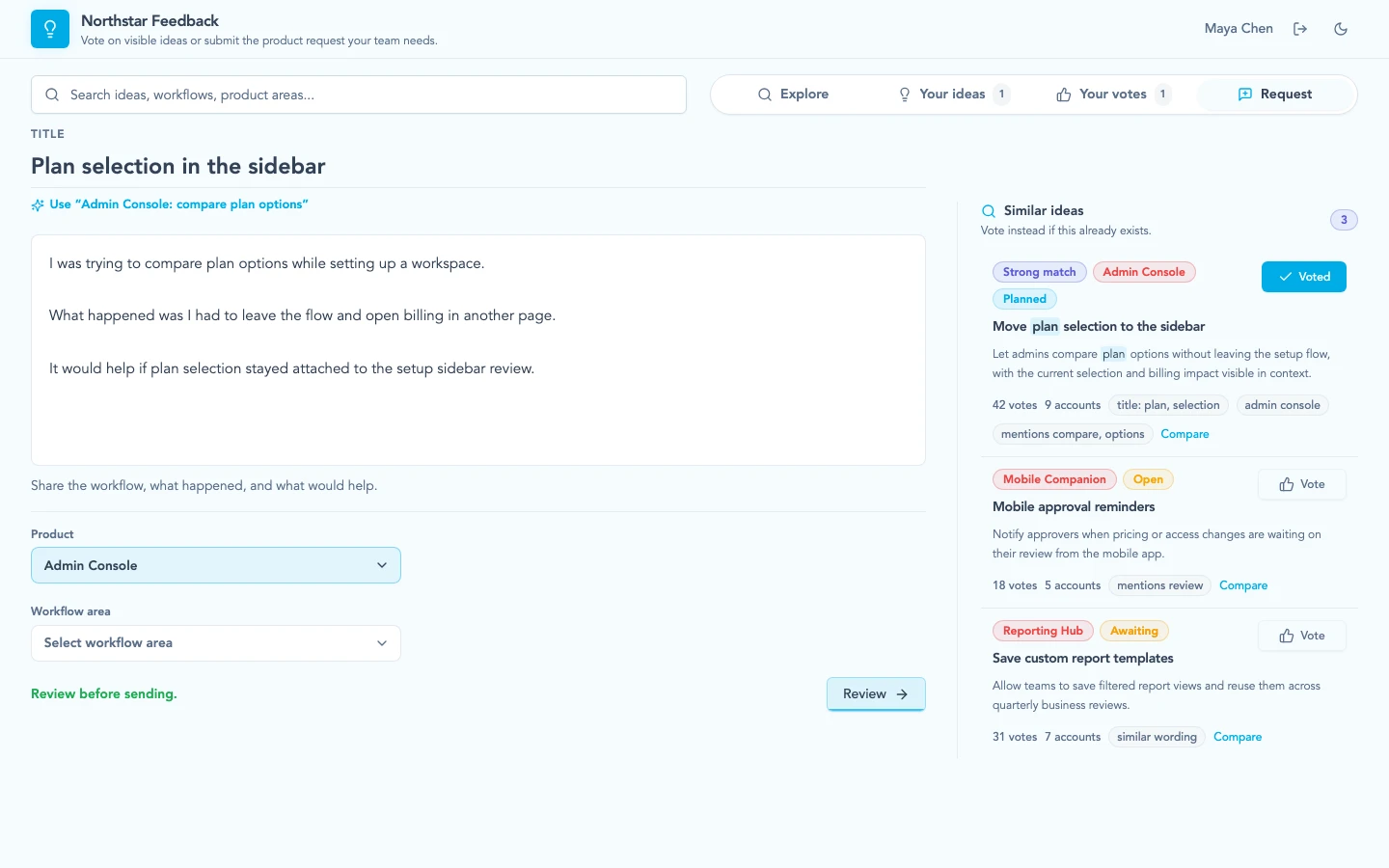
Request intake checks similar ideas while the customer writes, so duplicate demand can become a vote instead of another disconnected request.
Review customer demand
Review demand in Zentrik
Review portal activity in Settings → Portal. Open an idea to inspect vote rank, trend, top accounts, and associated account value. Compare these with other evidence in Discovery before choosing the next action.
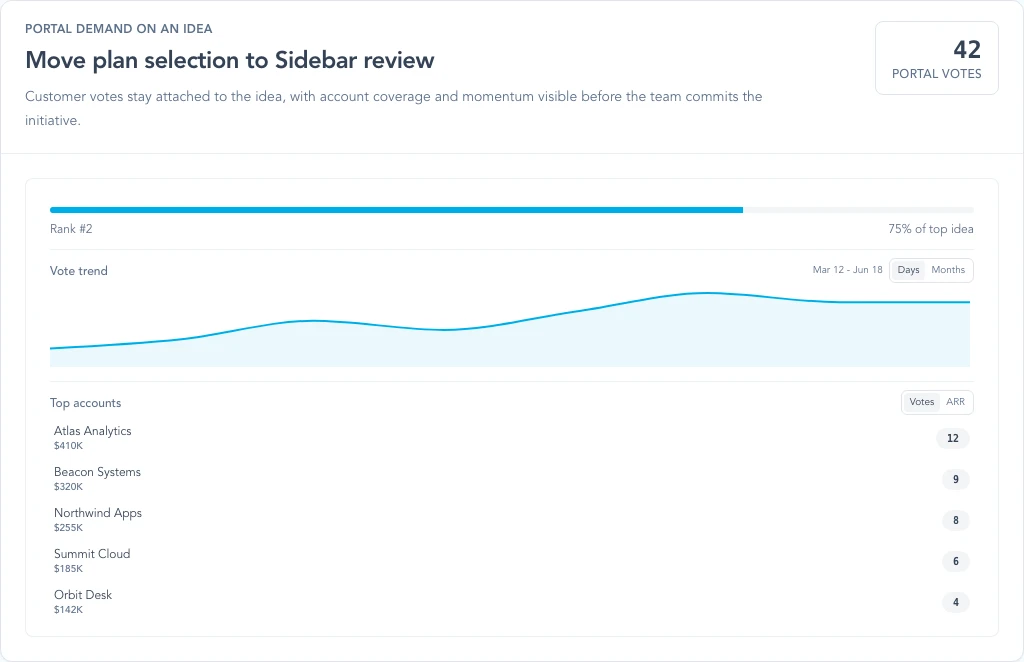
Inside Zentrik, portal demand stays attached to the idea with vote rank, momentum, and top accounts visible before roadmap commitment.
When to use Portal versus Studies
Use the portal for ongoing requests and voting. Use a study to ask about a screen, compare options, or test a prototype. A vote shows interest; it does not establish that a solution works.
Troubleshooting
The portal does not open
Check that the portal is enabled, the customer prefix is saved, and the portal has at least one product selected. If product SSO is required, confirm the remote login URL, callback URL, and shared secret with the team that owns your product login flow.
Customers cannot find the right request category
Review the Taxonomies section in portal settings. Publish idea taxonomies first, then expose only classifications that make sense to customers submitting or browsing requests.
Votes are noisy
Filter by account, product, trend, and related evidence before making a roadmap decision. If you need a precise answer about one solution path, create an Idea Study.
Continue from here
Related guides
Did this guide answer your question?
Your response helps us prioritize missing or unclear documentation.
Still stuck?
Send your question to Zentrik support. This guide will be included automatically.