Bring in the folder where your team keeps what it knows about the product. Everyone reads it as you wrote it, and the Assistant and your agents answer from it.
Bring in a folder
You need the folder on your computer and to be an admin or owner of the workspace (Settings → People shows your role). If the folder lives in GitHub, open the repository, choose Code → Download ZIP, and unzip it. You do not need to tidy it first.
Everyone in your Zentrik workspace will be able to read what you bring in, so choose a folder you would share with the whole team.
- Open Context, select ⋯ beside Add knowledge, and choose Bring in a folder.
- Choose the folder, or drop it on the dialog. Zentrik reads it in your browser. Nothing is sent yet.
- Check what it found and give it a name. Choose the product it is about, or All products; it also appears under that product's Knowledge.
- Select Bring in. Progress moves to the corner of the screen, and you can keep working.
Zentrik calls the folder you brought in a source. Its folders and file names stay as they are. Written documents can be read and searched; PDFs, images and other files are kept as attachments.
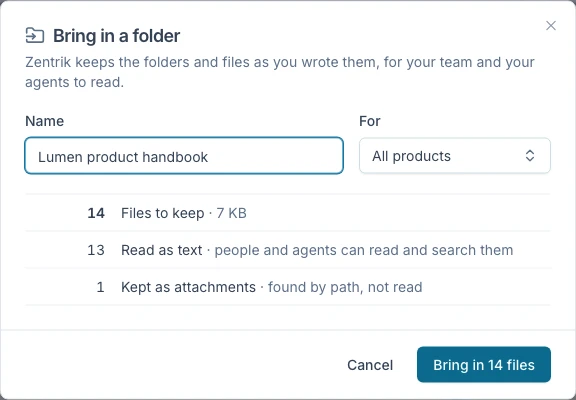
The review counts what Zentrik will keep before anything leaves your computer.
Read and search it
Select Open source in the corner, or open the source from the top of Context.
- Folders are on the left, as you arranged them. A README opens first.
- Links between your files open the file and heading they point to.
- Find exact words searches every file in the source.
A source is read-only in Zentrik: your folder stays the place where the documents are written. To take one out, open it and choose ⋯ → Remove source.
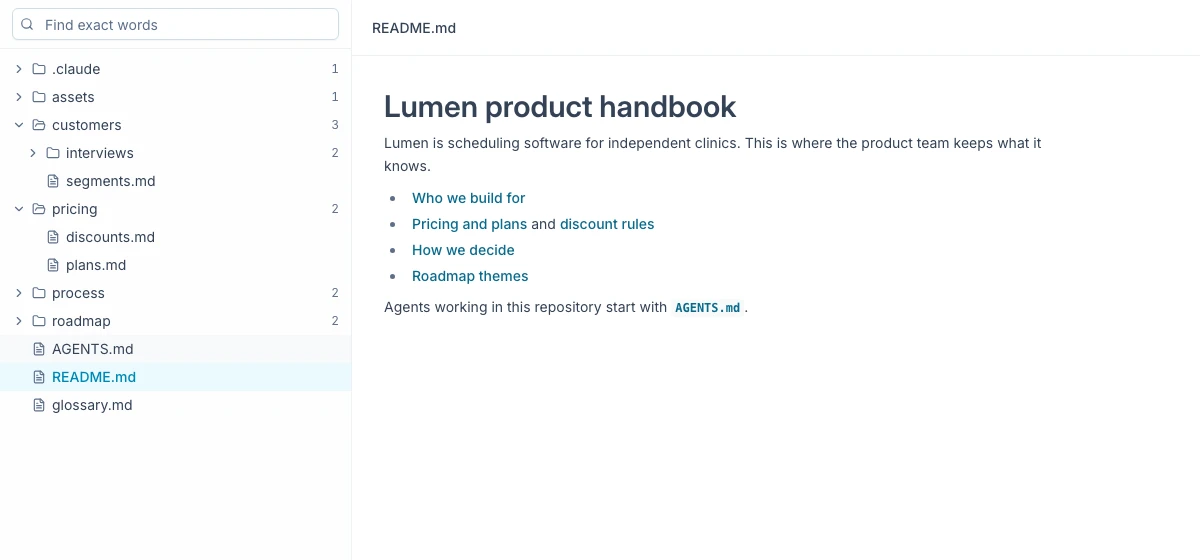
A source keeps your folders and opens on its README. Links lead to the files they name.
Ask the Assistant and your agents
Open Assistant and ask something your folder answers, such as “Who approves a discount above 20%, and which file says so?” The Assistant searches the source, reads the part that holds the answer, and names the file it came from.
AI tools you connect to Zentrik, such as Claude, ChatGPT or Cursor, read the same source. They no longer depend on what one person has on their laptop.
Keep it current
The source shows when its files last arrived and who sent them. When your folder has changed, download it again, open the source, select Update from folder, and choose the folder. Zentrik shows what is new, changed and removed, then sends only the files that changed.
To skip the manual step, a developer can set up the repository once so it sends its own changes. Point them to the API reference.
Troubleshooting
Fewer files arrived than the folder holds
A source holds up to 20,000 files of up to 50 MB each. Larger files and the hidden folders that code tools create (.git, node_modules) are left out. The review counts what was left out before you bring the folder in.
The Assistant answered without using the source
Ask it to search the source by name, and use words that appear in the file. Search matches words exactly, including accents.
A link in a document leads nowhere
The file it points to was outside the folder you chose, or its heading was renamed. Fix the link, or choose a higher folder, then update the source.
Continue from here
Related guides
Did this guide answer your question?
Your response helps us prioritize missing or unclear documentation.
Still stuck?
Send your question to Zentrik support. This guide will be included automatically.