Connected imports have one clear home.
Saved imports, schedules, scope, and health now come together in Settings. Teams can review how each connected source feeds Zentrik, run it on demand, or automate the same saved setup.
What changed
- See saved imports across connected sources in Settings → Integrations → Imports
- Review each import's source scope, destination, schedule, and latest health
- Run an active import on demand or keep its exact automatic interval
- Use configured product and account rules without competing automatic assignments
Manage connected imports from one place
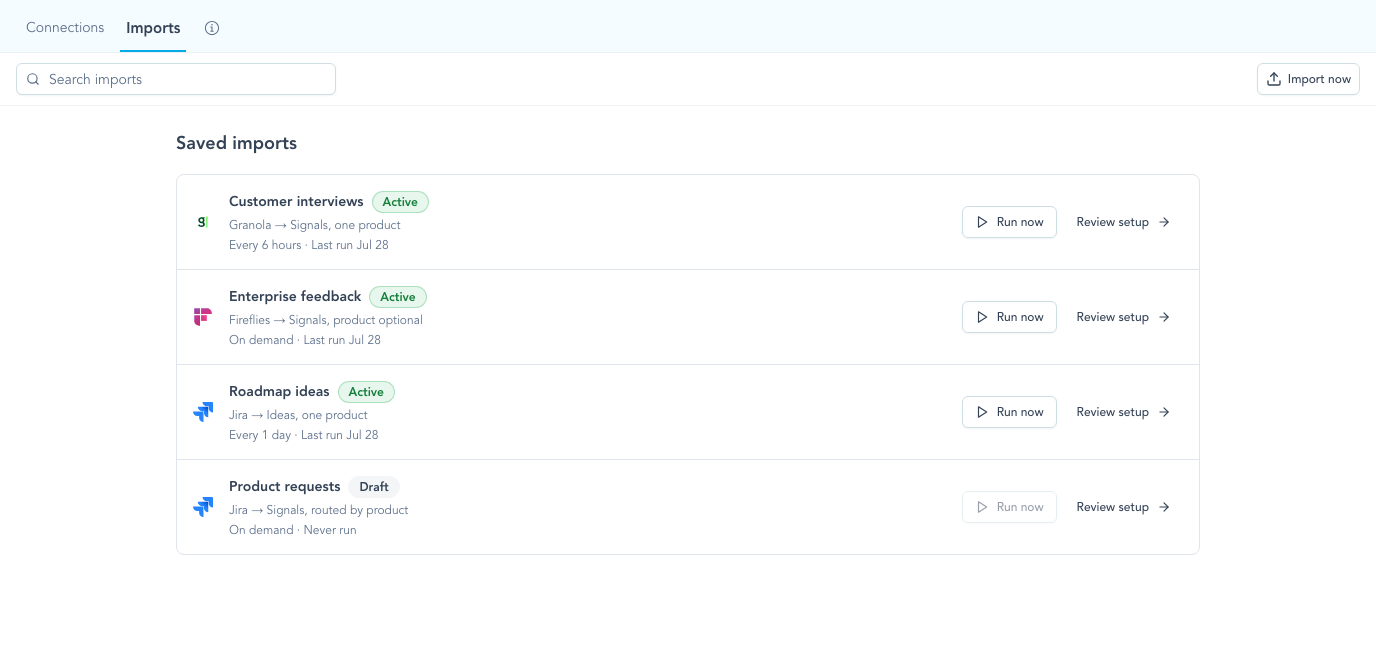
The Imports view gives workspace owners a compact catalog of active, paused, draft, and attention-needed imports. Each entry shows what it creates, how often it runs, and when it last ran, with a direct path back to the owning connection for setup and receipts.
Keep destination rules predictable
A workspace can keep separate imports for different products, source scopes, and cadences. Where supported, fixed or field-based product routing and exact account matching are applied consistently. Zentrik's automatic product assignment remains a fallback when no product is supplied by a configured rule, rather than overriding a source-defined result.
More in this release
Connected import management
Saved definitions now connect setup, execution, and health.
- Added the cross-provider Imports catalog under Integration settings
- Kept on-demand and scheduled execution on the same saved definition
- Preserved exact minute, hour, or day intervals when schedules are reviewed
- Made run receipts and retry history available from the owning connection
Configured assignment
Configured source rules take precedence while unrelated product judgment stays intact.
- Added ranked Jira field choices and explicit many-to-one Product mappings
- Supported separate Jira mappings for different products and source scopes in one workspace
- Reconciled configured Salesforce Account–Product membership while preserving relationship details