Bring scheduled Teams meeting transcripts into Discovery so product teams can review what customers actually said, turn the conversation into signals and insights, and keep roadmap decisions traceable to the original meeting evidence.
Use Teams for the conversation and Zentrik for the product work after the call: synthesis, insight review, opportunity shaping, and traceability back to source evidence.
The Microsoft Teams connector is per-user OAuth. A workspace admin can enable the integration in Settings → Integrations, but every teammate imports through the Microsoft 365 account they personally connect. Zentrik does not use this flow for tenant-wide exports, channel messages, ad hoc calls, or chat history.
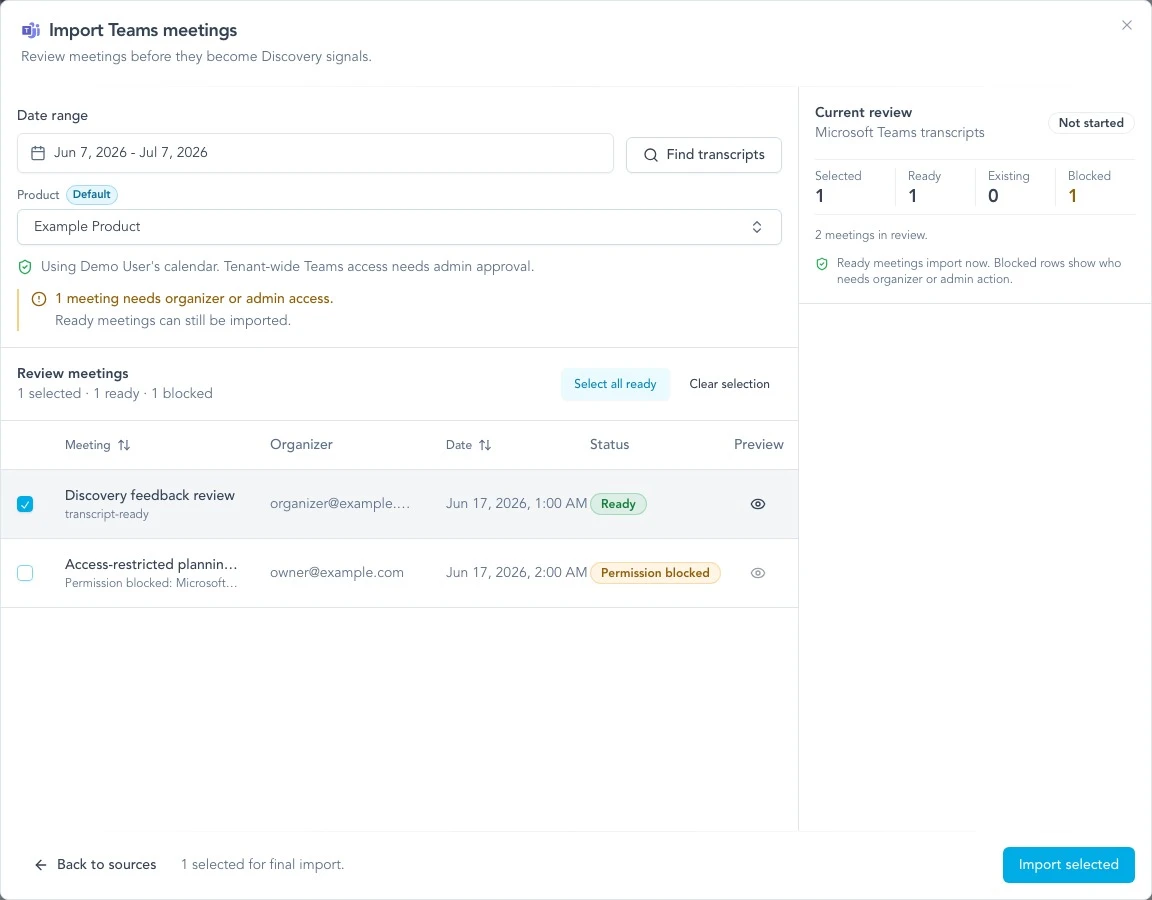
Use the connected Microsoft identity and participant rules to keep meeting scope clear, save external attendees as People, and keep missing Account creation separate.
Access & permissions
What Zentrik requests when you connect. You can review or revoke access from the provider's account or admin console anytime.
- Microsoft account identity : Confirms the connected Microsoft 365 user so Zentrik can show whose Teams account is active.
- Calendar meetings : Lists scheduled meetings from the connected user calendar, then checks which ones are Teams meetings with transcripts ready.
- Meeting transcripts : Reads transcript text only for the meetings the connected user selects for import into Discovery.
- Offline access : Refreshes the OAuth connection so users do not need to reauthorize before every import unless Microsoft policy changes.
Connect Microsoft Teams
Start from Settings → Integrations → Microsoft Teams. If you reach the importer first, the Discovery flow will send you through the same Microsoft authorization path.
Before you start
- Use a Microsoft 365 work account that can see the scheduled Teams meetings you want to import.
- Make sure meeting transcription is enabled for the calls you care about.
- For a first test, pick a recent scheduled Teams meeting where Microsoft has already finished processing the transcript.
- If your company restricts Microsoft apps or transcript access, a Microsoft 365 admin may need to approve Zentrik before users can complete OAuth.
Authorize Microsoft
- Open Settings → Integrations.
- Select Microsoft Teams.
- Choose Connect your Microsoft Teams account.
- Pick your Microsoft 365 work account and approve the requested permissions.
- Return to Zentrik and confirm the integration shows your connected account.
You can also start from Discovery → New → Bring in data → Microsoft Teams. If you are not connected yet, Zentrik prompts you to connect before it lists meetings.
Admin consent
Microsoft transcript access uses an admin-restricted Graph permission. In many tenants, the first user who connects will see an admin-approval message.
Ask a Microsoft 365 admin to approve the Zentrik app for the tenant. After approval, each Zentrik user still connects their own account so imports use that user's calendar visibility and transcript access.
Import transcripts
Once connected, Microsoft Teams appears in Discovery transcript imports. Zentrik lists scheduled Teams meetings from the connected user's calendar, marks transcript availability, and imports selected transcript text as Discovery signals. The same setup can be saved, tested, and scheduled from Settings → Integrations → Imports.
Find transcript-ready meetings
- Open Discovery and choose Microsoft Teams from the import sources.
- Choose a date range that includes the meetings you want to review.
- Open Import rules when you need to narrow by organizer, participant, participant domain, or internal/external audience.
- Scan the meeting list for transcript-ready rows.
- If a meeting is missing, confirm it is a scheduled Teams meeting on the connected user's calendar and inside the selected date range.
Microsoft may show a meeting before transcript text is ready. Zentrik keeps those rows visible but prevents import until a transcript is available.
Preview and import
Select the meetings you want to bring into Discovery, preview transcript text when needed, then import. Each imported transcript becomes a signal for the same signal → insight workflow used by other conversation sources.
Choose whether to save reliably external attendees as People. Zentrik uses the connected Microsoft identity and professional domain to avoid creating internal teammates. Missing Account creation is a separate opt-in. If the connected identity is unavailable, attendees can reuse one exact existing Person but do not create new People.
Choose Save for reuse to keep the same account, meeting filters, Product, and Account-matching policy. In Settings → Integrations → Imports, test that draft before activation, then run it now or give it an interval. Scheduled runs use the explicitly named Microsoft account even when that teammate is signed out.
Use this for product discovery evidence: customer calls, implementation conversations, onboarding discussions, and internal stakeholder meetings where the transcript explains product demand or workflow friction.
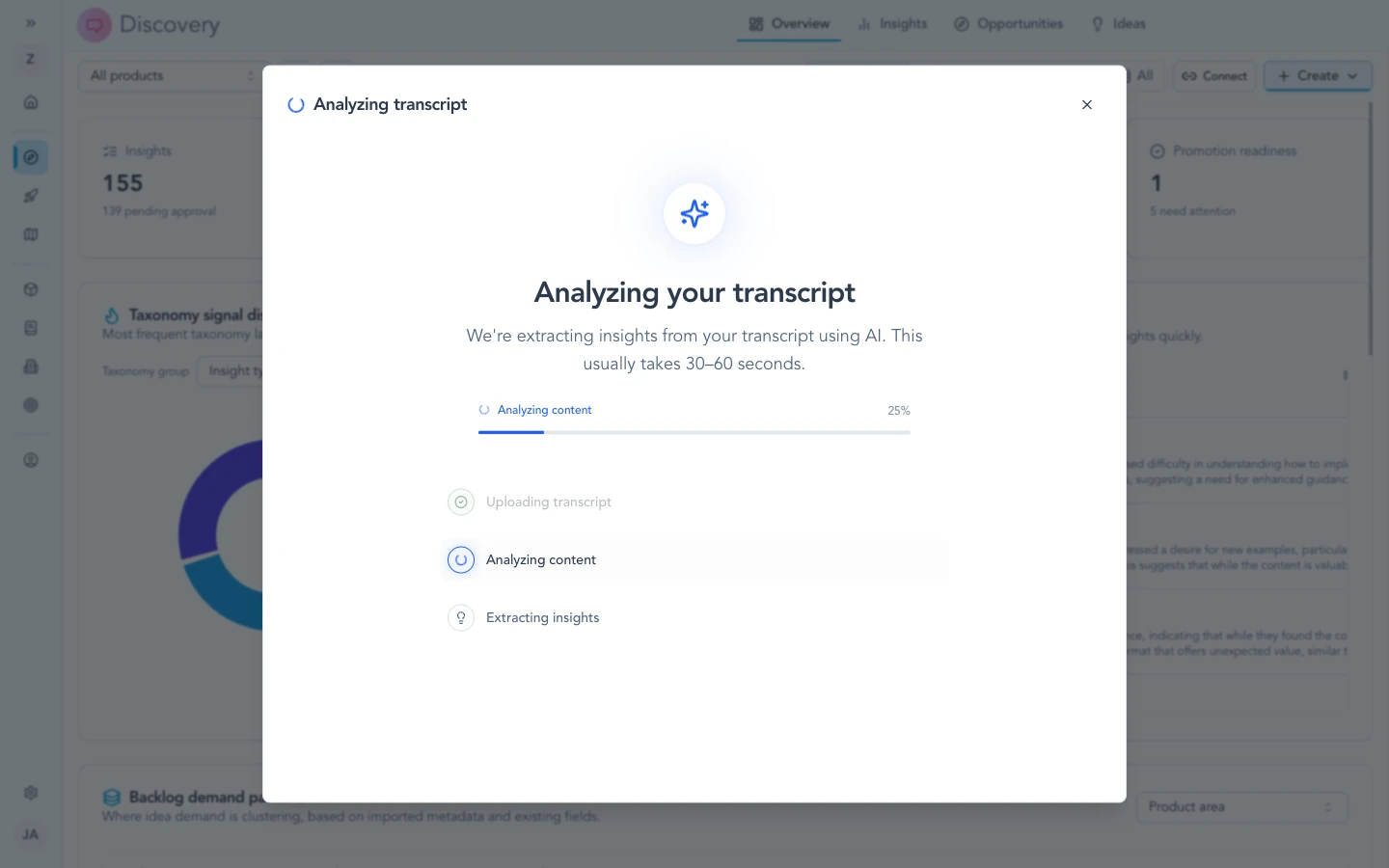
After import, Teams transcripts follow the same signal → insight path as other transcript sources, keeping customer evidence reviewable before it shapes opportunities or roadmap work.
Reconnect
Reconnect when Zentrik prompts you, when your Microsoft 365 admin changes app policy, or when permissions have changed.
Open Settings → Integrations → Microsoft Teams, then connect again with the same Microsoft account. Reconnecting refreshes the existing account connection instead of creating a duplicate.
Security and data model
Microsoft Teams setup has two layers: the Zentrik workspace integration and each user's Microsoft 365 account authorization.
What Zentrik reads
Zentrik uses delegated Microsoft Graph access to identify the connected user, list scheduled calendar meetings, check Teams transcript readiness, and read transcripts selected by a user or matched by that user's saved import.
Zentrik uses Microsoft authorization and never asks for or stores Microsoft passwords.
Meeting chat is not requested. Microsoft's separate delegated chat permission also covers the user's one-to-one and group chats, so Zentrik will not add it as an incidental import option.
Supported meeting sources
This connector supports scheduled Teams meetings visible to the connected user.
It does not provide tenant-wide meeting export, channel-message ingestion, chat history import, ad hoc call capture, or organization-wide recording sync.
Disconnect and data retention
Disconnect from Settings → Integrations → Microsoft Teams to stop Zentrik from using that connected account. Users or admins can also revoke app access from Microsoft account or tenant app management.
Disconnecting stops future Microsoft calls and removes stored OAuth credentials. Transcript text already imported into Zentrik remains workspace content until your team deletes those Discovery records through normal product actions.
Troubleshooting
Most connection problems clear up after a fresh authorization or an admin allows the app. If you have tried that and still cannot connect, contact us and we will help.
Microsoft says admin approval is required
Ask a Microsoft 365 admin to approve the Zentrik app and transcript permissions for your tenant. After approval, return to Settings → Integrations → Microsoft Teams and connect again.
A meeting is missing
Confirm the meeting is on the connected user's calendar, is a scheduled Teams meeting, and falls within the selected date range. Tenant-wide meeting search is not part of this connector.
No transcript is available
Confirm transcription was enabled for the meeting and that Microsoft has finished processing the transcript. Some meetings appear before transcript text is ready.
Connection expired
Open Settings → Integrations → Microsoft Teams and reconnect. If reconnect still fails, ask your Microsoft 365 admin whether app permissions or consent policy changed.
Continue from here
Related guides
Did this guide answer your question?
Your response helps us prioritize missing or unclear documentation.
Still stuck?
Send your question to Zentrik support. This guide will be included automatically.