Turn customer and stakeholder calls into traceable Discovery signal. Review a cloud transcript once or keep a bounded meeting scope current without rewatching recordings.
IT or Zoom admins can use the official marketplace listing for install approval and policy questions.
Zoom App Marketplace listingYou use Zoom for the conversation; Zentrik becomes where the team synthesizes themes, files insights, and ties evidence to roadmap decisions. After you connect, imports are read-only toward Zoom. You can import a reviewed recording once or save the same scope and cadence for recurring intake.
Some companies require Zoom admin approval for marketplace apps before anyone can finish OAuth.
Access & permissions
What Zentrik requests when you connect. You can review or revoke access from the provider's account or admin console anytime.
- Cloud recordings : List meetings that have cloud recordings so you can choose one to import.
- Transcripts : Fetch the transcript for the recording you select in Zentrik.
- Account identity : Shows which Zoom account is connected so everyone knows the source.
Connect Zoom
Start from Settings → Integrations or from Discovery the first time you import—both paths use the same authorization.
Before you start
- Cloud recording enabled for the meetings you care about.
- At least one recording where Zoom has finished an audio transcript (handy for a first test).
- If your org restricts apps, a Zoom admin may need to approve Zentrik before OAuth succeeds.
Connect Zoom
From Settings
- Open Settings → Integrations → Zoom.
- Choose Connect and approve permissions on Zoom’s screen.
- Return to Zentrik when Zoom confirms success.
From Discovery
- Open Discovery and start a Zoom import.
- Choose Connect account if you are not connected yet.
- Complete Zoom authorization; you return ready to choose meetings. Connecting from Sources continues straight into a first import of the last 30 days.
Import transcripts
Once connected, Zoom appears anywhere your workspace surfaces Discovery transcript imports. One shared definition controls meeting topics, destination Product, first-run lookback, and run limit. Choosing recordings only narrows one run.
Reconnect
When to reconnect
- Tokens expire; Zentrik will prompt you when refresh is no longer possible.
- Your admin changed Zoom policies—a fresh consent restores access.
How
- Settings → Integrations → Zoom.
- Choose Reconnect. If reconnecting fails, disconnect and connect again.
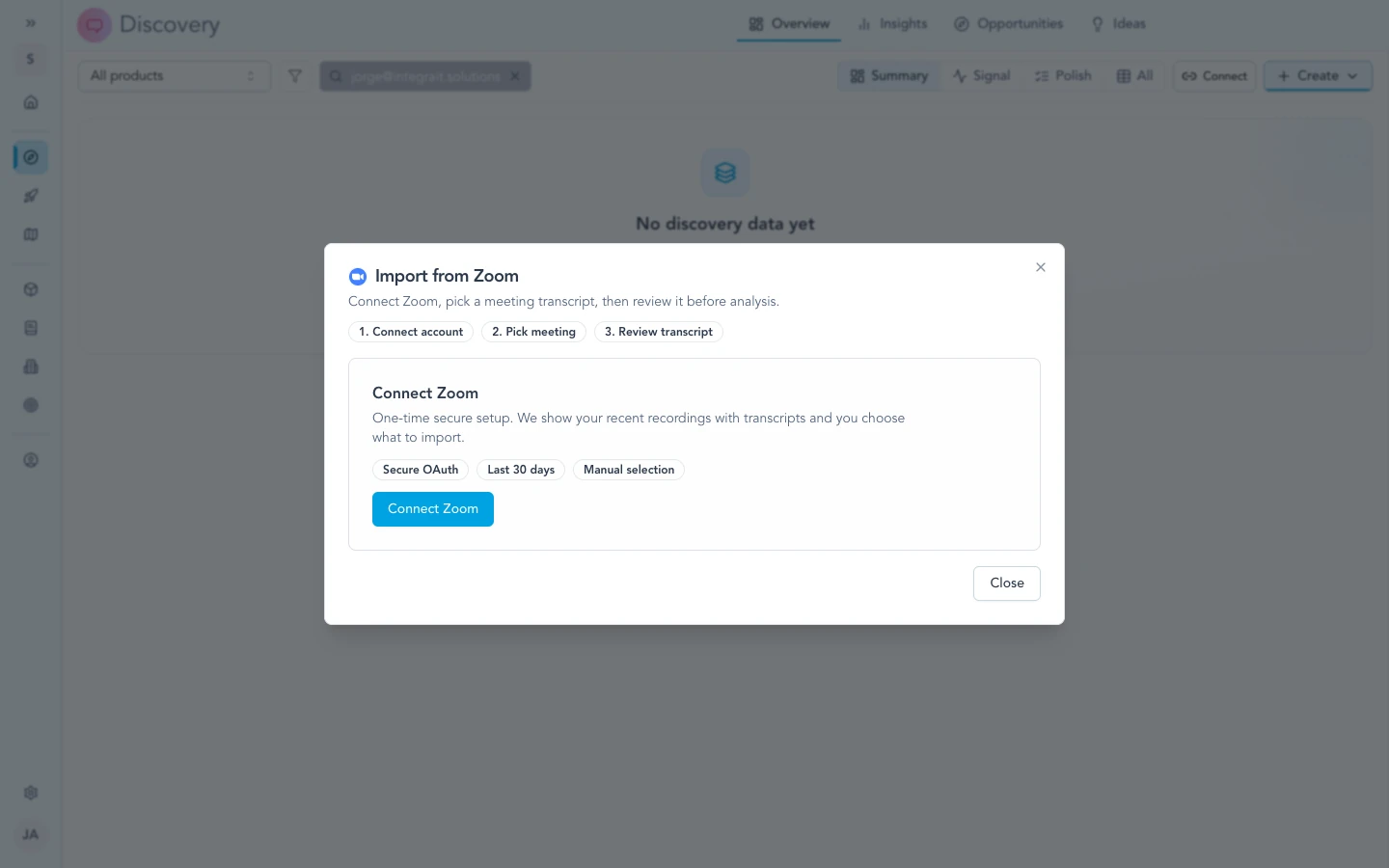
From Discovery, start an import and connect Zoom when prompted—then you can pick transcript-ready meetings.
Run an import
You need
- Zoom connected in Zentrik.
- The meeting in Zoom cloud recordings.
- A finished audio transcript for that recording (Zoom may need time after the call).
Typical flow
- In Discovery, start a Zoom import.
- Choose a date range of up to 31 days, then select the meetings to bring in.
- Review the transcript preview.
- Choose Import for the selected meetings, or Save for reuse to keep the same scope current.
Zentrik rereads the selected transcript from Zoom before writing. The browser sends recording identities, not editable transcript text. Imported text is workspace content in Zentrik and does not replace the recording or transcript in Zoom.
Zoom imports currently create Signals only. The available payload does not identify and classify attendees reliably enough for automatic People or Account changes, so Zentrik does not show an ineffective participant control.
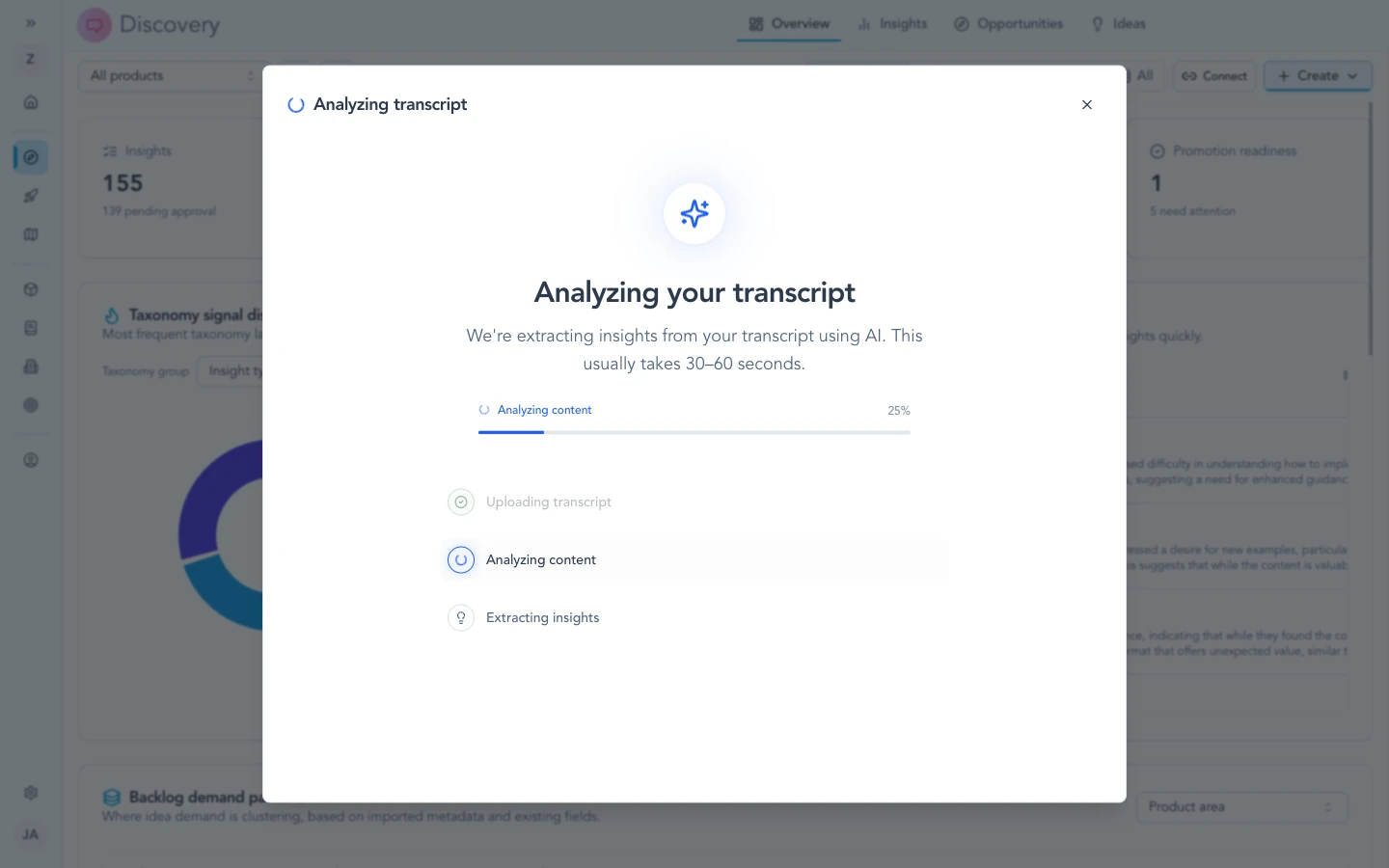
After you select a meeting, Zentrik pulls and analyzes the transcript so your team can work from the text in Discovery.
Keep transcripts current
Workspace owners and admins manage reusable Zoom imports in Settings → Integrations → Imports.
- Save the scope from Discovery or create a Zoom import in Settings.
- Test the draft. A test enumerates the bounded window and rereads every transcript, but creates no Signals.
- Activate the import, choose a cadence, then run it now or let the schedule run.
- Use run history to see created, updated, unchanged, or failed transcripts.
Each transcript-file ID maps to one Signal across reruns and reconnections. Changed transcript or meeting metadata updates that Signal and queues analysis again. Unchanged content is not rewritten. Recurring runs revisit seven days so transcripts that finished processing late are not missed. A stale import catches up through bounded 30-day windows without skipping its older boundary. When a window holds more transcripts than the run limit, the run imports the oldest ones and the next run continues from there. If Zoom cannot enumerate the whole window or any transcript is unavailable, the run writes nothing and does not advance its cursor.
Live arrival
When your Zoom connection supports it, live arrival brings each meeting into Discovery as soon as Zoom finishes processing its transcript, instead of waiting for the next scheduled run. Zoom usually finishes a few minutes after the meeting ends; long meetings take longer. Any schedule on the import stays on as the catch-up sweep.
If Settings → Integrations → Zoom shows a Live arrival switch, an owner or admin can turn it on:
- Turn on Live arrival. There is nothing to set up in Zoom.
- Open each saved import that should arrive live and turn on Arrive live in its run policy.
A live transcript follows the saved import's topic rules and Product, exactly as a scheduled run would, and a transcript already imported is never imported twice. Zoom sends these only for meetings the connected Zoom user hosted. If there is no switch, the connection does not support live arrival yet and saved imports run on their schedule.
Disconnect & data
Stop access from Zentrik, from Zoom, or both—match whatever your security or offboarding process requires.
Disconnect in Zentrik
- Settings → Integrations → Zoom.
- Open the integration and choose Disconnect.
Zentrik clears the stored connection for that workspace integration. You can connect again later.
Remove in Zoom
- Sign in to Zoom in the browser.
- Open the account’s installed or connected apps.
- Find Zentrik and Remove or Revoke.
Zoom notifies Zentrik when you remove the app. Zentrik disconnects every workspace connected as your Zoom user and deletes the Zoom content it stored from your account, as described below.
What Zentrik deletes
Disconnecting in Zentrik removes the stored Zoom credentials for that workspace. Imported transcripts stay until your team deletes them.
Removing Zentrik in Zoom also deletes the Zoom content Zentrik stored from your Zoom account, in every workspace it was imported into:
- The transcript text Zentrik stored.
- Speaker and participant names and emails, the meeting ID, and the recording link.
- Verbatim quotes on Evidence taken from those transcripts.
Each transcript Signal stays as Zoom meeting (removed), so Insights and their links keep their counts. Insights are not deleted, but a quote they carried from the call is removed, and Evidence keeps its summary without the quote.
Only content imported from your Zoom account is deleted. Other people's Zoom imports and manually uploaded transcripts are not affected. Removal runs in the background, usually within minutes. If you reconnect and import the same meeting again, Zentrik imports it again.
Troubleshooting
Most connection problems clear up after a fresh authorization or an admin allows the app. If you have tried that and still cannot connect, contact us and we will help.
Authorization failed or keeps failing
Try Settings → Integrations → Zoom → disconnect, then connect again. If your company restricts apps, ask your Zoom admin to approve Zentrik, then retry. Still stuck? Contact us.
No transcript for a meeting
Zoom only lists meetings with a finished cloud recording and audio transcript. Pick another call, wait for Zoom to finish processing, or enable transcription for the meetings you need in Zoom.
Connection expired
Open Settings → Integrations → Zoom and use Reconnect (or disconnect and connect again).
Continue from here
Related guides
Did this guide answer your question?
Your response helps us prioritize missing or unclear documentation.
Still stuck?
Send your question to Zentrik support. This guide will be included automatically.