Link Salesforce Accounts to Zentrik accounts, keep account fields aligned with CRM data, and bring Opportunities, owners, and people into product decisions. Every insight, opportunity, and idea then shows the ARR and open pipeline behind it. Install the Zentrik Salesforce package once, connect the workspace, then review matches and let the account sync keep the rest current.
Salesforce in Zentrik is a read-only CRM integration. Zentrik uses it to review Salesforce accounts against existing Zentrik accounts, link the right records, keep mapped fields current, and bring the commercial context behind each linked account into product decisions: Opportunities as deals, the owning user, the account's type, and the people attached to it. It also imports selected CRM records into Discovery. Nothing is written back to Salesforce.
Before OAuth can succeed, the Salesforce org must install the Zentrik package that pre-authorizes the connection. After that, a workspace admin can connect Salesforce from Settings → Integrations in Zentrik.
Access & permissions
What Zentrik requests when you connect. You can review or revoke access from the provider's account or admin console anytime.
- Salesforce Cases and Opportunities : Import selected CRM records into Discovery as signals, insights, or ideas with source links preserved.
- Salesforce Account records : Read account identity fields so Zentrik can import account context, review matches, and import mapped CRM data.
- Opportunities, stages, and owners : Read Opportunities for linked accounts with stage, probability, amount, currency, close date, and owning user; stage truth comes from your OpportunityStage setup.
- Contacts : Sync people attached to linked accounts into Zentrik when the account sync enables it.
- Connected Salesforce identity : Show which Salesforce user and org are currently authorized for the workspace.
- Account schema metadata : Load available Salesforce Account fields so admins can configure mappings in Zentrik.
Connect Salesforce
Salesforce setup has two parts: install the Zentrik package in Salesforce first, then complete the workspace connection in Zentrik with a user covered by that package install.
Before you start
- A Salesforce user who can install the package or choose the correct install scope.
- A Zentrik workspace admin who can open Settings → Integrations.
- A clear decision about which Salesforce user will complete the connection in Zentrik after the package is installed.
Install the Salesforce package
- Open the Zentrik Salesforce package install link.
- Sign in to Salesforce if prompted.
- Review the package details shown on the install screen.
- Choose the install option that includes the Salesforce user who will connect the integration in Zentrik afterward.
- If only Salesforce admins will connect the integration in Zentrik, choose Install for Admins Only. Otherwise, select an install scope that includes the connecting user.
- Select the Salesforce acknowledgment checkbox for the non-Salesforce application, then complete the installation.
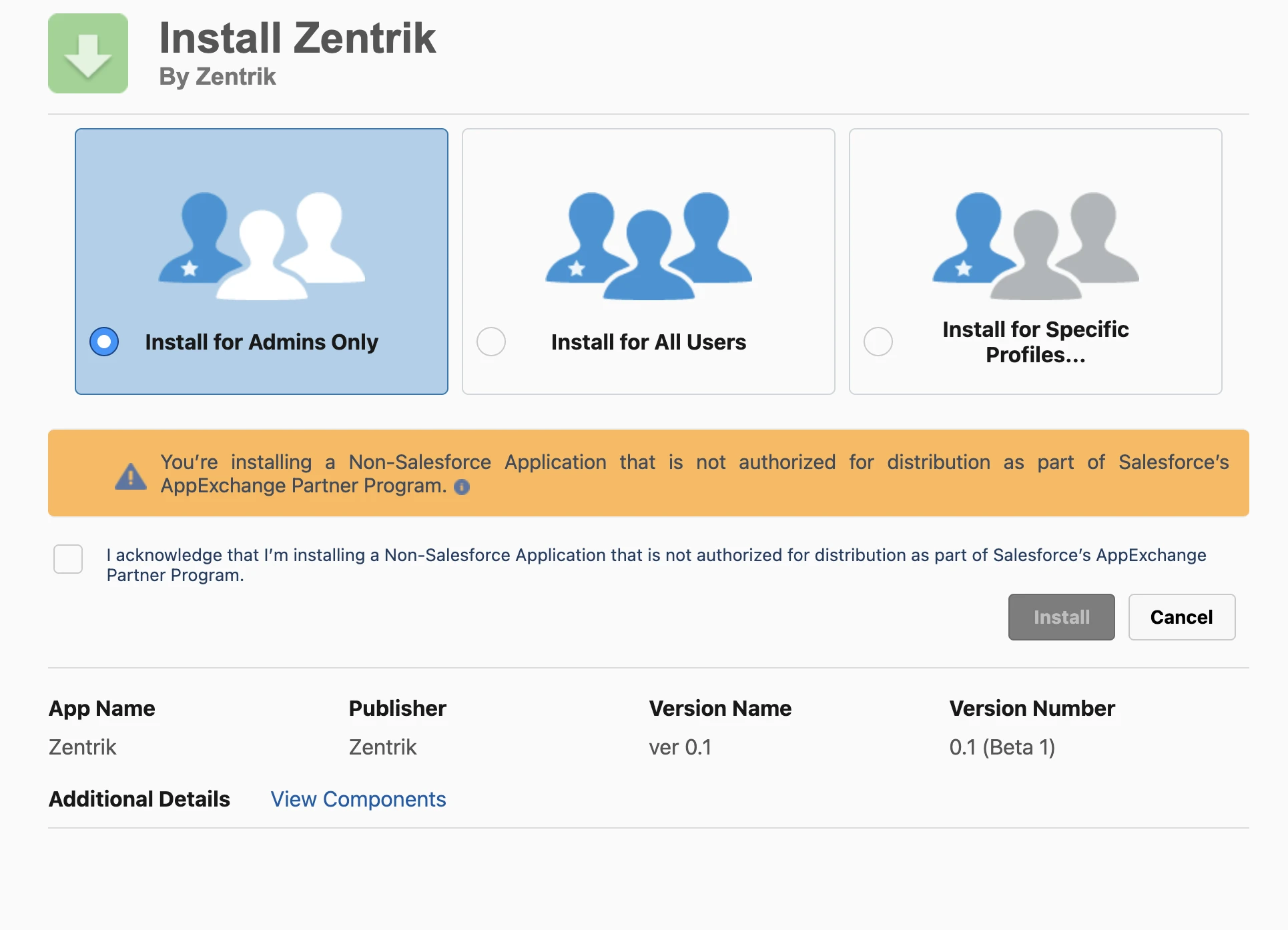
Choose the package access option that includes the Salesforce user who will finish the connection in Zentrik. If the same admin is doing both steps, Install for Admins Only is usually sufficient.
Connect in Zentrik
- Sign in to Zentrik.
- Open Settings → Integrations.
- Select Salesforce.
- Choose Connect and complete the Salesforce authorization flow.
- Return to Zentrik once Salesforce confirms the connection.
If Salesforce opens but access is denied, the package install scope usually does not include the user who is trying to connect.
How to use it
Once connected, Salesforce helps Zentrik bring CRM evidence into Discovery and keep customer account identity aligned with CRM data.
Import Discovery records
From Discovery, choose Import → Salesforce. Select Salesforce Cases, Opportunities, or Accounts, then import selected records as signals, insights, or ideas. Zentrik keeps Salesforce source metadata and links so the imported record remains traceable to CRM.
Map account fields
Open the Salesforce integration settings in Zentrik and map the Salesforce Account fields you want Zentrik to import. These mappings are used for the bulk review flow and later manual re-imports on linked accounts.
Map a field such as Type to Zentrik's lifecycle stage and a translation table appears with every value your org uses. Zentrik suggests a stage from the wording (a "Former Customer" is churned, a "Channel Partner" is a partner) and you decide once per value; a value you leave unchanged keeps whatever stage the account already has in Zentrik.
Review account matches
Start the Salesforce account review flow in Zentrik to compare Salesforce accounts with existing Zentrik accounts. Review proposed matches, link the correct records, and create missing Zentrik accounts where appropriate.
Zentrik reads account data from Salesforce and does not write account changes back.
Accounts
Account demand makes trusted reporting worth building
Northstar Analytics + 68 mentions
Sales calls
7 review calls mention report confusion
Support threads
31 requests point to filter and export blockers
Accounts
Account demand makes trusted reporting worth building
Northstar Analytics + 68 mentions
Sales calls
7 review calls mention report confusion
Support threads
31 requests point to filter and export blockers
This synthetic account-demand scene shows how Salesforce identity can make account-level demand usable in Discovery: linked insights, ideas, votes, signal recency, and revenue context travel with each product decision.
Deals, owners, and people
The account sync refreshes every linked Salesforce account: the owning user, the account Type, the selected snapshot fields, and all Opportunities with stage, stage probability, amount, currency, close date, and owner. Stage truth comes from your org's Opportunity stages. Opportunities removed in Salesforce are archived, not deleted, so history stays explainable.
Salesforce has no built-in recurring revenue, so tell the connection where it lives: the Opportunity field that holds annual (or monthly) recurring value, or state that Amount is annual recurring value when your org keeps one-year subscription value there. Under the default, Amount is booking value and never becomes ARR.
Open the account page to see the Salesforce context, the deal list, and a Refresh from Salesforce action for one account. Contact sync is on by default and can be turned off per connection.
Opportunity products (line items) are matched to Zentrik products by product code, Salesforce product id, or name through the product's source aliases, and their value lands on that product's link so demand for one product ranks on the revenue behind that product. Lines Zentrik cannot match are listed on the run receipt; add a product alias once and every later sync places them.
Revenue exposure in Discovery
Insights, opportunities, and ideas show a commercial exposure block next to Linked ARR: open pipeline, stage-weighted pipeline, closed-won revenue, and the accounts behind each figure with their owner and type. Account revenue derived from won or stage-weighted Opportunities feeds Linked ARR, the number Zentrik ranks and filters product demand with, and is withdrawn again if the Opportunities behind it disappear. A value a person entered is never replaced.
For workspace admins
- Complete the workspace connection with a Salesforce user whose package access will remain available for ongoing administration.
- If a different Salesforce user needs to reconnect later, make sure the package install option or selected profiles include that user before retrying OAuth.
- Keep field mapping current when your Salesforce Account schema changes, or some expected fields may disappear from the picker in Zentrik.
- Disconnect in Zentrik and reconnect with the right Salesforce user if the wrong org or identity was authorized.
Troubleshooting
Most connection problems clear up after a fresh authorization or an admin allows the app. If you have tried that and still cannot connect, contact us and we will help.
Salesforce denies access during connect
Confirm the Zentrik Salesforce package was installed in the correct org and that the selected install option includes the Salesforce user finishing the connection in Zentrik. Then retry from Settings → Integrations → Salesforce.
Connected the wrong Salesforce user or org
Disconnect the integration in Zentrik, sign out of Salesforce if needed, and connect again with the correct Salesforce identity.
Mapped fields are missing
Reconnect if the authorization expired, then review the Salesforce field mapping in Zentrik. If your Salesforce Account schema changed recently, refresh the mappings before running the review flow again.
Continue from here
Related guides
Did this guide answer your question?
Your response helps us prioritize missing or unclear documentation.
Still stuck?
Send your question to Zentrik support. This guide will be included automatically.