Let support tickets inform prioritization, not stay siloed in Zendesk. Connect once per workspace, choose which groups and fields matter, map demand to products, and import tickets into Discovery next to calls and docs.
An owner or admin connects your Zendesk once per workspace, with an agent's API token or, where Settings offers it, by approving access in Zendesk. You then choose which support groups sync into Zentrik and how they map to products, so product-relevant volume surfaces in Discovery without asking every PM for a Zendesk password.
Pick tickets in the import UI; Zentrik does not silently ingest your entire Zendesk account.
Connect Zendesk
Connect under Settings → Integrations → Zendesk. You need to be an owner or admin in Zentrik. Follow the steps that match the form Settings shows.
If Settings asks for an API token
- Subdomain: the prefix of your Zendesk (for
acme.zendesk.com, enteracme). - Email: the Zendesk agent who owns the token.
- API token: create one in Zendesk under Admin Center → Apps and integrations → APIs → API tokens, then paste it and save. Zentrik does not show it again.
Zendesk is retiring API tokens. An account created on or after 28 July 2026 cannot create one, no account can create one after 27 October 2026, and existing tokens stop working on 30 April 2027. If your Zendesk cannot create a token, contact us and we will connect it for you.
If Settings asks for your Zendesk address
- Enter your subdomain (for
acme.zendesk.com, enteracme). A full address or URL also works. - Select Connect Zendesk. Zendesk opens on your own site and lists what Zentrik is asking to read; the person approving must be a Zendesk admin.
- Select Allow. You return to Zentrik, connected.
Access renews on its own; if Zendesk stops accepting it, the integration page asks you to reconnect.
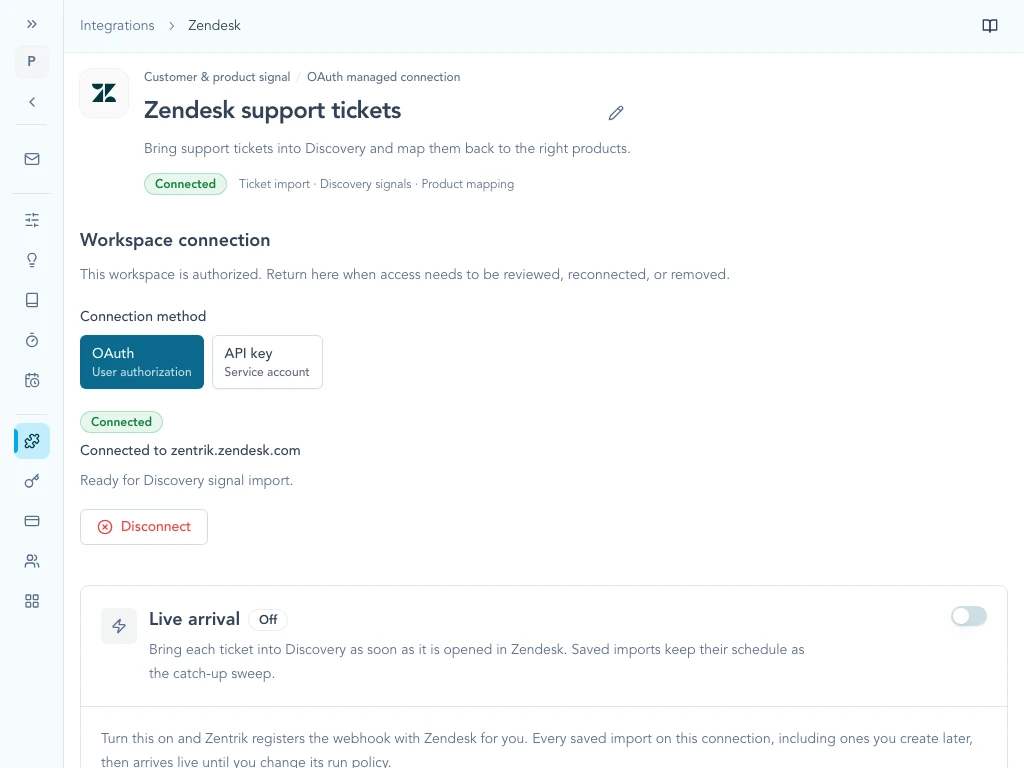
After you approve access in Zendesk, the integration shows the Zendesk it is connected to.
Tune imports
Zendesk is meant to be governed: you decide which groups represent product-relevant demand and which custom fields appear when you analyze tickets in Zentrik.
Groups and product mapping
In Zendesk integration settings, select the groups that should sync. Map them to Zentrik products so insights and opportunities land in the right product area instead of a generic bucket.
Ticket fields
Enable the ticket fields that matter for discovery—priority, product area, escalation tags, or custom fields your support team maintains. A deliberate field set reduces noise while keeping the metadata PMs need for triage.
How to use it
Create a saved import under Settings → Integrations → Imports. It decides which tickets are eligible, which product they belong to, and when Zentrik brings them in.
Import tickets
- Create a Zendesk import and choose the ticket statuses and groups to include.
- Choose a daily or weekly schedule, or leave it to run on demand.
- Run it. Each run shows how many tickets arrived and how many requests Zentrik made to your Zendesk.
Imported tickets become signals you can link to insights, opportunities, and roadmap narratives—like other customer feedback channels.
The statuses you choose decide which tickets come in. Once a ticket is in Zentrik, each scheduled run keeps its status current, including after it is closed. A ticket is analyzed again only when its content changes, such as a new customer reply. The run receipt counts tickets it read that stay outside the selected statuses.
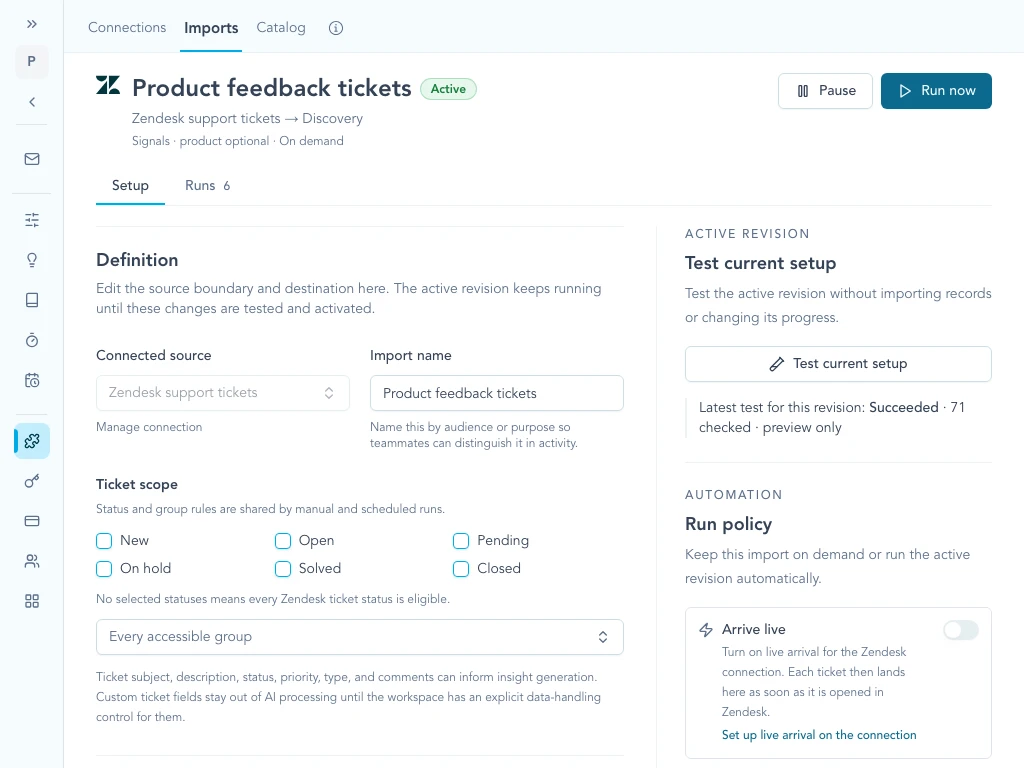
A saved import decides which tickets are eligible and when Zentrik brings them in.
Live arrival
Live arrival brings each new ticket into Discovery as it is created, instead of waiting for the next scheduled run. Any schedule on the import stays on as the catch-up sweep.
An owner or admin turns it on in Settings → Integrations → Zendesk:
- Turn on Live arrival. Zentrik registers the webhook with Zendesk for you, so there is nothing to set up there.
- Open each saved import that should arrive live and turn on Arrive live in its run policy.
Only ticket creation arrives live. Later changes to a ticket are picked up by the import's schedule, which rereads and reconciles them. An import scoped to statuses a ticket reaches later, such as solved, keeps working entirely on its schedule.
The connection shows when the last ticket arrived. Turning live arrival off removes the webhook from Zendesk again.
For workspace admins
- Each run receipt shows how many requests Zentrik made to your Zendesk, split between the import and the analysis that follows. Check it when your Zendesk API usage looks higher than expected.
- Disconnect in Zentrik removes Zentrik's webhook from Zendesk and withdraws its access. For an API token connection, also delete the token in Zendesk.
What Zentrik reads
- Reads: tickets that match your saved imports (subject, description, public comments, status, priority, tags, custom field values, and requester, assignee, group, and organization IDs), organization names and domains, group names, and ticket field definitions. Internal notes are left out of analysis.
- Stores: each imported ticket and its text in your workspace, with the insights drawn from it.
- Writes: one webhook for new tickets, only while live arrival is on. Zentrik does not change tickets, users, or settings.
Troubleshooting
Check credentials and permissions on both sides first. If you have verified everything and it still fails, contact us with your workspace name and what you tried.
The API token connection fails
Confirm the subdomain, and that the email belongs to the agent who created the token. If you are unsure, create a new token in Zendesk, save it in Zentrik, and try again.
Zendesk says the address is not valid, or approval fails
Enter only your subdomain and try again. The person selecting Allow must be a Zendesk admin; an agent can see the approval page but cannot grant access.
The integration asks you to reconnect
Zendesk no longer accepts Zentrik's access, usually because an admin revoked it. Select Reconnect and approve again; imports resume where they stopped.
No tickets in the picker
Check the import's groups and statuses. Zentrik sees what the connected Zendesk account can see, so confirm those tickets are visible to it in Zendesk. Contact us if settings look correct but imports stay empty.
Continue from here
Related guides
Did this guide answer your question?
Your response helps us prioritize missing or unclear documentation.
Still stuck?
Send your question to Zentrik support. This guide will be included automatically.