Connect Zentrik MCP in Claude, then use the same workspace-bound product context in Claude Code.
Zentrik is an Anthropic-reviewed connector in Claude's Connectors Directory. Open the listing to connect the current remote MCP server.
Open Zentrik in ClaudeZentrik is in Claude's Connectors Directory. Open the listing and choose Connect, then pick the Zentrik workspace you want Claude to read.
If your organization restricts directory connectors, an admin can add Zentrik as a custom connector with https://zentrik.ai/mcp. Both routes use the same server, OAuth flow, and permissions.
Steps
Claude supports reviewed directory connectors and admin-added custom connectors. Both use the same Zentrik MCP server, OAuth flow, workspace permissions, and tools.
1. Open Connectors
In a Claude chat, open Search and tools, then choose Add connectors to browse the directory.
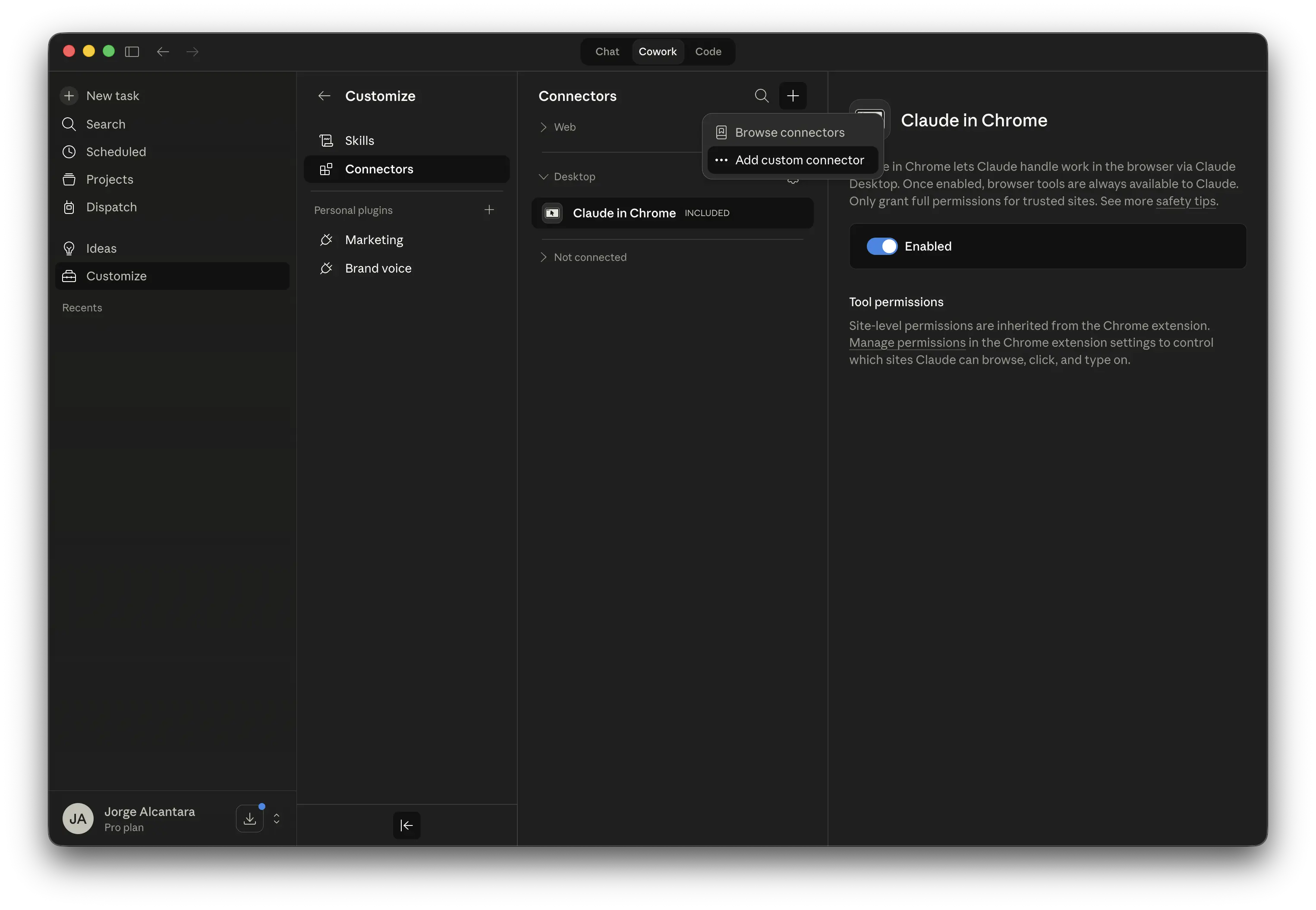
Claude Connectors settings.
2. Add the connector
Search for Zentrik in the directory, then choose Connect.
If your organization has directory connectors turned off, an admin can add Zentrik as a custom connector instead from Customize → Connectors: choose Add custom connector, enter Zentrik, use https://zentrik.ai/mcp, then save it.
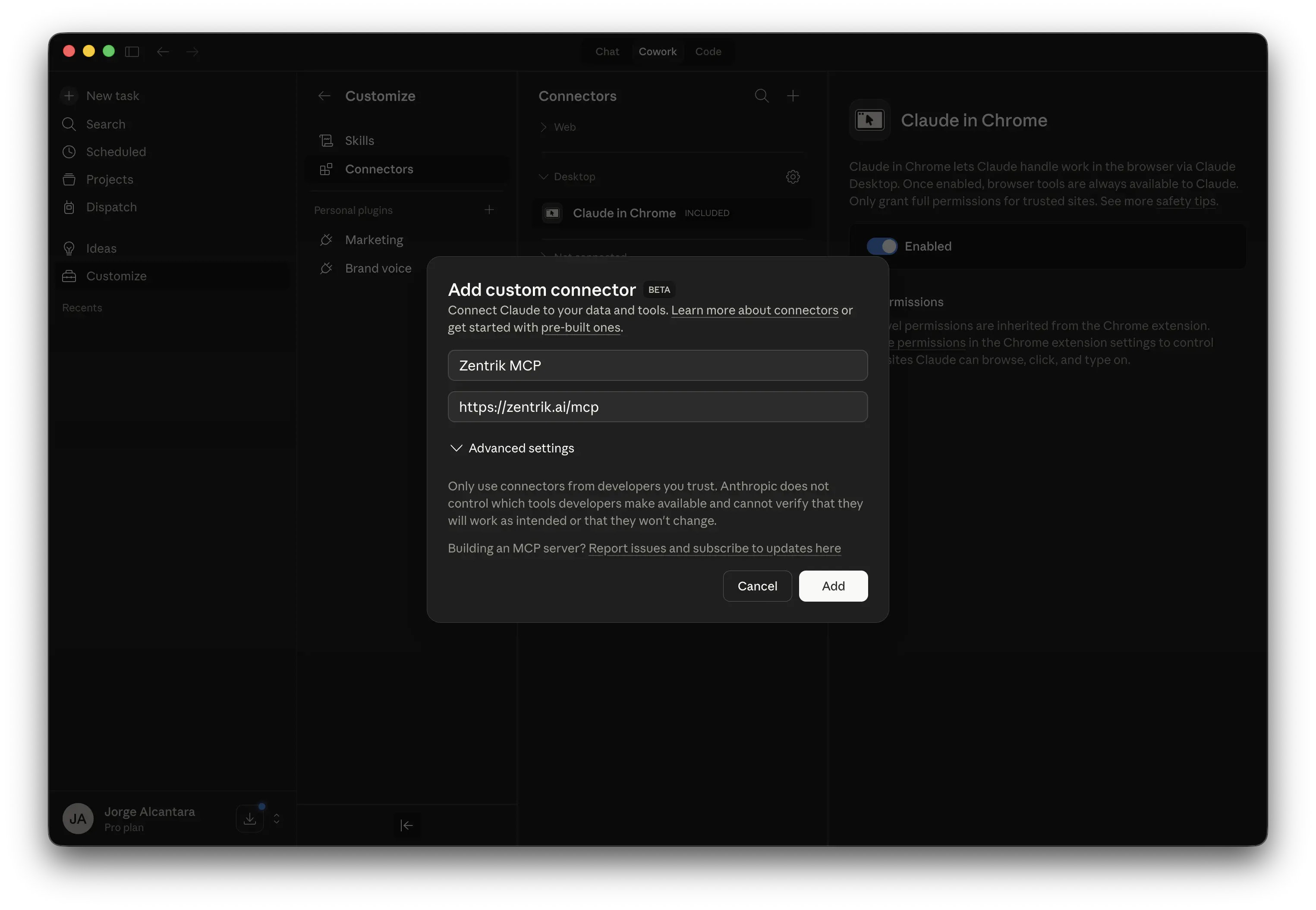
Claude custom connector form with the Zentrik MCP URL.
3. Authenticate
Use the connector's Authenticate flow.
4. Approve in Zentrik
In Zentrik, choose the workspace for this connection and approve access.
If Claude does not redirect into OAuth right away, wait a few seconds or restart Claude, then try the connector again.
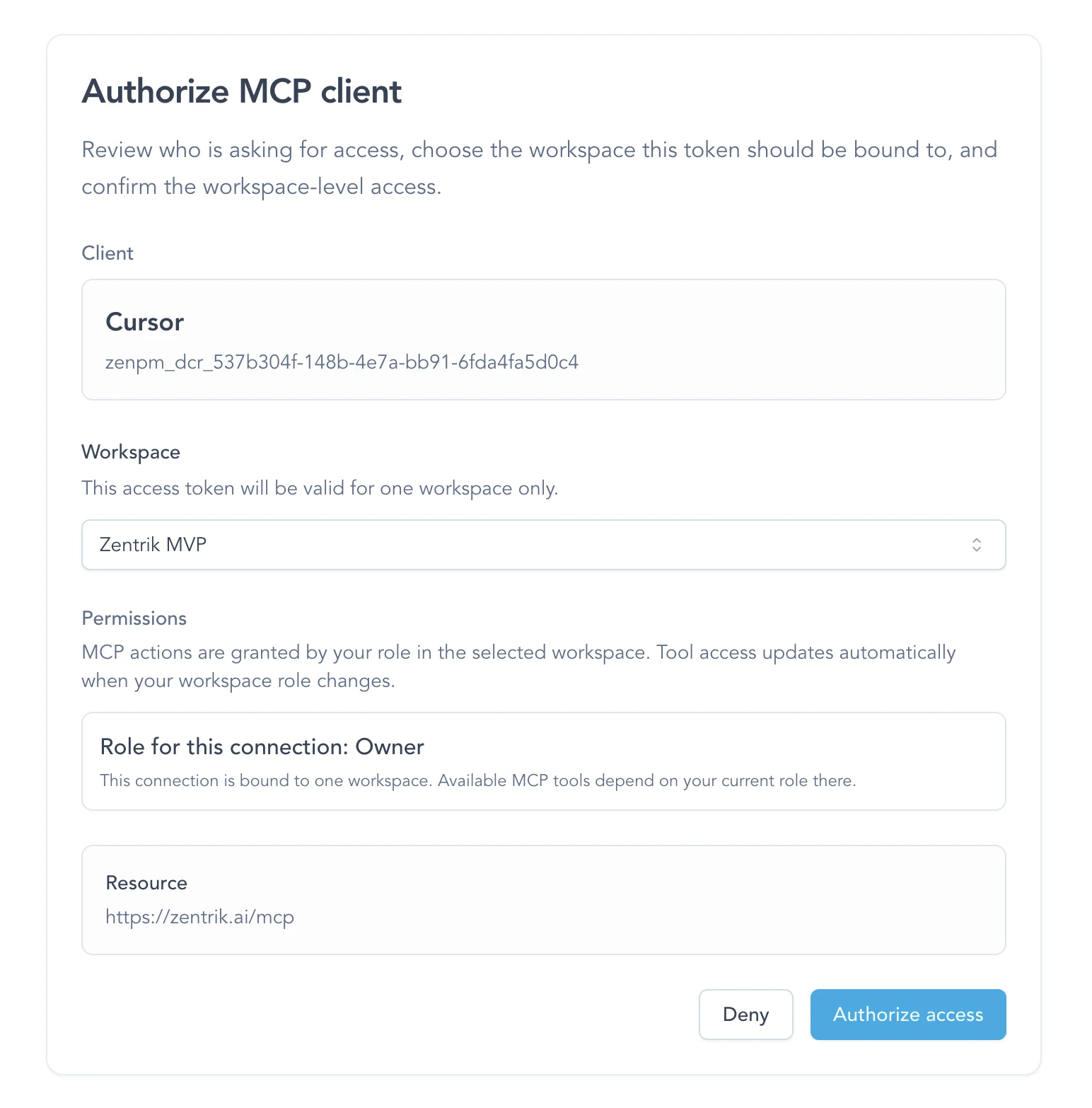
Zentrik approval screen during MCP authentication.
Use Zentrik in Claude
After authorization, ask Claude a product question naturally. Claude can select Zentrik when the question needs workspace evidence; you do not need to name individual tools.
Start with one of these:
What evidence does Zentrik have about onboarding this quarter? Summarize recurring
themes, cite the relevant records, and note important gaps.What evidence supports [opportunity or idea]? Separate stored facts from your
inference and note what is missing.For a complete Study loop, try:
Create a private Study draft for [idea or initiative]. We need to learn [learning
need] from [audience]. Show me the proposed method and activities before creating it.Review [study ID]. Tell me whether its evidence and draft findings are current,
what remains unanswered, and the next action in Zentrik.For batch imports or unclear metadata, ask Claude to preview the proposed records before creating them. The MCP use cases page includes a complete starter.
Next:
- Customer feedback to build-ready specs for an end-to-end example
- MCP use cases
- MCP best practices
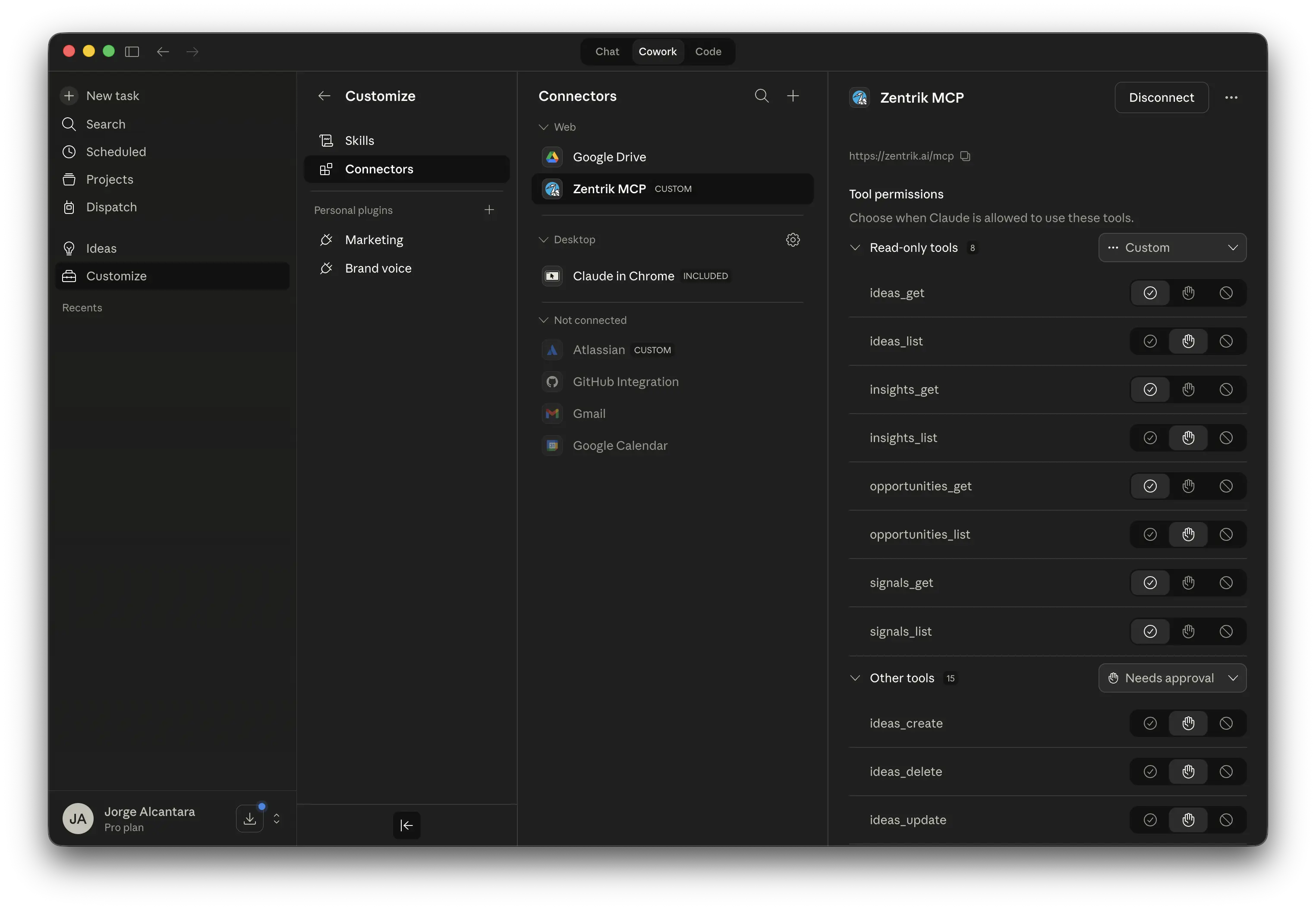
Claude connected to Zentrik MCP with tools available.
Claude Code shortcuts
When Claude Code is signed into the same Claude account, the connected Zentrik server can also appear in /mcp.
Full MCP clients can expose Zentrik's guided workflows directly:
- for a new or incomplete workspace, look for
/mcp__zentrik__set_up_product_workspace - for recurring evidence capture, look for
/mcp__zentrik__import_product_evidence - ask naturally when you do not need a shortcut; the same Zentrik tools remain available
Prompt presentation depends on the MCP client. The connector tools are the reliable cross-client surface.
Claude Code plugin
Zentrik publishes a Claude Code plugin that bundles this same connector with four named workflows, so a new machine gets the connection and the workflows in one step.
claude plugin marketplace add Zentrik-AI/claude-pluginsclaude plugin install zentrik@zentrikRun /reload-plugins to activate it in a session that is already open. The interactive equivalents inside Claude Code are /plugin marketplace add Zentrik-AI/claude-plugins and /plugin.
The plugin adds four skills:
/zentrik:brief-product-workbriefs whatever you are about to build with the decisions, customer evidence, and open questions the workspace already holds, each one attributed to a record ID. It only reads, so it needs no approval step and works for Viewer roles. If the workspace holds nothing on the subject it says so rather than filling the gap./zentrik:set-up-product-workspaceand/zentrik:import-product-evidenceare the skill form of the two guided workflows below./zentrik:manage-product-studyplans a private Study from an Idea or Initiative, refines its activities, reviews aggregate response coverage, and generates evidence-grounded draft findings for human review.
Claude also runs them on its own when the task matches, so you do not have to remember the names.
The connector works without the plugin. If you connected Zentrik above, you already have every tool the plugin uses. The plugin adds the named workflows and ships the connection with them, and Claude may reuse your existing connection to the same endpoint instead of opening a second one.
Source and license: Zentrik-AI/claude-plugins, Apache-2.0. The plugin marketplace is separate from the Anthropic Connectors Directory listing above.
Guided workflows
The connector ships two guided workflows. They need no separate install: once Zentrik is connected, Claude can run them, and full MCP clients also list them as prompts.
- Set up a product workspace reads the current state, routes first-party material to the correct product, context, evidence, and decision surfaces, applies supported changes with approval, and returns a setup receipt. Use it on a new or incomplete workspace.
- Import product evidence handles recurring source-by-source evidence capture without turning ingestion into a product decision.
Both respect your Zentrik role. A Viewer can run the read portions; applying changes needs Editor, Admin, or Owner.
Troubleshooting
Check these steps against what you see in your workspace. If something differs, note your workspace name and the screen, then contact us.
I cannot find Zentrik, or cannot add a connector
Team and Enterprise organizations can restrict which connectors members may enable. Ask a Claude Owner or Primary Owner to enable Zentrik for the organization, after which it appears in your connector browser.
Claude did not redirect into auth
Wait a few seconds, then try again. If it still does not trigger the OAuth flow, restart Claude and re-open the connector.
Claude shows the connector but not the tools
Finish the browser OAuth flow first. The tools appear after the connector is authenticated into a workspace.
I chose the wrong workspace
Run the auth flow again and choose the correct workspace. Each MCP connection is bound to one workspace at a time.
Continue from here
Related guides
Did this guide answer your question?
Your response helps us prioritize missing or unclear documentation.
Still stuck?
Send your question to Zentrik support. This guide will be included automatically.