Run a study inside an in-app guide or help widget using its participant link.
Publish the study and confirm that its participant link works before adding it to your product.
Embed a study in another product
Load the participant link in an iframe in your product. Allow microphone access for the frame if participants will use voice.
Inside an embed:
- The room narrows to one column. The interviewer, the current question, the answer field, and the interview controls stay together in the panel.
- Open full study opens the same study in its own tab when the participant wants more room.
- A pinned prototype opens in a new tab through View prototype rather than sitting beside the conversation, because a widget is rarely wide enough for both.
- Voice depends on the host page, which has to allow microphone access for the frame. When it does not, the study says so and the participant completes the same interview by typing.
- Saved participant identities are not offered inside an embed. The participant enters their details when the study asks for them.
Responses collected in an embed are ordinary study responses. They carry the same transcript, the same review step before submission, and the same findings as a response from a shared link.
Give the frame enough room for a conversation. A panel around 400 by 600 pixels is comfortable.
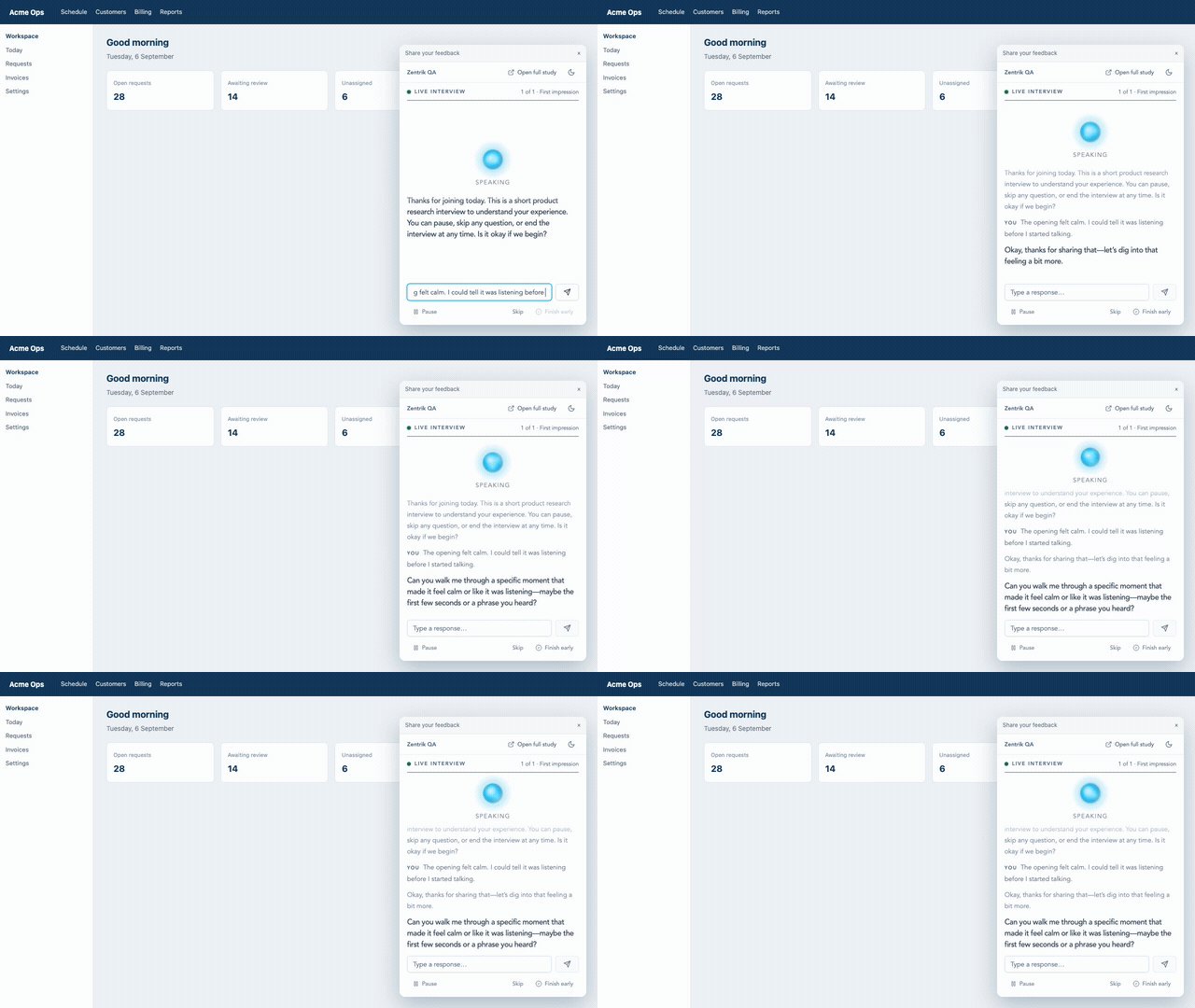
Inside a host product the room narrows to one column and keeps Open full study available, while the transcript and review stay identical.
Check the embedded flow
Open the host page as a participant. Check that you can answer, review the transcript, and submit. Test Open full study and the typed answer path when microphone access is unavailable. Check the saved response in Zentrik.
Continue from here
Related guides
Did this guide answer your question?
Your response helps us prioritize missing or unclear documentation.
Still stuck?
Send your question to Zentrik support. This guide will be included automatically.