Review recipients and the message before sending a Study invitation or announcement.
Before you start
Open the relevant published Study, post or enrollment invitation in portal administration. You need current authority for the full intended audience. Settings, consent and recipient eligibility must still permit the send.
Publishing content sends no email. The managed sender is outbound-only; members follow links back to the portal rather than replying to a monitored team inbox.
Review recipients and the message
- Open the item’s invitation or email delivery controls. For enrollment, use the member invitation flow.
- Select the intended recipients. Review excluded people and their stated reasons; selecting a group does not make every Person eligible.
- Open the preview. Check the content title, destination, audience, eligible/excluded counts and any contact-policy warnings.
- If you change content, recipients, timing or a required setting, obtain a fresh preview before confirming.
Study invitations and optional updates use the member’s separate email choices. Pause, departure, removal, opt-out, completion and closure can prevent a send as appropriate. An override for a contact-frequency warning does not override those exclusions.
A preview is a point-in-time review. The delivery process checks current eligibility again when it attempts the message; someone can become ineligible after scheduling.
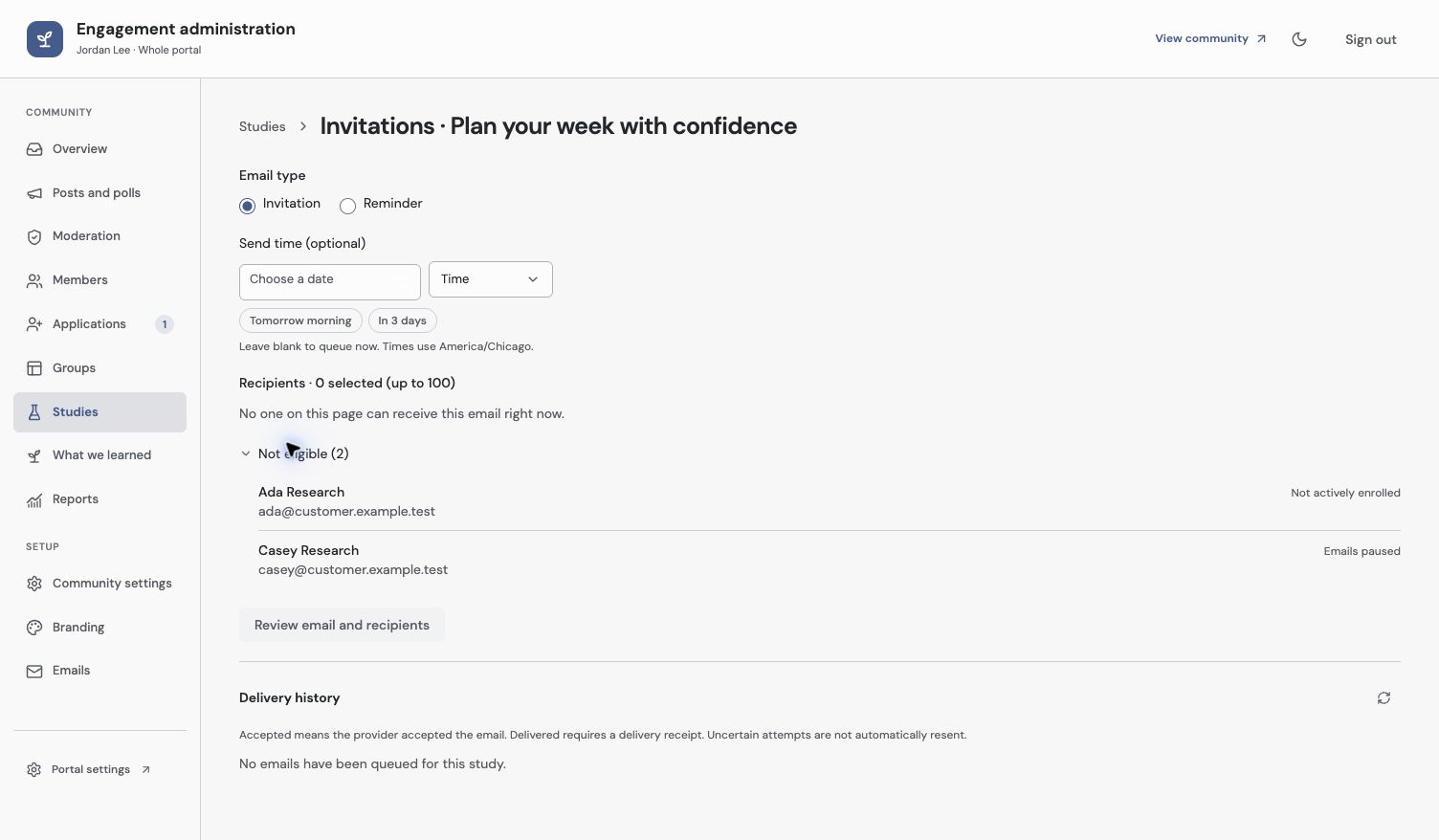
Read exclusion reasons before sending. Pausing email preserves voluntary participation while preventing program outreach.
Send now, schedule or cancel
Use Queue emails now or the scheduling controls offered for the item. Review the scheduled time before confirming. If the UI asks for a reason for an additional distinct research request, record a useful reason and review again.
Inspect the item’s history after submitting. Queued means work is waiting; provider accepted means the provider accepted the attempt. Neither is the same as confirmed delivery. An unknown attempt is not proof of success or a safe instruction to send another copy.
Cancel from the available delivery controls while the request is still cancellable. Once provider acceptance has occurred, cancellation cannot recall an email already handed off. Inspect the current record before retrying an uncertain attempt.
Check the destination and participation
Confirm the delivery record belongs to the expected Person and item. Check that its link opens the intended page with that participant’s current access. An email grants no new group permission; the member may need to sign in.
For recurring updates, configure the weekly digest. Use the email reference for exact state meanings, opt-outs, reminder eligibility and contact rules.
For a new integration, check the actual delivery record and destination before treating the email workflow as established. A preview proves only the content you reviewed.
Troubleshooting
There are no eligible recipients
Read the exclusion reasons. Check enrollment, current audience and optional email choices. Do not change someone’s consent or bypass a pause to make the count nonzero.
The preview became stale
Reload current recipients/content and review again. The stale preview protects against sending a message or audience you did not approve.
Delivery is unknown
Inspect the current activity and ask your administrator to investigate. Do not interpret unknown as delivered or repeatedly queue replacements without checking the attempt.
Continue from here
Related guides
Did this guide answer your question?
Your response helps us prioritize missing or unclear documentation.
Still stuck?
Send your question to Zentrik support. This guide will be included automatically.