Invite customers into an ongoing community, run research with them, and share what you learn.
Use these guides to set up a community, operate it, or participate in one. The screenshots use fictional example data.
Set up and manage access
Start with Set up your engagement portal. It takes you from a separate portal configuration to a branded community ready for its first invitation. Engagement must be available in your workspace.
- Add and remove administrators: give colleagues whole-portal or selected-group responsibility.
- Create groups and manage their people: reuse Panels without automatically enrolling everyone.
- Invite people and manage membership: review invitations, consent and participation states.
- Review requests to join: optionally open an application form. Approval still leads to an invitation.
Run your community
Publish announcements, discussions and polls, and moderate reported content.
To answer a research question, create a Study in Zentrik, share it with eligible groups, then publish what you learned. You can also publish independent discoveries and roadmap updates.
Sending an email is a separate reviewed action. Configure the digest when you want recurring updates. Reports helps you inspect recorded participation, while Capture evidence brings selected feedback into Discovery.
Take part as a member
Received an invitation? Follow Join a community and sign in. Then find your groups, conversations, polls and research.
You choose whether to take part in each request. Email preferences, pause and departure remain under your control. You do not need access to the team's internal Zentrik workspace to participate.
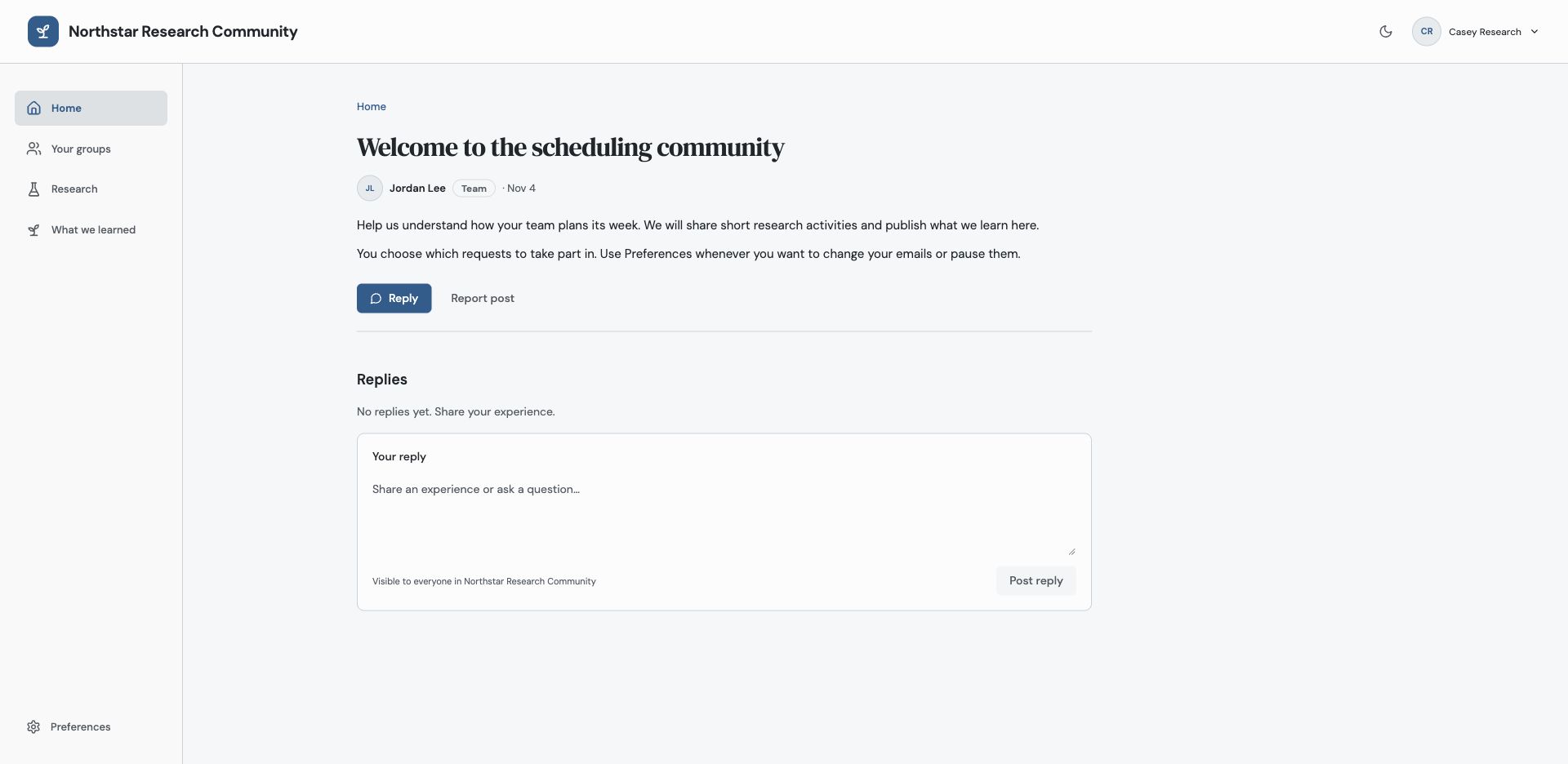
Members use the branded community to read, reply and find research. Screenshots throughout these guides use fictional example data.
Understand access and delivery
A Person is a customer record. A Panel is a reusable audience. Community membership starts with an accepted invitation and participation consent; neither a Person nor a Panel row establishes it.
Active members of the community’s Zentrik workspace can use their Zentrik account for both administration and participation. Administration needs an explicit grant; participation needs a personal invitation and consent. Other participants use the configured customer sign-in. See Access, roles and membership states and Email delivery states and contact rules.
The optional Ideas section uses the Ideas Portal workflow for requests and votes. Study authoring, responses and findings stay in Studies.
Continue from here
Related guides
Did this guide answer your question?
Your response helps us prioritize missing or unclear documentation.
Still stuck?
Send your question to Zentrik support. This guide will be included automatically.