Write customer-facing content, choose its audience and publish it without automatically sending email.
Before you start
Open Posts and polls in portal administration. You need authority for the content’s complete audience. A whole-portal post and a post shared with selected groups have different audiences; check that choice before publishing.
Use an announcement for an update, a discussion for a conversation and a poll for a specific choice. Member-created discussions depend on the shared-home or group discussion setting.
Write and review a draft
- Choose New announcement, New poll or the appropriate discussion action.
- Enter the title and customer-facing content. Add the supported images and links where they help the reader.
- Select the shared home or intended groups. Write enough context for someone outside the internal product team.
- Wait for the saved state. A draft may be incomplete and remains private; resolve a saving error before leaving it.
- Review the actual content and audience in the editor, then use Publish.
Drafts recover when you reopen them. If the page warns about unsaved work, stay and finish saving. Publishing validates the current content and permissions. It is not the same as approving an email or a digest item.
For a poll, check the question, choices and closing time before publishing. Published poll questions and choices stay fixed to preserve the meaning of votes. Do not publish temporary options intending to replace them later.
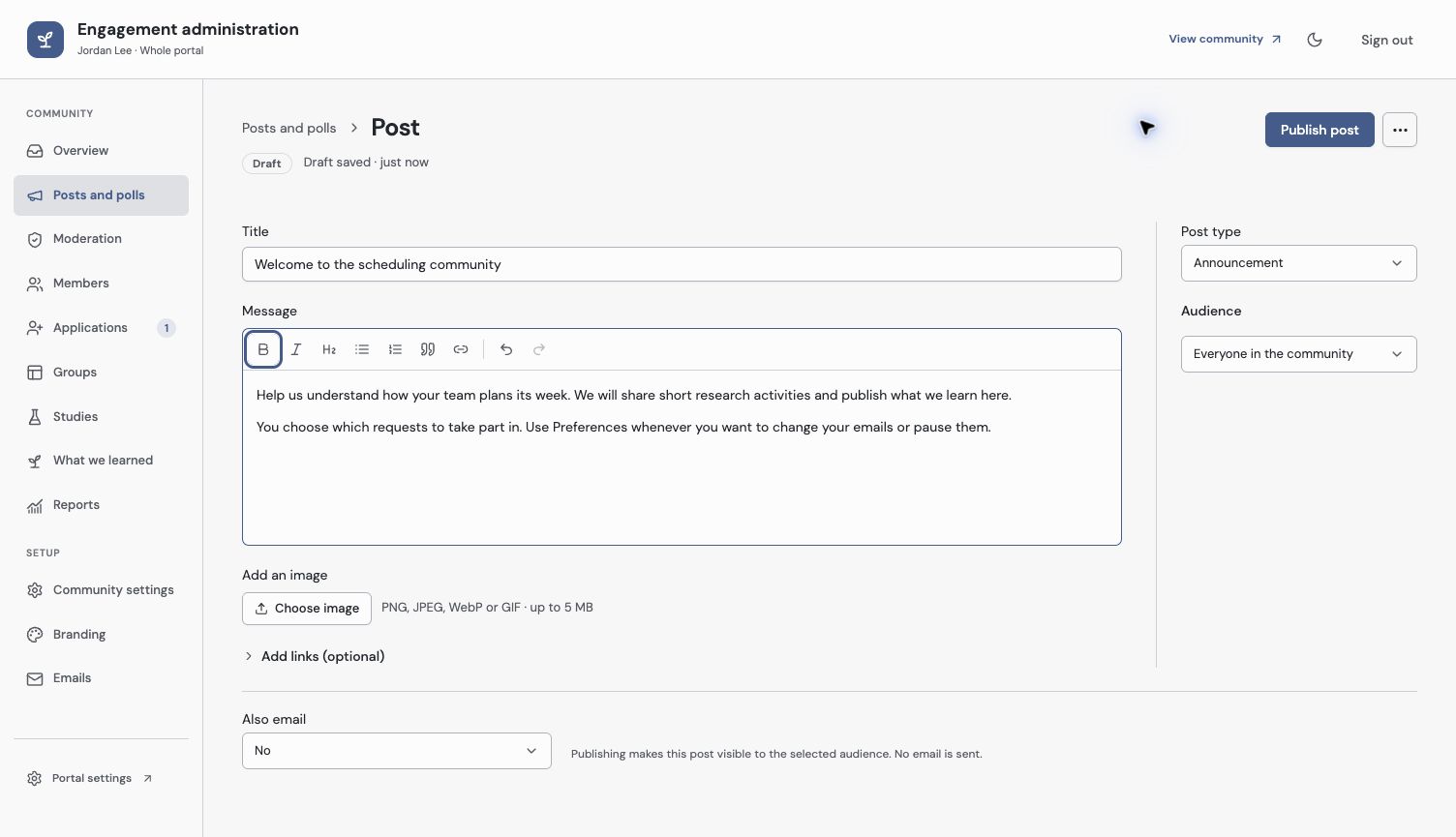
Review content and audience before publishing. This example publishes to the portal without sending email.
Maintain published content
Use Review draft / Manage post or the post’s management controls to reopen it. Review the current revision before saving a published edit. Pin content when it should remain easy to find; close replies when the conversation should stop accepting responses.
Changing audiences requires authority over both the existing and new audience. Changing content can invalidate a previous email/digest approval, so review those controls again before outreach. If your grant changed, historical authorship does not give you permission to edit the old audience.
Published polls accept one active vote per member while open. A member can remove their vote and choose again until closing; a revote is not another contribution. Members see aggregate results, not a list of who selected each answer.
Check the member result
Open the post with an eligible participant identity. Check the content, audience, images and available reply/vote controls. A staff page is not proof of what a restricted member can read.
If you want an email, separately review recipients and send it. To keep discussions appropriate, review moderation reports. When feedback should inform a product decision, capture it explicitly.
Troubleshooting
Publishing reports missing content or audience
A saved draft can be incomplete. Complete the fields the editor identifies, choose an audience covered by your current grant, then review again.
A colleague changed the post while I was editing
Reload the current revision and review it before saving. Do not overwrite a newer version from a stale editor.
Continue from here
Related guides
Did this guide answer your question?
Your response helps us prioritize missing or unclear documentation.
Still stuck?
Send your question to Zentrik support. This guide will be included automatically.