Use the KPI dashboard and its records to understand recorded participation within your current scope.
Before you start
Open Reports in portal administration. Your current grant determines which groups and records you may inspect. Internal Study permissions can narrow research-related detail further.
A participation total describes recorded activity under a definition and period. It is not a quality score, a promise of response, or proof that a product decision was correct.
Start with the KPI dashboard
- Choose Portal engagement for the community view or My impact for the available personal attribution view.
- Choose the report period and group filter. Read the selected date window before comparing two views.
- Inspect Members engaged, Invitations accepted, Posts with responses, Study completions and Live interviews.
- Review invitation acceptance, engagement by group, ranked posts/Studies and latest activity.
- Select a total or list entry to inspect the records that explain it.
The dashboard is the Reports landing page. Detailed records is a secondary view for inspecting participation and operations; its controls do not replace the dashboard.
A member can belong to more than one group. Group totals can overlap, while a portal-wide total deduplicates people. Do not add group percentages or counts to invent a portal total.
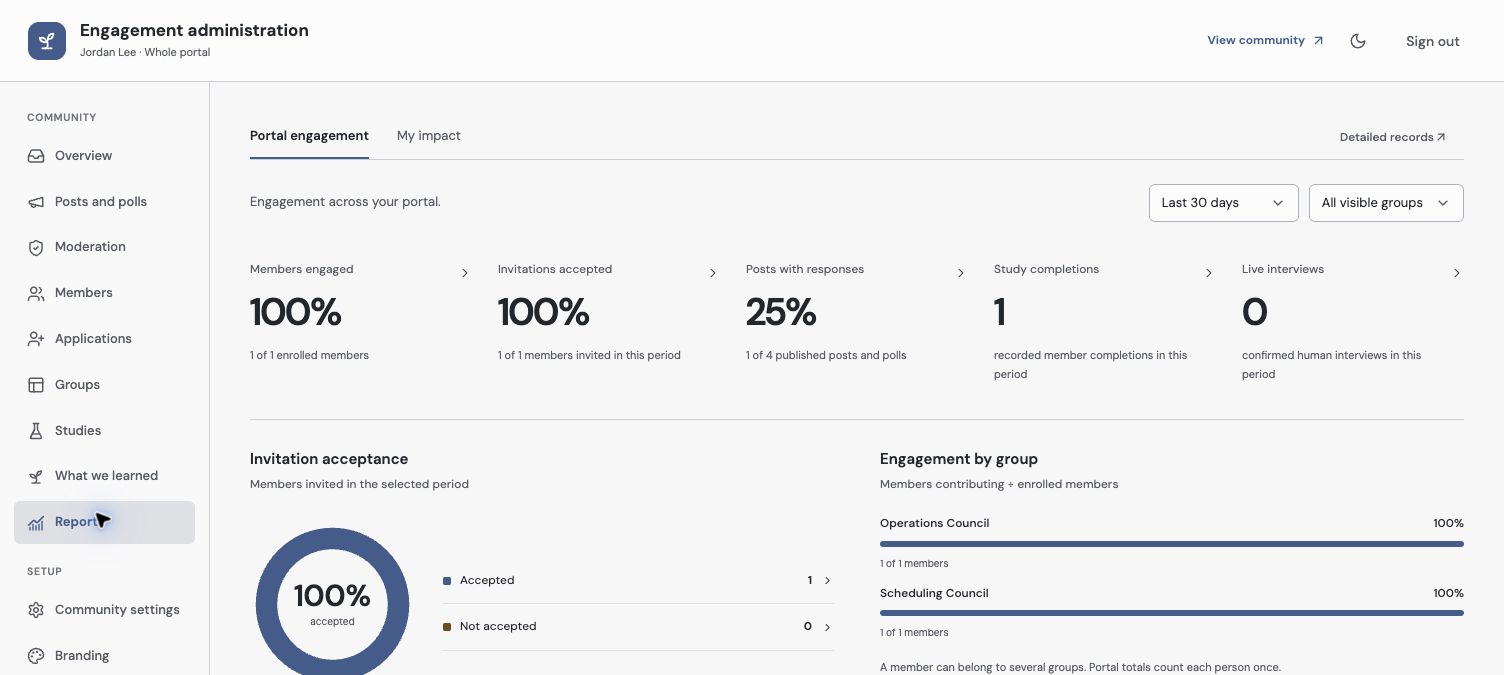
Start with the KPI dashboard and its filters. Group populations can overlap; the portal total counts a person once.
Read definitions before drawing a conclusion
Use How this is measured and the relevant record view to check the actual numerator, denominator, time window and exclusions. An unavailable percentage is different from zero activity. For example, a response rate without delivered requests has no established delivery denominator.
Confirmed completed human interviews can contribute to current interview reporting. Planned, future, AI-moderated, unconfirmed, excluded and deleted conversations do not establish confirmed human attendance. Interview attribution uses current Study distribution/ownership rules; do not assume every metric is an immutable historical assignment.
Community contribution history can retain event-time attribution. Enrollment counts use current membership state, while recorded contributions refer to activity in a period. Those are different readings. Test/staff exclusions and internal Study visibility can also make an aggregate differ from a member’s individual activity history.
Public Study responses are reported separately from community member participation. Completing a public Study does not establish engagement enrollment.
Inspect records and exports
Open Detailed records when you need Participation or Operations detail. Apply its date, group and PM controls, then inspect the selected metric’s records. Read any scope or classification notes before interpreting missing records.
Use an available export only within your authorized scope. Check the exported fields, period and audience before sharing it. A historical contribution is not permission to reopen private content whose access has changed.
For one member, open their overview to inspect recorded contribution activity and its period. Member Settings owns configuration changes; activity history and group assignment are not the same screen.
Next, use Study findings and the underlying Evidence to interpret what participation taught you.
Troubleshooting
A percentage is unavailable
Inspect its definition and denominator. No delivered requests or no eligible population can make a percentage undefined; do not present it as zero.
Two administrators see different totals
Compare periods, groups, PM filters, current grants and internal Study permissions. Check whether one view includes overlapping groups or a differently scoped population.
An old contribution has no current content link
Retained history does not preserve current access. The source or its audience may have changed; do not bypass that boundary to explain a total.
Continue from here
Related guides
Did this guide answer your question?
Your response helps us prioritize missing or unclear documentation.
Still stuck?
Send your question to Zentrik support. This guide will be included automatically.