Skip to documentation

Teams and team access

Organize work with teams

Teams add an operating scope inside a workspace. Use them to decide who can see and change initiatives, Studies, Huddles, cycles, and tasks while keeping workspace membership and administration separate.

A workspace remains the boundary for the organization, subscription, integrations, API keys, and workspace members. A team is the operating boundary for the people and work inside that workspace.

Every workspace starts with one default team, so existing customers can keep working without reorganizing immediately. Create additional teams only when you are ready to separate ownership and visibility.

1. Understand the workspace and team model

Think of the two levels this way:

LevelControlsTypical administrator
WorkspaceMembers, workspace roles, settings, integrations, API keys, billing, and workspace identityWorkspace Owner or Admin
TeamOperational membership, team roles, and the work visible in that teamWorkspace Owner or Admin; Team Admin for that team’s details

A person first belongs to the workspace and then to one or more teams. Every workspace member must belong to at least one team. This prevents a valid workspace account from landing in an empty, unusable state.

Team membership does not replace workspace membership. Removing someone from one team leaves their workspace access and other team memberships unchanged. To remove workspace access entirely, use Settings → Workspace access.

2. Use the default team as the compatibility layer

The default team is created with the workspace and initially uses the workspace name. It owns:

  • existing initiatives and team-owned records when teams are first enabled
  • new work created without an explicit team
  • work created while the default team is selected

The default team is a real team, not an “all workspace” view. New teams do not automatically share their initiatives with it.

For example:

  • Creating an initiative while Team A is selected assigns only Team A.
  • Adding Team B later assigns Team A and Team B.
  • The initiative does not also belong to the default team unless someone explicitly adds it.

New workspace members join the default team unless they are invited directly into a specific team. A member can be removed from the default team after they belong to another team. The default team itself cannot be deleted.

3. Separate workspace roles from team roles

Workspace roles and team roles answer different questions.

RoleWhat it grants
Workspace OwnerWorkspace ownership and sensitive workspace-wide controls; can administer every team
Workspace AdminWorkspace settings, members, invitations, and every team
Workspace EditorDay-to-day product work; no workspace administration
Workspace ViewerRead-only participation; no workspace administration
Team AdminManage that team’s name and description and edit its work; does not grant workspace administration or access to workspace members
Team EditorCreate and update work in that team
Team ViewerView work in that team without changing it

A Team Admin can have a lower workspace role. Team Admin does not make the person a Workspace Admin and does not expose Workspace access, integrations, API keys, billing, or other workspace-wide settings.

Workspace Owners and Admins can always open Settings → Teams and administer team membership, even when they are not operational members of a team. This administrative ability does not add the team to their selector or automatically place that team’s work in their normal initiative view.

4. Create teams and manage membership

Open Settings → Teams.

To create and configure a team:

  1. Choose Create team and enter a recognizable name and purpose.
  2. Select the team in the left rail.
  3. Click the name or description to edit it in place.
  4. Choose Add member to search existing workspace members or invite a new person.
  5. Assign Admin, Editor, or Viewer for that team.

The members table can be searched and filtered by team role. Workspace Owners and Admins can change roles or remove members. A Team Admin can edit that team’s name and description, but cannot browse workspace users or change team membership unless their workspace role also permits it.

When an invited person does not yet have a Zentrik account, the invitation creates their workspace membership after acceptance. A writable team role receives Workspace Editor access; a Team Viewer receives Workspace Viewer access. Team Admin never elevates the workspace role to Workspace Admin.

Use Settings → Workspace access or Settings → Workspaces to review every workspace member, their workspace role, and all team assignments. Change the workspace role there rather than through the team role selector.

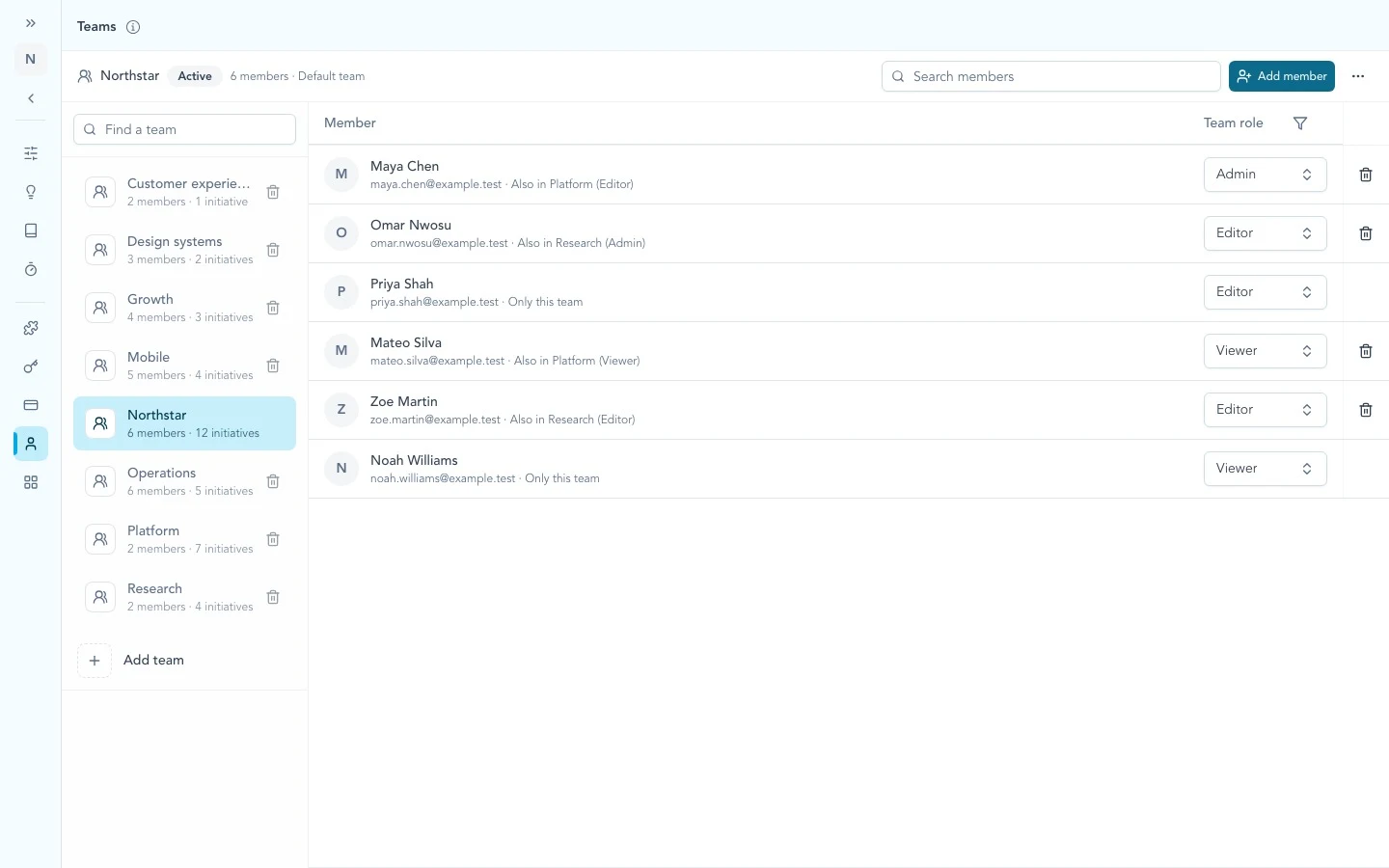
Teams settings rail with Create team, team search, member and initiative counts, and a selected team.

Use the Teams rail to create, search, and select teams. Each row keeps membership and initiative counts visible while you administer the workspace.

5. Choose the active team

The selector at the top of the main navigation lists the teams you belong to. Choose a team to make it the active operating scope.

The active team determines where new team-owned work is created and which team’s work is shown in team-aware views. Changing teams does not change work ownership; it changes the scope you are viewing and creating in.

The selector also provides shortcuts to team settings and, for Workspace Owners and Admins, workspace user management. If you belong to more than one workspace, switch workspaces from the user menu. The team selector never changes the workspace itself.

Workspace Owners and Admins can choose All workspace initiatives where that view is offered. It is a privileged view, not a team and not an assignment that makes initiatives visible to other members.

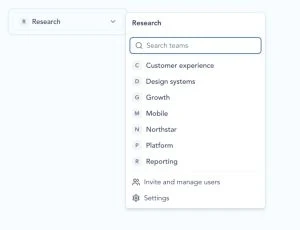
Open team selector with team search, available teams, Invite and manage users, and Settings shortcuts.

The active team stays in the navigation. Open the selector to search the teams you belong to or use the administration shortcuts available to your workspace role.

6. Know which work belongs to a team

Team scope follows the work, not only the navigation.

Initiatives

  • Every initiative belongs to at least one team.
  • Creation uses the selected team. Older clients or flows that omit a team use the default team.
  • Workspace Owners and Admins can change the assigned teams from the initiative properties.
  • An initiative can belong to multiple teams when the work is genuinely shared.

Studies

  • A Study linked directly or through an accepted link to an initiative follows that initiative’s team access.
  • Studies without an initiative relationship remain workspace discovery records.
  • The selected team filters initiative-linked Studies to the work available in that team.

Huddles

  • Huddles belong to one team and appear only in that team’s Huddle space.
  • Start the Huddle from the team that owns the meeting and its review queue.

Cycles and tasks

  • Cycles belong to one team.
  • Standalone tasks must have a team.
  • Initiative tasks follow access to their initiative and its assigned teams.

If shared work is moved from one team to another, update the owning team before removing old membership. This avoids making the record disappear from the people who still need it.

7. Understand MCP and API boundaries

MCP tools that read or change initiatives and Studies use the signed-in person’s team memberships. A tool can optionally target one accessible team; otherwise it uses the teams available to that person. It cannot use a team identifier to bypass membership.

Workspace API keys remain workspace-scoped. The team selected in the Zentrik navigation does not narrow an API key. Treat API-key holders and automations as workspace-wide integration principals, grant only the scopes they need, and rotate or revoke keys when responsibility changes.

See MCP setup and the REST API reference for authentication and scope details.

8. Roll out teams without disrupting current work

Use a staged rollout:

  1. Release the default team first. Existing workspace members and legacy team-owned work remain together in the default team.
  2. Keep normal work unchanged. While everyone uses only the default team, new initiatives, Huddles, cycles, and standalone tasks continue in the shared scope.
  3. Create the operating teams. A Workspace Owner or Admin creates the pods, product groups, or delivery teams.
  4. Assign people before work. Add each person to the teams they need with the least team role that supports their job.
  5. Move initiatives deliberately. Reassign initiatives to the right team or teams. Check linked Studies, Huddles, cycles, and standalone tasks as part of the move.
  6. Remove broad default-team membership last. Once a person has another team and their work has been reassigned, remove them from the default team if the shared scope is no longer appropriate.

Until steps 3–6 begin, members should experience the same shared workspace behavior they had before teams. The compatibility promise depends on keeping everyone and existing work in the default team during the first stage.

Troubleshooting

Check these steps against what you see in your workspace. If something differs, note your workspace name and the screen, then contact us.

A team is missing from the selector

The selector shows teams you belong to. Ask a Workspace Owner or Admin to add you, or confirm that you are in the expected workspace.

Remove member is disabled

The person belongs only to this team. Add them to another team first; every workspace member must keep at least one team membership.

A team cannot be deleted

The default team cannot be deleted. For another team, first move its initiatives, resolve its Huddles, cycles, and standalone tasks, and make sure every member also belongs to another team.

An initiative or Study is missing

Confirm the active team, your membership, and the initiative’s team assignments. An initiative-linked Study follows the initiative’s teams; a workspace Owner or Admin can use the all-workspace initiative view to diagnose assignments.

A Team Admin cannot manage workspace users

Team Admin controls that team and its work; it does not grant workspace administration. A Workspace Owner or Admin must manage workspace roles, invitations, and team membership.

Workspace switching is not in the team selector

The team selector changes only the active team. When your account has more than one workspace, use the user menu to change the workspace.

Continue from here

Did this guide answer your question?

Your response helps us prioritize missing or unclear documentation.

Still stuck?

Send your question to Zentrik support. This guide will be included automatically.

Ask Zentrik support