Give colleagues whole-portal or selected-group administration using their Zentrik accounts.
Before you start
Use a workspace Owner or Admin account to change grants in Settings → Portal → Engagement. Select the correct community before changing anything. The colleague must be an active, named member of that workspace; a customer Person or a service member is not a staff sign-in identity.
A workspace role and a portal grant have different jobs. Workspace Owners and Admins manage portal configuration and grants. An active colleague can use a granted administration scope without becoming a workspace Owner or Admin. Their customer Person record, group membership and participation consent are separate.
Customer SSO is not required for staff administration or for active workspace members to authenticate as participants. The colleague uses their Zentrik account; the invitation and consent needed for participation remain separate.
Grant the required scope
- Open the selected portal’s Administrators tab.
- Under Access, choose Whole portal or the intended group.
- In Workspace members, select the colleagues who need that scope. Check email addresses when people share a name.
- Select Grant access with the selected count and check the access-granted confirmation. Grants save immediately; they do not wait for the Access tab’s Save button.
- Have the colleague open administration with their own Zentrik account:
- If they can open Settings → Portal → Engagement, select the community and choose Open portal administration.
- Otherwise, share the administration URL: the portal address followed by
/engagement/admin, such ashttps://acme.ideas.zentrik.ai/engagement/admin. - Use Sign in with Zentrik if prompted. An existing Zentrik session may open administration directly.
A whole-portal administrator manages all groups and community settings. A group administrator manages the assigned scope; portal-wide settings such as Branding, Community settings, Emails and unassigned applications require whole-portal authority.
If a colleague needs two groups, grant those groups explicitly or choose Whole portal only when that broader authority is appropriate. The picker excludes people who already have the selected grant.
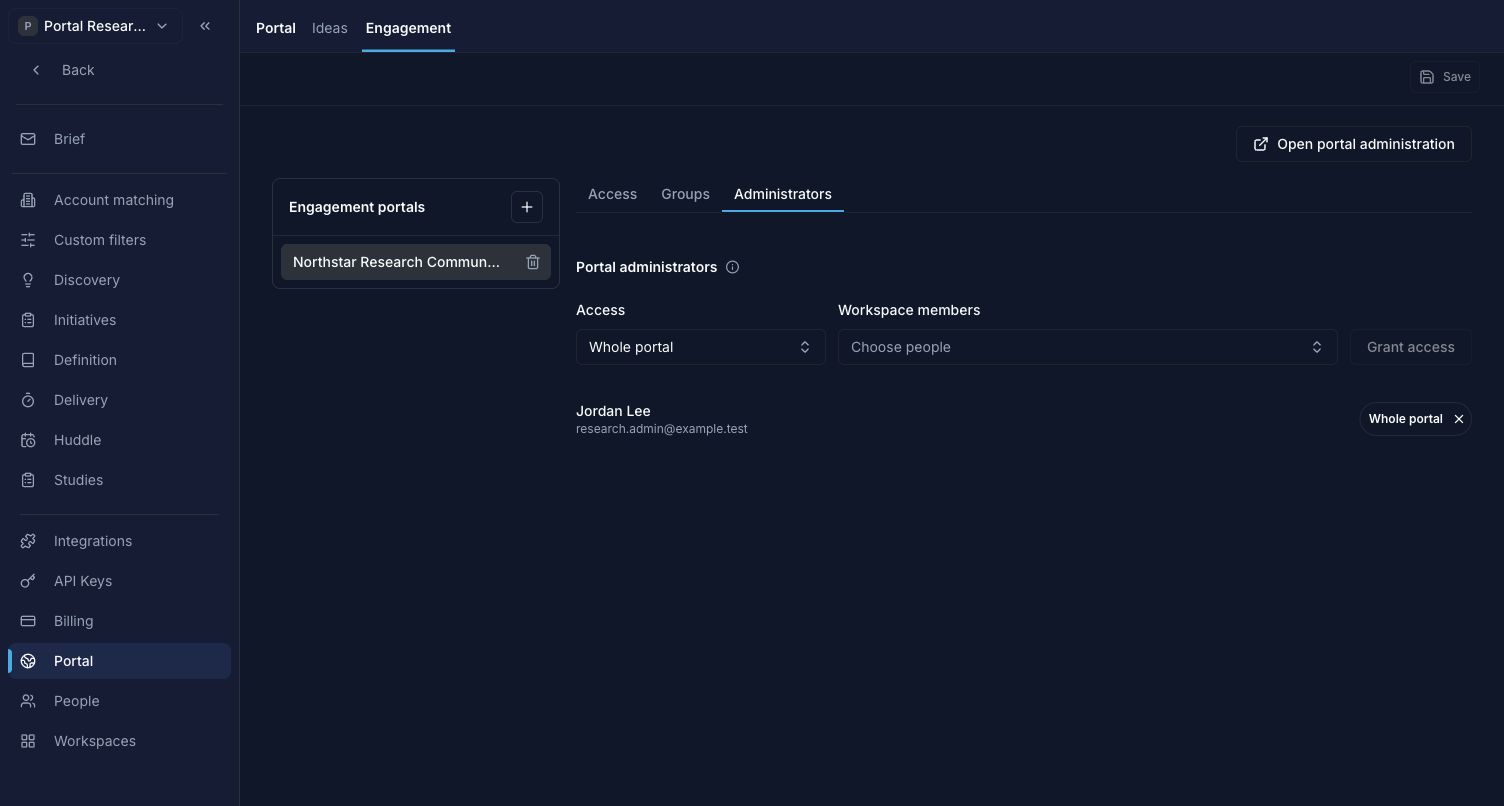
Choose the scope before selecting colleagues. Grants save immediately, independently of the Access tab’s Save action.
Change or revoke access
Review the scope badges beside the colleague. Use the revoke control for the scope you want to remove. The change saves immediately and invalidates existing staff sessions for that person in the portal. Someone retaining another grant can sign in again with their remaining scope.
Removing a workspace membership or deactivating the user also prevents staff access. Do not rely on an old open browser tab as evidence of current authority; each protected action checks current access.
Assigning someone as a group’s accountable owner does not create an administration grant. If you want them to administer it, grant that scope first.
Check the result
Have the colleague open administration with their own Zentrik account. Confirm the header identifies Whole portal or Assigned groups as intended. Check a permitted group and confirm unrelated groups are not available.
To participate as well, invite the colleague’s Person using their Zentrik email and have them accept their personal member invitation. They can choose Sign in with Zentrik without customer SSO. View community opens a member session as themselves; it does not accept consent or inherit their administrator access to every group. In that session they see only what their member enrollment and current groups permit.
After revocation, retry a protected page or action in the existing session. The colleague should need to sign in again and should retain only the remaining grants. Customer invitations, enrollment and email consent are unaffected by staff grant changes.
See the access reference for permissions and workspace access for inviting internal colleagues.
Troubleshooting
A colleague is missing from the picker
Check that they are an active human member of this workspace, that the selected scope is correct, and that they do not already have that grant.
A group administrator cannot share a Study
Portal authority does not grant access to the internal Study. Check their Study/team permissions as well as their complete intended group audience.
Continue from here
Related guides
Did this guide answer your question?
Your response helps us prioritize missing or unclear documentation.
Still stuck?
Send your question to Zentrik support. This guide will be included automatically.