Keep unresolved product questions with the idea or initiative they affect. Ask a teammate for an answer and follow up from Definition or your Inbox.
Add a question when the team needs an answer to make a decision. For example, on a scheduled reports idea, ask which customer segment to pilot with. The saved answer stays on that idea for the team to refer to later. You need edit access to add, assign, or answer questions.
Find questions
| To see | Where to go |
|---|---|
| Questions on one idea or initiative | Open the record. In its header, choose Definition → Questions. |
| Questions across ideas and initiatives | From the workspace navigation, open Definition, then select the Questions tab. |
The workspace view opens on For you, which shows open questions assigned to you. Use All open to see open questions on records you can access, Set aside to revisit questions put on hold, or Resolved to find answered questions and those marked Not relevant. Select a question to work on it, or select the idea or initiative name above it to open the record.
Add a question
- Open Questions on the idea or initiative the answer will inform.
- Select Add question. If the list already has questions, use the plus button above it.
- Write what the team needs to know and select Add question. It appears under Unassigned on the record.
When Generate questions is available, Zentrik can suggest questions from the record’s context. Review the suggestions before assigning them.
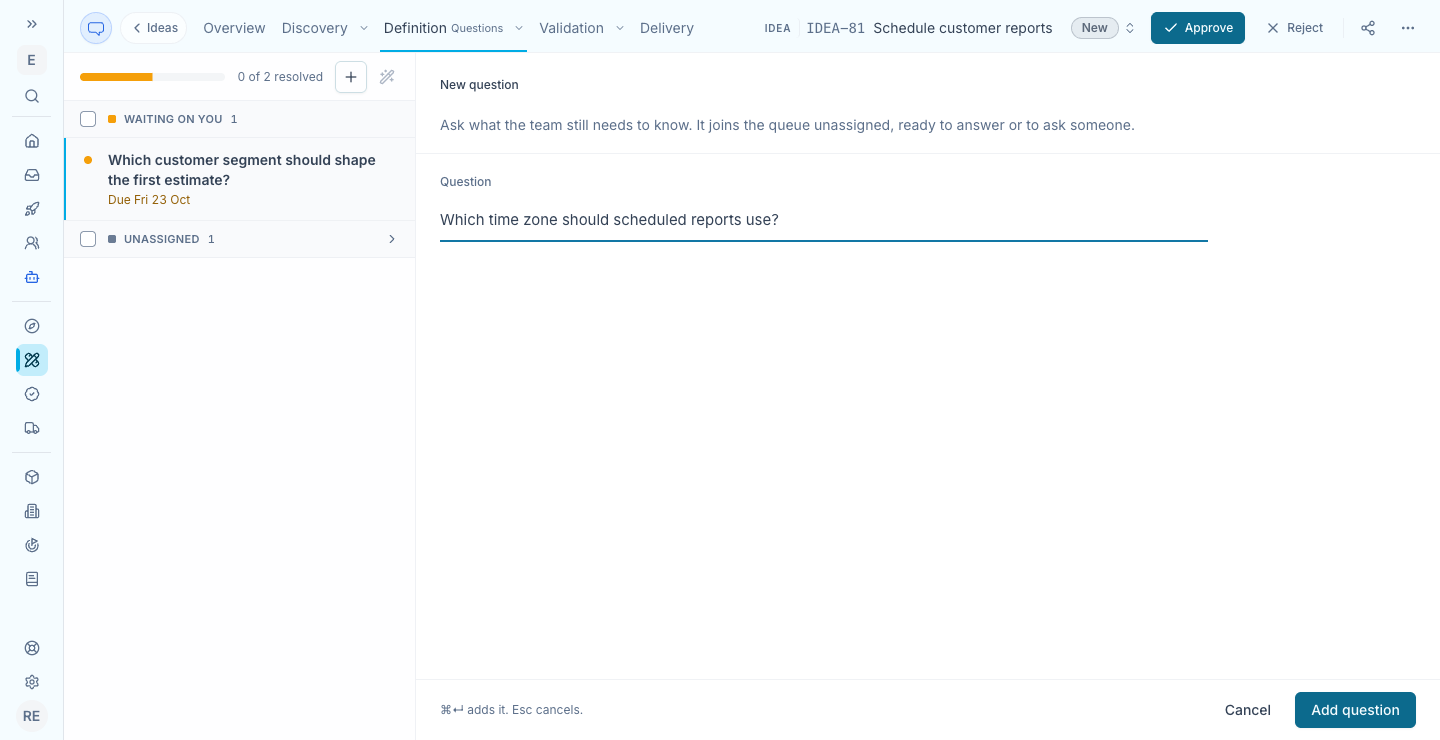
A new question on the Schedule customer reports idea.
Assign a question
- Open an active question and select Assign or Ask a teammate. If someone already has it, select their name or Ask someone else.
- Search for a teammate and select their name. This assigns the question immediately. Each question can have one assignee, and teammates with edit access can still answer it.
- Add a due date or a note if helpful, then select Done. The question appears in the assignee’s Inbox. They may also get an email, depending on their email preferences.
To ask the same person several questions, select the questions on the idea or initiative and choose Ask a teammate.
If a teammate is missing from the picker, check their workspace edit access and, for a team-owned initiative, their team access. Workspace owners and admins can use Invite someone new when it appears. To clear an assignment, open the assignee control and choose Unassign.
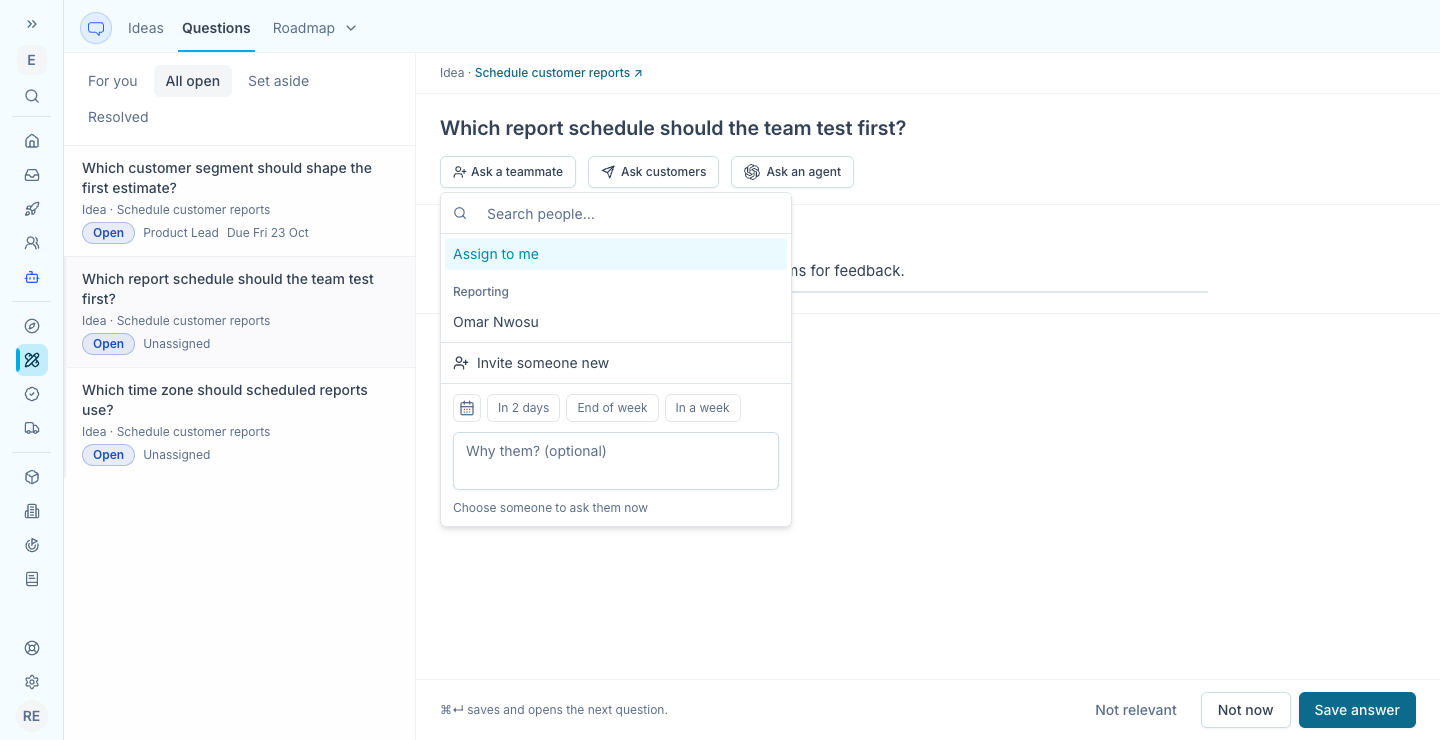
To take the question yourself, choose Assign to me in the same picker.
Answer or set aside a question
- Select the question. Review Why we ask and any customer evidence when they appear.
- Write your answer. If Zentrik offers a suggested answer, review and edit it before saving.
- Select Save answer. Find it again in Resolved on the idea or initiative, or in Definition → Questions → Resolved. Use Edit answer to revise it.
Choose Not now to move a question to Set aside. Select Bring back when it’s ready for an answer. Choose Not relevant to resolve it without an answer. You can Reopen a resolved question if the team needs to revisit it.
If you need customer input, select Ask customers to start a study from the question. Responses can appear as evidence on the question for your team to review before saving an answer.
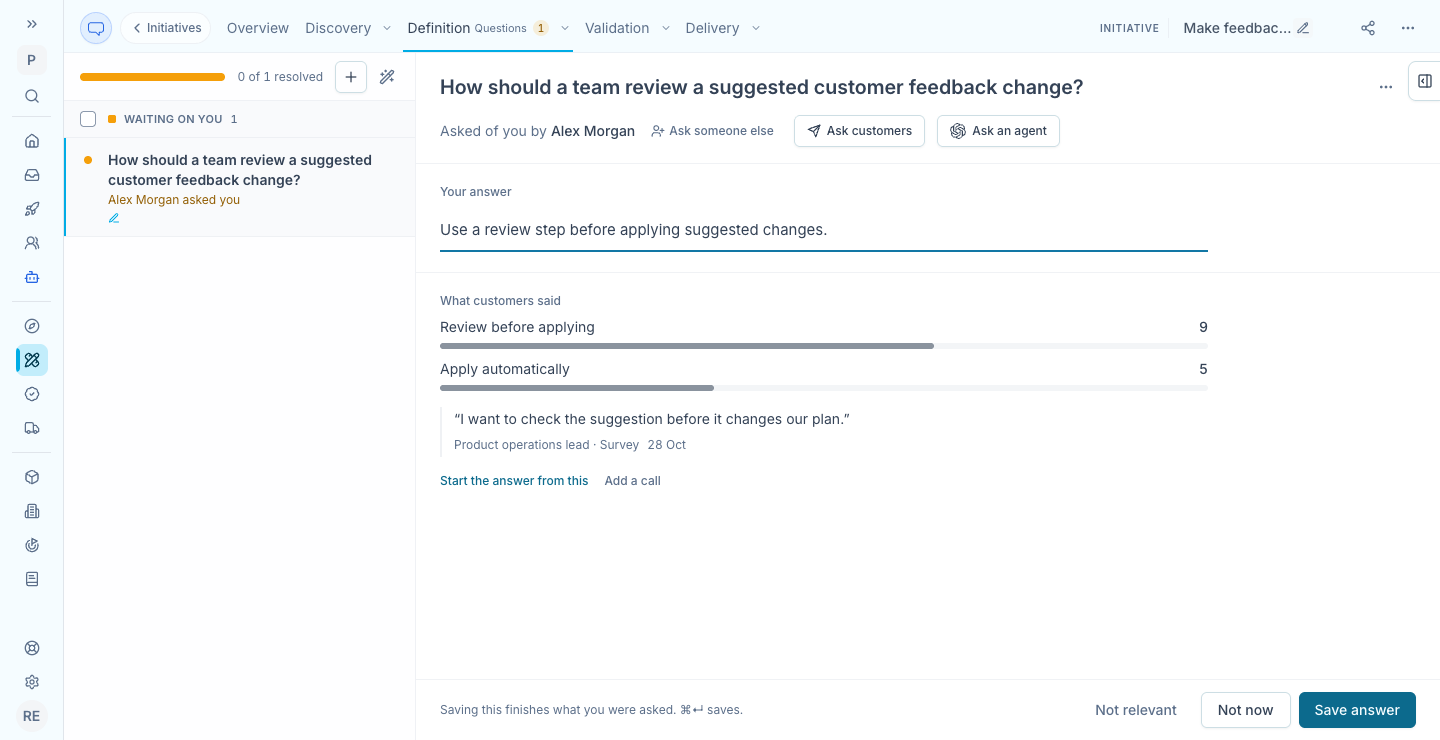
This question shows how 14 survey participants chose between two options.
Follow up in your Inbox
Open Inbox in the workspace navigation. Under Waiting on you, select a question assigned to you to answer it there. You may also see unassigned questions on an idea you own.
Under Came back on your work, look for answers to questions you asked or to questions on an idea or initiative you own. Select Open the question to see the answer on its record. Use Definition → Questions when you want to review the wider list.
Follow an idea or initiative to see new unassigned questions from teammates in your Inbox.
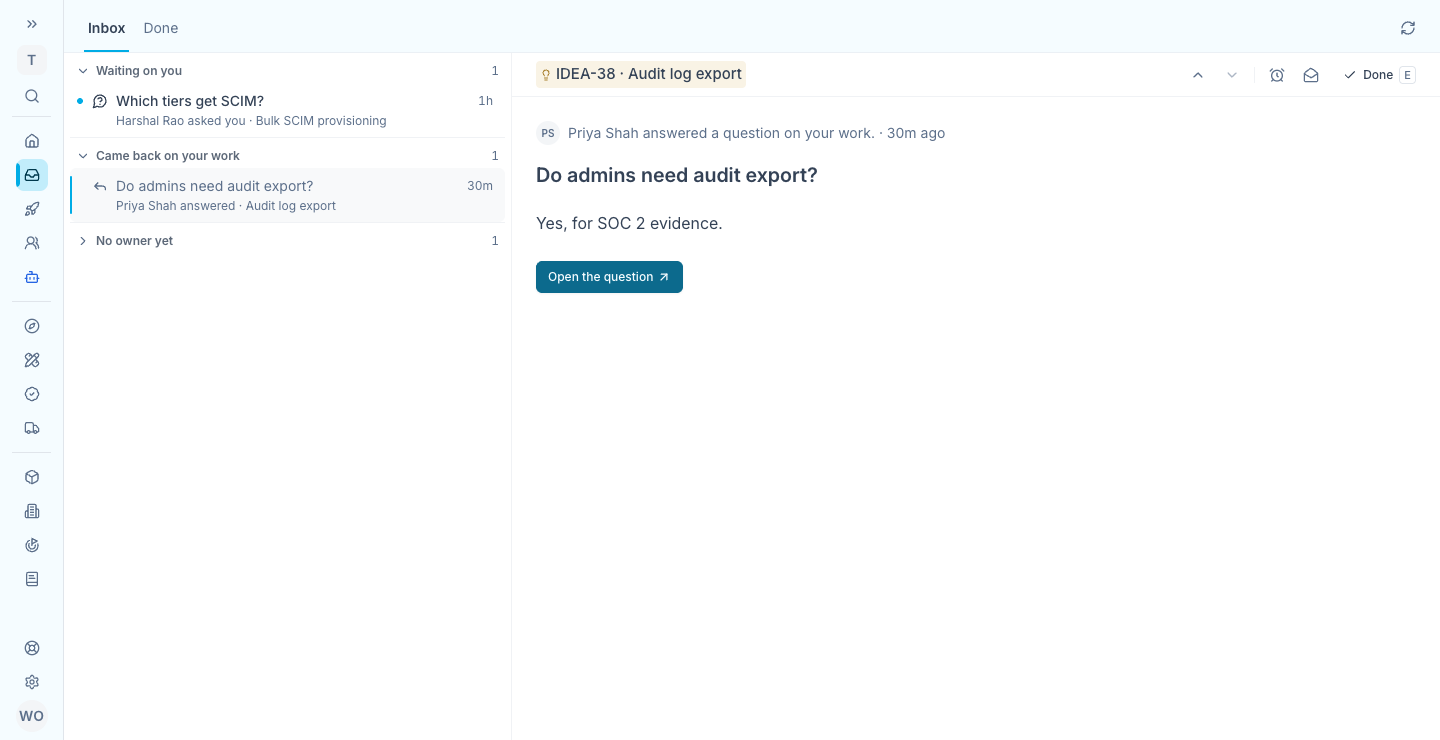
This answer came back on the Audit log export idea.
Continue from here
Related guides
Did this guide answer your question?
Your response helps us prioritize missing or unclear documentation.
Still stuck?
Send your question to Zentrik support. This guide will be included automatically.