Use Huddle to review customer evidence, check delivery, and assign the next actions with your team.
A Huddle is the shared meeting workspace for one team. It brings the team’s goals, customer evidence, delivery state, current focus, and unresolved actions into one review. It covers the initiatives owned by the selected team; it is not a tab inside one initiative.
To find it, select a team in the workspace sidebar, open Initiatives, then select the Huddle view at the top of the page. Use Current for today’s working Huddle or History for an earlier saved Huddle.
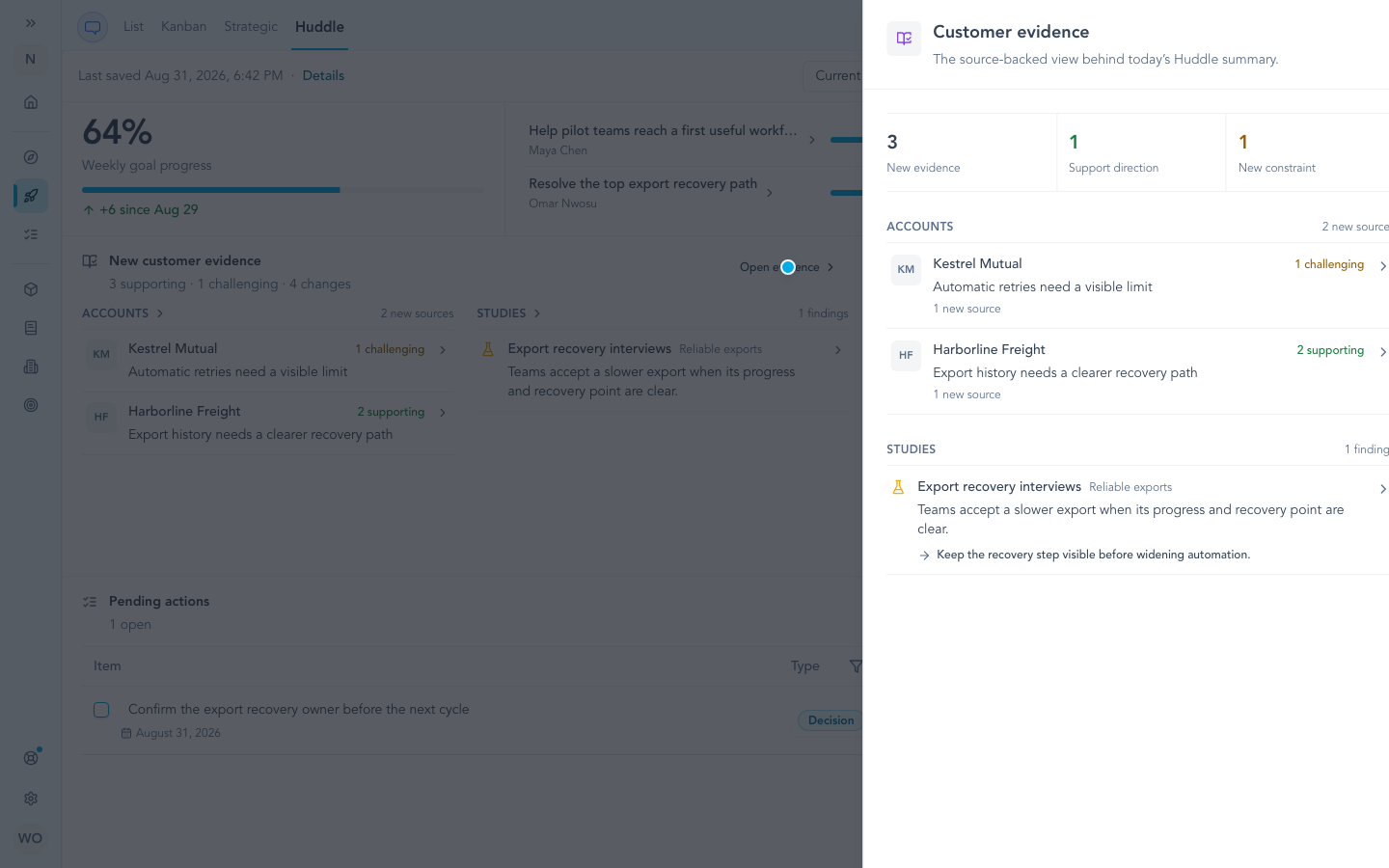
Find Huddle at the top of Initiatives. Open a widget to inspect the source-backed detail before the team records a decision. Example data shown.
Before you start
Choose the team whose work you want to review. Huddle uses that team’s initiatives, goals, evidence, Studies, delivery data, and pending actions.
Team admins and editors can refresh the Huddle, change its shared layout, and manage meeting content such as the Focus checklist. Viewers can read the saved Huddle and open its supporting details.
Huddle can still open when a source is empty. Add dated goals, connect customer evidence to the team’s Definition or In Progress initiatives, and connect Jira or Linear when you want those provider widgets to show live delivery data.
Find and open your team Huddle
- Select the team you want to review in the workspace sidebar.
- Open Initiatives, then select the Huddle view at the top of the page.
- Choose Current for today’s working Huddle. Choose History when you need an earlier saved date.
- Check Last saved. Select Refresh Huddle when you need an updated read of the connected work.
- Open a widget’s details or source links before making a decision.
The first visit prepares that day’s Huddle. Refresh updates the same daily record. Comparisons name the earlier Huddle used as the baseline; without an earlier snapshot, Huddle shows no baseline rather than assuming zero activity.
Run the review
The default Overview starts with four widgets:
| Widget | Question to answer |
|---|---|
| Goals | Are the team’s dated goals moving, and which goal needs attention? |
| Customer evidence | What new evidence or reviewed Study finding supports, qualifies, or challenges the work? |
| Delivery | What is moving through the current cycle, blocked, at risk, or unassigned? |
| Pending actions | Which blocker, decision, or follow-up still needs an owner or resolution? |
Open the relevant row, detail view, or source link before the team records a decision. Add Focus, Sentiment, Direction, Accounts Evidence, or a connected Jira or Linear widget when the meeting needs a different question. Huddle widgets and settings lists every widget, its data, and its configuration.
Customize the workspace
Use Add widgets for the active tab. Use Customize to move and resize widgets, open widget settings, remove a widget from the tab, or reset the tab’s layout.
Use the tab strip at the bottom to create, rename, reorder, or remove shared team tabs. Each tab keeps its own widgets, positions, sizes, and view settings. The team shares those changes across devices; only the tab you currently have selected remains personal to this browser.
In Settings → Huddle, authorized users can choose manual or automatic preparation and manage the workspace default layout. Follow Customize your Huddle for every layout, tab, scheduling, sharing, and recovery option.
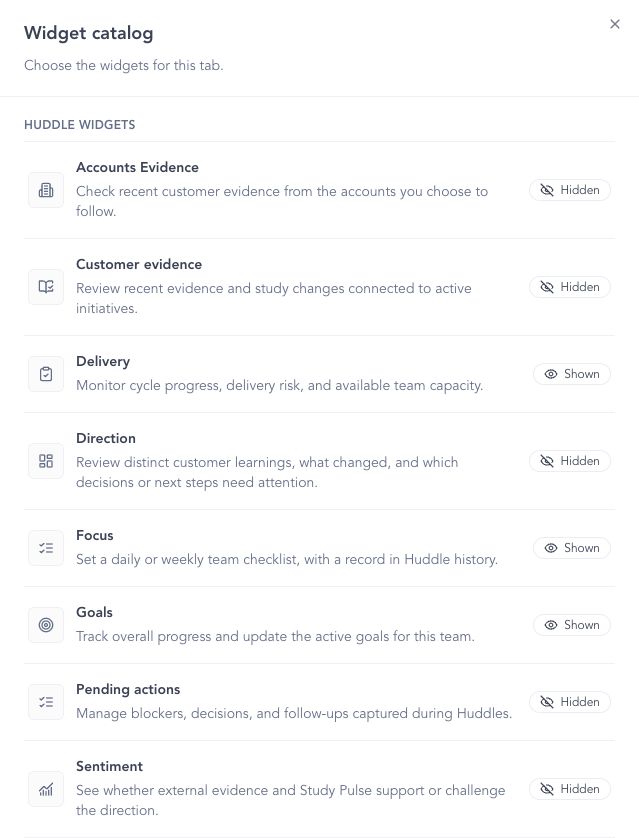
Use Add widgets to choose the questions that belong on the active team tab. Connected Jira and Linear widgets appear when those providers are available.
Capture decisions and follow-ups
Use Pending actions to keep unresolved work visible after the meeting. Assign an owner and expected resolution date, then mark the item resolved when it is done. With grouping enabled, editors can use Add blocker, Add decision, or Add follow-up within the corresponding section.
You can also use Add transcript to bring meeting discussion into Huddle, or Talk through decisions to work through the discussion. Review proposed actions before accepting them. A Direction recommendation becomes a pending action only after an explicit add.
Removing a widget or tab changes the team’s shared view; it does not delete the team’s goals, Focus items, or pending actions. Editing a shared record updates the same team data wherever it appears.
Read Current and History correctly
The menu beside Huddle switches between Current and History. These are different from the shared team tabs at the bottom. History lets you open earlier saved team Huddles; layout changes do not rewrite those snapshots.
Later changes to goals and pending actions do not rewrite their earlier saved state. Focus history preserves the recorded checklist for the selected day’s period.
Accounts Evidence and connected provider widgets read live data. Treat them as current information even when reviewing an earlier date. Direction’s historical assessment is saved, while its Insights & ideas context reflects current links.
Troubleshooting
I cannot find Huddle
Select a team in the workspace sidebar, open Initiatives, then select the Huddle view at the top of the page. Huddle is a team view across initiatives, so it does not appear inside an individual initiative record.
I cannot edit shared content
Check the selected team and your membership. Team admins and editors can edit the current Huddle; viewers can read it. Historical views preserve the saved record, so return to Current for today’s work.
A widget is empty
Open the widget details and check its source. Goals need active dated team goals; Customer evidence and Direction need linked evidence or reviewed Study findings; provider widgets need a connected Jira or Linear source. Empty data is not treated as a positive or negative result.
Continue from here
Related guides
Did this guide answer your question?
Your response helps us prioritize missing or unclear documentation.
Still stuck?
Send your question to Zentrik support. This guide will be included automatically.