Ask participants to rate the study, tell you how a task felt, or mark the exact spot they want to discuss.
Open a Prototype study you can edit. If you still need to connect your prototype or install its study script, follow Test a prototype.
Ask for a five-star rating
The optional five-star question, also called Study Pulse, starts off for prototype studies. You can ask as soon as someone tries the part you care about, even if they leave before the end.
- In Configuration → Thank you, find Closing rating and select Set up. For an existing question, select Change.
- Switch Study feedback on. Under What are you measuring?, choose what participants will rate. If prompted, select the linked initiative, feature or product. Enter the Rating question and an optional Follow-up, then select Save feedback.
- Under Ask the rating, keep After the last step, or pick After a step I choose and select the step. For example, ask for a rating just after someone reschedules a booking.
- To ask when an action happens inside the prototype, choose When the prototype says so. Call
zentrikStudy.askFeedback()at that moment, or adddata-zentrik-study-feedbackto the button that should open the question.
Participants can also choose Rate this study after their first step or rate when the inactivity warning appears. A star tap saves the score immediately. They can add a comment or use Skip to leave the question unanswered. Once they rate, the guide stops prompting them.
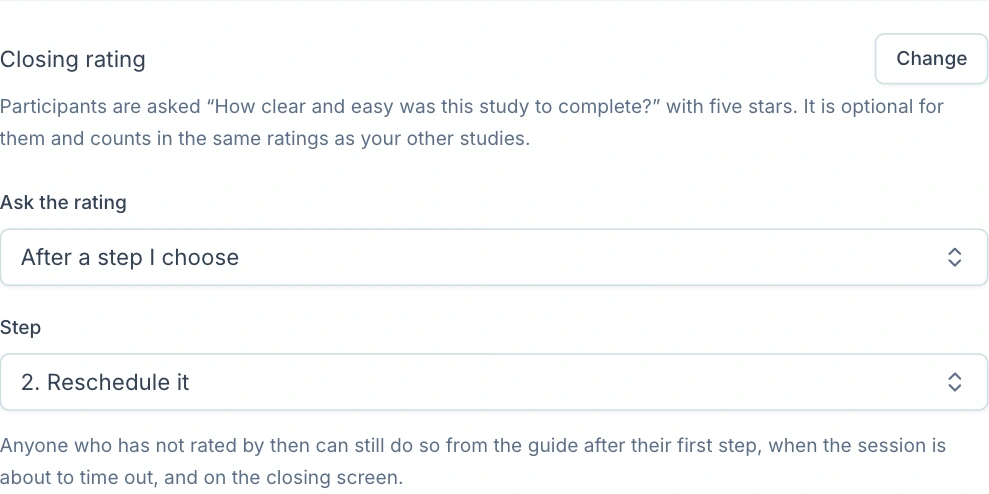
The Thank you panel controls when the question appears. Here it follows the rescheduling task.
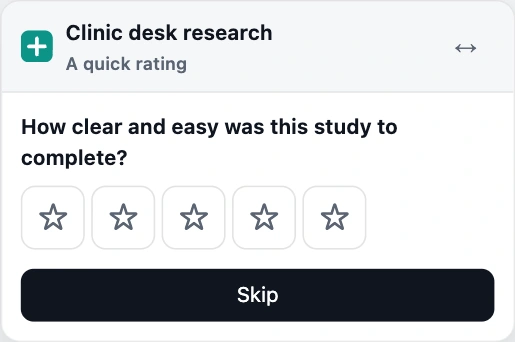
Participants can choose a star or skip. After a rating, they can add a comment.
Choose what participants can do
In Configuration, select Welcome to set up the guide participants see inside the prototype. Participants can use Share feedback for a general comment during a task.
| If you want to… | Choose |
|---|---|
| Set expectations before the test | Use Branding for the guide name, logo and accent color. Set a Time estimate in minutes. Turn on Practice step to let people try the guide before recording begins. |
| Collect feedback on a particular spot | Turn on Pinned comments. Participants choose Pin a comment, select a spot, type beside the numbered pin and select Save pin. They can reopen the marker on that screen to edit or remove it. A pin records the location and comment. |
| Learn which tasks feel difficult | Turn on Ease rating. After each finished task the participant can choose Easy, Okay or Hard, or skip. To help someone who gets stuck, select that task in Configuration and write a Hint. They can open it with I'm stuck, retry or move on. |
| Let participants dictate text | Turn on Speak instead of typing for supported browsers. The browser may send speech to its recognition service. Zentrik stores the text. Pinned comments use typed input. |
| Ask for contact details later | Set Ask who they are to After the last step for optional name and email. In Thank you, enable Offer to follow up to show Keep me posted. |
On a phone the guide sits at the bottom. Participants can collapse it and still see the current step and its main action. Progress shows completed and skipped steps. An inactivity warning gives people time to continue. After a timeout, Start again opens a new session. The closing screen summarizes the steps completed and time spent.
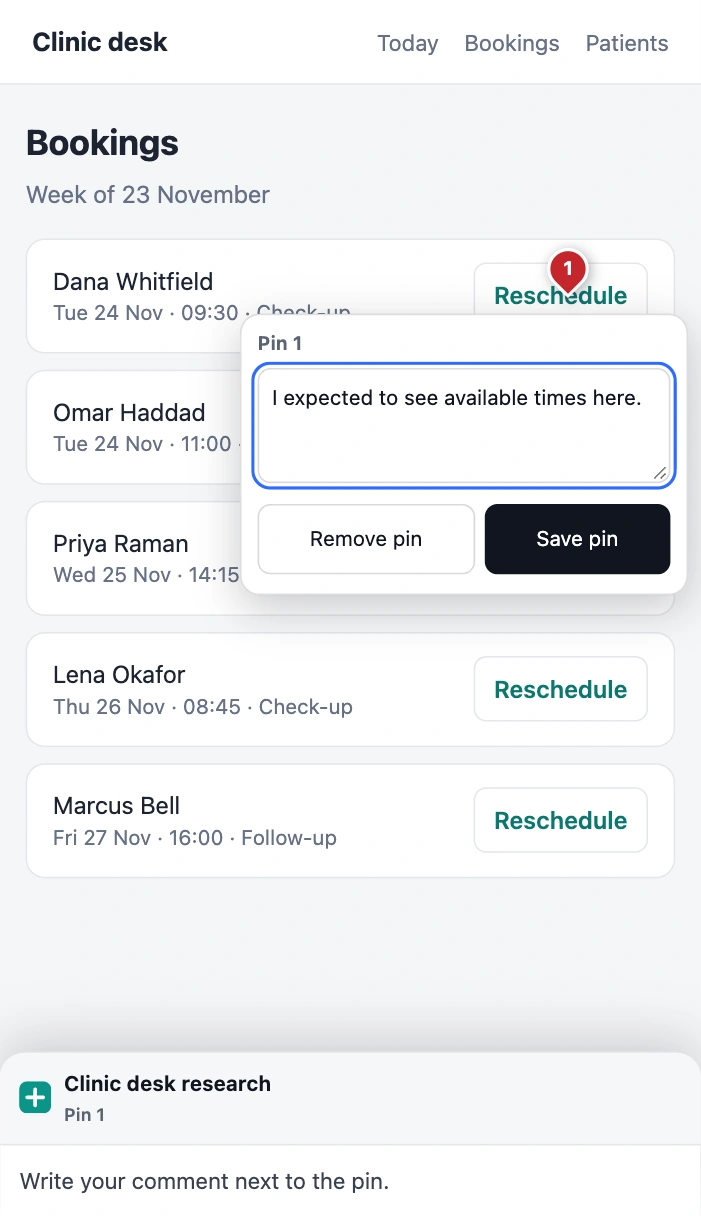
Select Save pin to keep the comment with this spot. Reopen its marker to edit or remove it.
Check what the study collected
Before sharing the study, open the participant link, complete the step you selected and try the rating. In Sessions, open the resulting session and look for Closing rating to see the score, question and any comment. Review pins alongside the task and interaction timeline. The study’s rating summary includes submitted ratings even if the session later times out.
For reporting, use the study ID with the Studies API to retrieve response records and saved findings. The response feed includes historical and partial standalone sessions with a recorded task run or interaction. It excludes declined sessions. Their response rows contain a session ID and timestamp. Use the session in Zentrik to read the star rating and comment. The per-study external feedback feed does not yet include them.
Continue from here
Related guides
Did this guide answer your question?
Your response helps us prioritize missing or unclear documentation.
Still stuck?
Send your question to Zentrik support. This guide will be included automatically.