Ask fixed questions, compare options, or test where participants click on an image.
Create the draft
- Open Studies → New and choose a self-guided study, or start from an idea or initiative’s Studies workspace.
- Name the study. State who will take part, what you need to learn, and which decision the answer will inform.
- Add participant steps. Use text, single-choice, or ranking questions for answers; use a Heatmap step with an image to learn where people click.
- Add any screenshot, prototype frame, or captioned YouTube, Vimeo, or Loom video the participant needs. For a heatmap, mark a target area only when there is an intended action.
- Add follow-up questions where an answer needs explanation. Welcome and thank-you pages and a closing rating are optional.
Ranking choices start unranked and randomized. Participants confirm the order they build. Keep the study focused on one question.
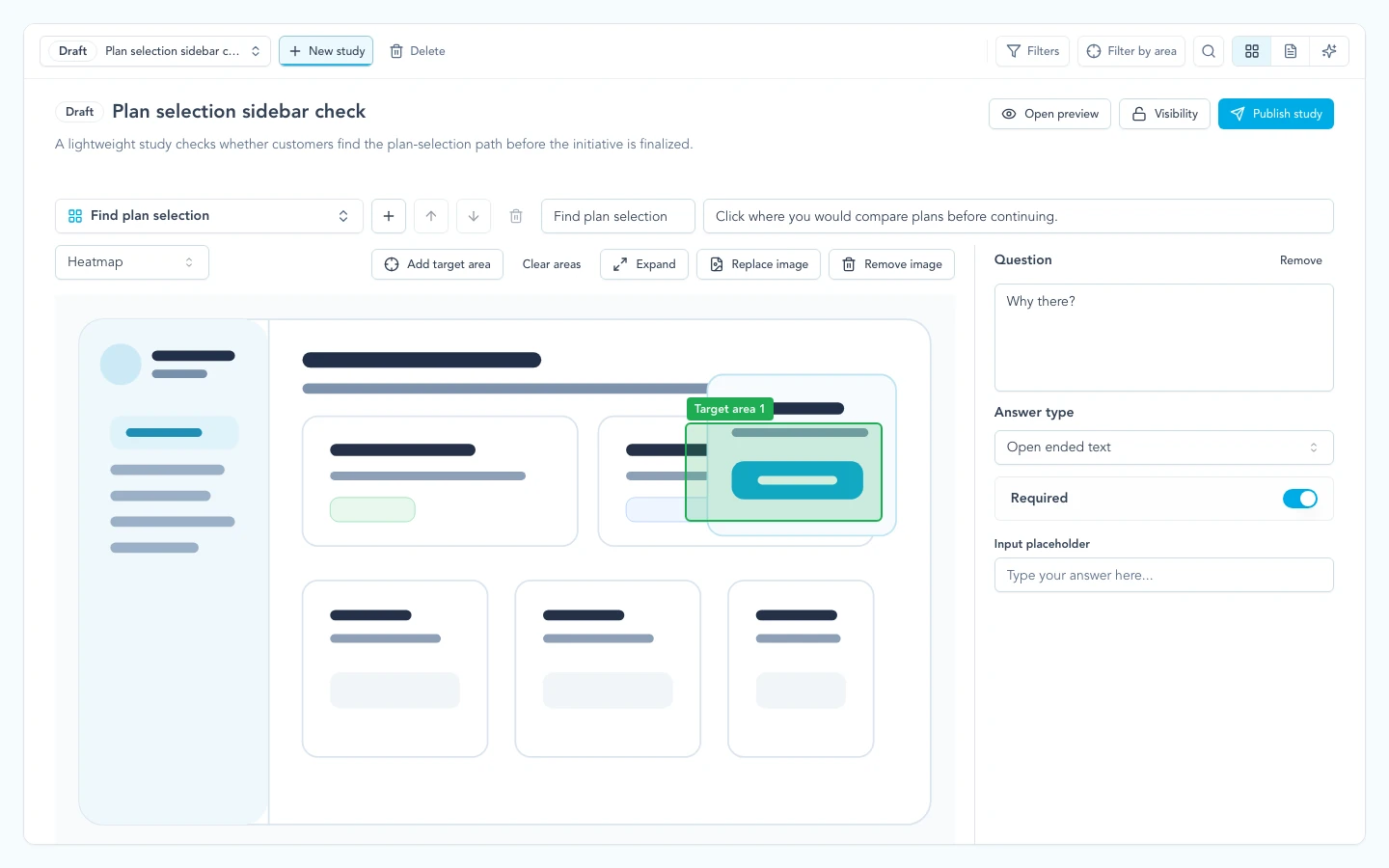
Draft setup keeps the goal, participant steps, prototype image, questions, and target areas in one idea-level workspace.
Connect linked work
Use Linked work to attach the ideas, initiatives, opportunities, or features the study should inform. A study must keep at least one linked item. Review suggested links before attaching or dismissing them; you can also search and attach work yourself.
Changing these links does not duplicate responses or rewrite findings.
Preview and publish
Preview the study before you publish it. Check the exact screen, question text, answer options, target areas, and step order.
Draft studies can be edited. Published study content is intentionally locked so responses stay comparable. If the prompt changes materially, clone the study or create a new one instead of editing live data.
Collect voice answers
Participants can answer open-text questions by typing or by selecting Speak inside the answer field. Voice is optional: the question and submission flow work the same way for participants who prefer to type.
The participant controls when recording starts and stops. While recording, the control shows elapsed time and clear actions to discard or finish. Zentrik then places the transcript in the normal answer field so the participant can review, edit, or replace it before submitting the study. In results, Transcribed from voice identifies how the answer began without changing how researchers read or use it.
Zentrik does not retain the audio recording after it is sent for transcription. The submitted response contains the reviewed text, not an audio attachment. Recordings stop automatically after two minutes to keep answers focused and uploads bounded.
If microphone access is denied, recording is unavailable, or transcription fails, the participant can retry or type the answer without losing the rest of the study. Voice answers currently apply to open-text questions; choice and ranking questions keep their existing interaction.
Check the result
After publishing, open the participant link and check the flow. As responses arrive, open Responses to inspect the answers. Continue with Review study findings.
Troubleshooting
Publish is blocked
Check every step. Visual heatmap steps need an image. Question steps need question text, and option-based questions need at least two options. AI-moderated studies also need a ready interview plan with its audience, decision, learning question, and required assets.
The target area is not useful
Use target areas only when there is an intended action. If the goal is broad comprehension or preference, ask a question instead.
The study has no responses
Confirm that the study is published, the share link is available for your workspace, and the right participant path is configured. Then send it to a smaller, more relevant segment before widening the audience.
A participant cannot record a voice answer
Confirm that the browser has microphone permission and that the study is opened in a secure browser window. The participant can allow access and retry, record again, or type the answer instead. A failed recording does not block the rest of the study.
Continue from here
Related guides
Did this guide answer your question?
Your response helps us prioritize missing or unclear documentation.
Still stuck?
Send your question to Zentrik support. This guide will be included automatically.