Build a study audience from the customers who asked for the idea, a panel your team keeps, or a pasted list, then invite them through the channel you already use.
Open a study and select Audience. The audience is the list of People the study is for. Zentrik suggests them and remembers who was invited when; it does not send the invitations.
Start with the people who asked
Suggested lists the People who voted for the study's idea, requested it, raised it in a conversation, commented on it, or answered an earlier study about it. Each row says why, and carries one status:
| Status | Meaning |
|---|---|
| Recommended | Asked for the idea and has not answered a study recently. |
| Answered recently | Answered a study in the last 14 days. Being asked without answering does not count. |
| Already gave input | In a validation study only: answered a study on this, or said it on a call. A validation checks what was learned with other people. |
| Another persona | Their role makes them a persona the study is not for. |
| In a meeting | One of several people on a call about it, so they may not have said it. |
| Related idea | Asked for an idea that shares its evidence. |
Select Add recommended to add every Recommended person. To add only the personas the study is for, choose that persona under Show first. Select rows to add anyone else. Your team's own members are never suggested.
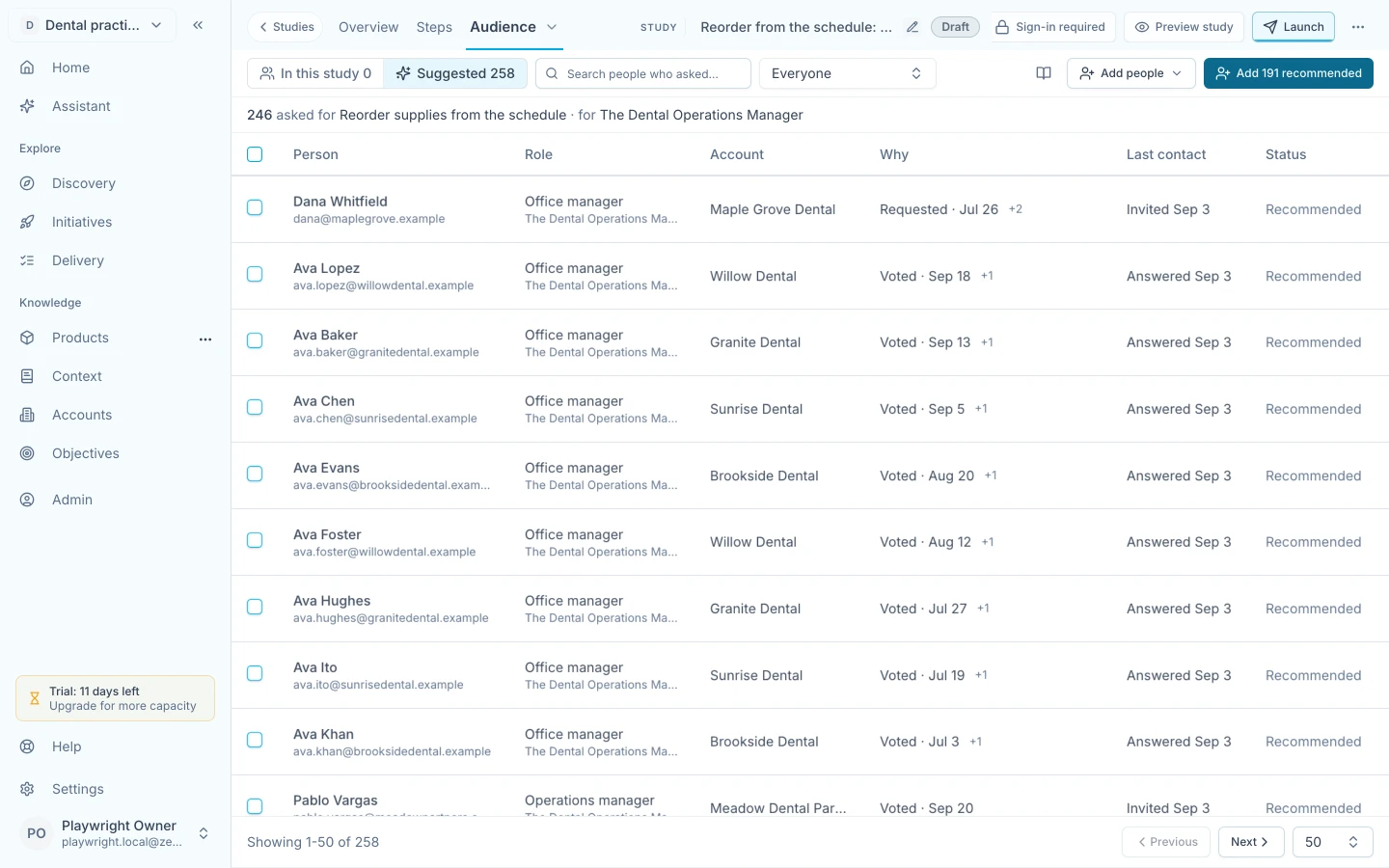
Each suggested person shows why they are here and one status. Add recommended adds the Recommended people.
Draw from a panel
A panel is a list of People your team keeps, such as a research community. Create one in Accounts → People from the Panels menu, then import a list into it, or select People and choose Add to panel.
In a study, open Add people → From a panel. You can keep only the study's personas, leave out people who answered a study in the last 14 days, leave out people who already gave input on this, and take a random sample. In a validation study, leaving out people who already gave input starts on. Every choice shows how many people it leaves before you add them. The panel is not linked to the study: archiving it later keeps everyone you added.
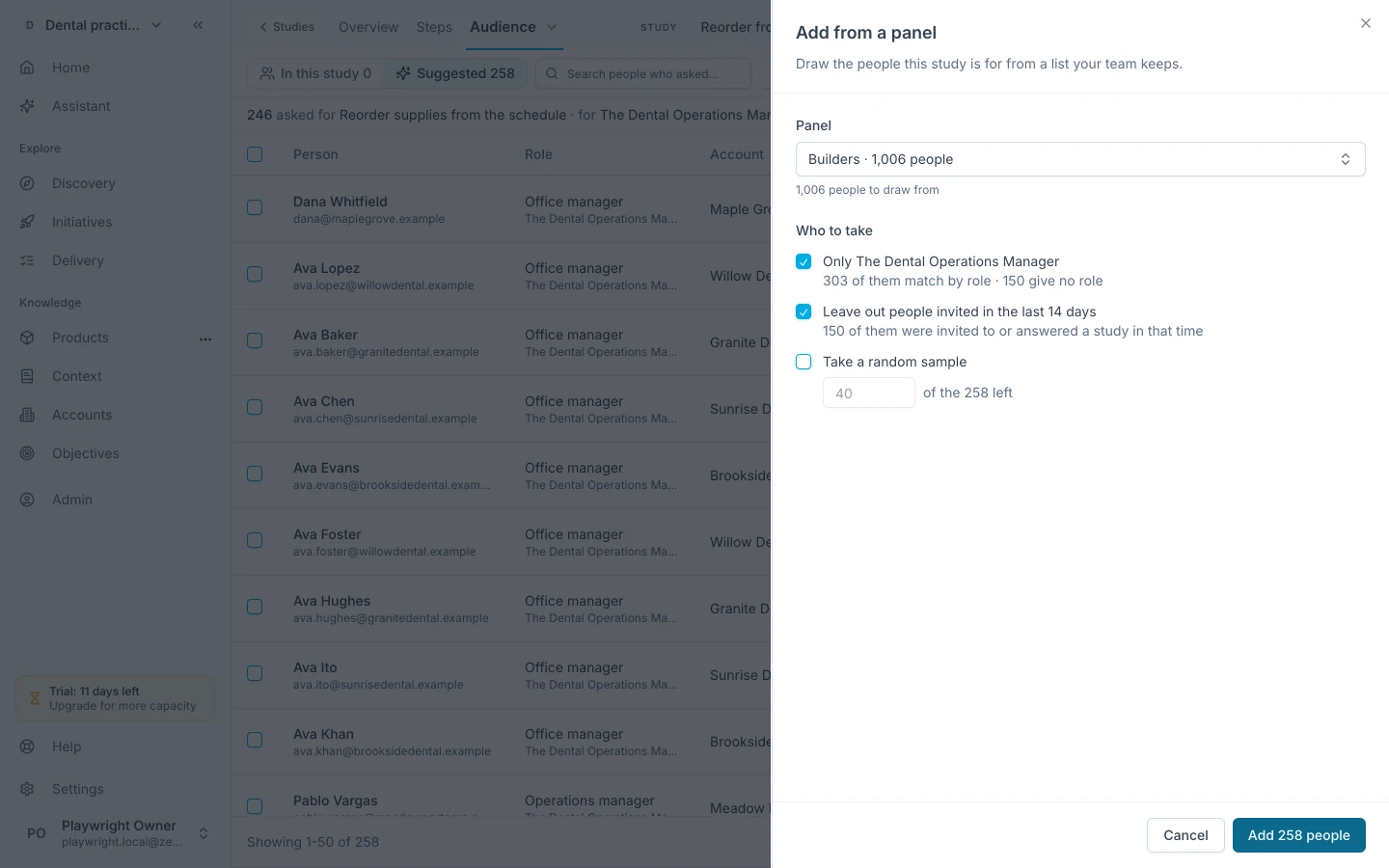
Every choice shows how many people it leaves before anything is added.
Paste a list
Open Add people → Paste a list and paste one email per line, or rows with a header such as email, name, role. Select Check list to see who is already in People, who will be added as a new Person, and which lines were left out. Colleagues are never added, and a pasted role only fills a Person's empty role.
To reuse an audience, open Add people and choose an earlier study on the same idea.
Invite the audience
Select Copy emails or Download CSV and send the study link through the channel you already use, such as email, Teams, or an in-app guide.
Everyone in the audience counts as invited on the day the study starts collecting. People you add while it collects count as invited when you add them. Removing someone after that keeps their invitation, so they are not suggested for this study again. Only answering a study counts toward the 14 days.
Being in an audience does not give access. The study's sharing settings still decide who can respond.
See who answered
Responses shows how many of the audience answered, overall and for each persona the study is for. Select not answered yet to open those people, then copy their emails to send a reminder.
In Accounts → People, the Last invited column shows when each Person was last invited to any study. Sort by it to find who has not been invited in a while.
Recognize personas by role
Open a persona in Products and add the roles that belong to it under Roles, for example Office manager for an operations persona. A Person whose role contains one of those roles is recognized as that persona in suggestions, panels, and responses. Seen in People lists roles your People already have that no persona covers yet.
A Person with no role is never treated as the wrong persona. Paste a list with a role column, or edit the Person, to fill it in.
Troubleshooting
Someone who voted is not suggested
They may already be in the audience, have answered this study, or be one of your colleagues. People known only by a product user ID, with no email, are not suggested yet.
Add recommended adds no one
Everyone who asked for the idea may have been invited recently, or already be in the audience. Open Show to see each status, and select people to add them anyway.
Continue from here
Related guides
Did this guide answer your question?
Your response helps us prioritize missing or unclear documentation.
Still stuck?
Send your question to Zentrik support. This guide will be included automatically.